1306 comments found.

Hi, I would like to set an overlapping text box with a white background.
I have the text (“individually sourced…etc) in place and have tried several ways of having the text background as white so that ‘cuts’ into the full width image below (green leaves) but cannot seem to achieve this…
Help please? Happy to send link to site in private message.
Try to set a white background color to the column container of the text to see if it works. Edit the column settings, select the Background tab to set the background color.
If it doesn’t work, please give me your WordPress admin login details so I can take a closer look. You can send a private message in the contact form below: https://themeforest.net/user/wyde#contacthave sent you private message 
Thank you for your message!
I’ve set the background color for that column and it seems to work great. I just also sent a screenshot to your email directly.
column is great. thanks!
Hi there. When accepting the terms and conditions in the cart, I see some (visual composer) code from the ‘Terms and Conditions’ page. How can I hide this? www.laurablagogee.com Thanks!
It shouldn’t show the code. Try to check your Terms and conditions page ( https://www.laurablagogee.com/terms-checkout/ ) to find if there is an invalid code or tag. Also, try to use the Text Block element instead of Text Widget to see if it works.
If it doesn’t work, I would recommend you to add the content by using Classic mode instead of the page builder.
It worked, thank you!
Hi there. Great theme, thanks! I am wondering how I can remove ‘additional information’ on the product pages. Thanks in advance.
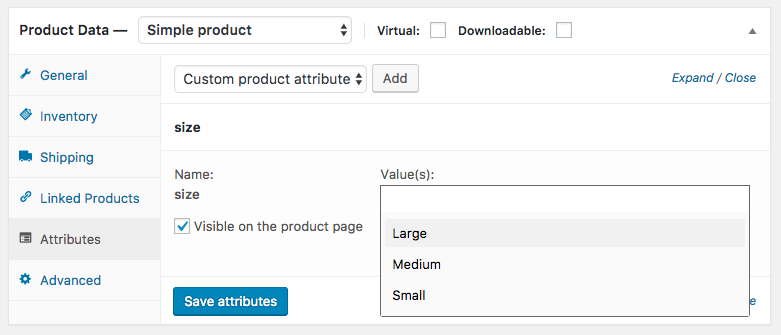
In the Attributes tab on product edit screen: https://docs.woocommerce.com/wp-content/uploads/2013/05/attributes6.png
Uncheck the box “Visible on the product page” to remove the additional information tab.
Thank you for your fast respond! It worked but how can I do the same for my other 2 languages (I am using WPML)?
Thank you in advance.
If you haven’t translated it to another language yet, when you translate it, all settings including the “Visible on the product page” option will be copied to the translated version too.
However, if you’ve already translated it to other languages, you will need to edit them one by one to uncheck that box and update the product.
Hi,
how to troubleshoot this? I was trying to upload the same theme to a sub domain but… this always happens after it finishes uploading
The link you followed has expired.
Please try again.
Here are some of the most common reasons for that error:
1. You selected an incorrect file when trying to upload a theme. If you download the main download package (“All files & documentation”), you will need to extract the zip file first, then install the file called “overlap.zip” inside the folder “WordPress Theme” to your WordPress admin. You can find more details on installing the theme in our documentation.
2. You reached your PHP configuration limit. Please ensure that you’ve increased the PHP limits on your web server to the minimum as follows:max_execution_time = 300 memory_limit = 128M post_max_size = 64M upload_max_filesize = 64M max_input_vars = 5000
You can find more details on how to increase the PHP limits in the link below, check out “2. Create or Edit an existing PHP.INI file”: http://www.wpbeginner.com/wp-tutorials/how-to-increase-the-maximum-file-upload-size-in-wordpress/
3. A security issue. If you have any other plugins installed, try to deactivate them first, then upload the theme again to see if it works.
Hello,
I am a designer and developer for a client who has bought your wonderful theme.
So far I have been able to build most of the site without any problems. There are 2 issues I’m running into though.
One is that the wave section separator is not going the whole way to the edge of the page. You can see this in the yellow section on http://aw3.3f4.myftpupload.com/about/
The other problem I’m having is that when the blog is set to wide and masonry, only 2 columns load when there is room for 3.
Would you be able to help me with these issues, please?
Thank you
Hello,
1. To make it fill 100% of the page (without space), you will need to change the Padding Size of the column (container of the section separator) to “No Padding” too.
2. It is working fine on my end. I’ve tried your blog page on PC, iMac and MacBook with Chrome, Firefox and Safari. They all display the posts in 3 columns correctly.
However, when you’re using a full-width page, the width of the page depends on your browser window size. If you resize your browser window manually to some points, the width of the page might not work correctly with the masonry layout, try to resize your browser window or maximize it to 100% full the screen to see if it works.
Thank you so much for your help! Changing the column size worked perfectly to fix the section separator! Thank you.
As for the blog columns, thank you so much for checking on so many devices and browsers. It seems to be working fine for me now, but that is because I resized the browser window – which at first sounds obvious, but I made it smaller and it went from 2 columns to 3. It seems to be a strange glitch that I will keep my eye on and report back if I can find a way to consistently replicate.
Thanks again! And great theme! One I will recommend to many clients.
Please don’t worry, the masonry layout will work properly on all standard screen sizes, it might not work when you resize it to some breakpoints. However, if you worry about this issue, I would recommend you to use the Boxed layout instead of Wide. Otherwise, you would change the blog layout to others instead of masonry.
Hello again,
Thank you so much for your support earlier. I am writing today because I am still having the same problem with the blog. When the blog settings are set to Masonry, Wide layout, and right sidebar only 2 blog columns appear. The screen size is relatively normal on my 15” macbook pro using GoogleChrome.
When I resize the screen slightly smaller or larger all 3 columns appear, but then they settle back to only 2. You can view my blog page here: http://aw3.3f4.myftpupload.com/blog/I would love to get it to work using these settings, though I would be okay to change to boxed layout, but then another problem occurs – the text for the 1st post is too long and overflows off the top of the background box and also over the next entry.
Do you have any other suggestions on how I could fix either of these problems with the wide layout, masonry, and dark sidebar preferred?
Thank you so much for all you do and this great theme that you have created!
We’re sorry but the theme support is actually available for users who have purchased our themes!
Please contact us from the account that purchased this theme to get in touch with the support.
Sure. I’ll sign in to the other account and ask from there.
There is a problem with my client grid. One of the square is missing the border on the leftside.
Have a look here: https://ilsewolf.nl/test/over/
Some images have different sizes, this makes some columns have different heights so the borders couldn’t display properly. I would recommend you to change the Image Size of all images in the same row to the same size for instance, “Medium”.
Check out this one: https://ilsewolf.nl/test/wp-content/uploads/2018/03/logo.jpg
Hi There,
I’m having issues with the portfolio section of my website. When you click on the individual portfolio item, it’s coming up as a 404 error. That wasn’t happening a couple of days ago.
The website is steeleinternational.co. I have an “under construction” mode on right now so no one can see that those links aren’t working.
Thank you, Jaclyn
That is a permalink cache issue. Try to clear the permalink caches on your site to see if it works. Go to Settings -> Permalinks, select “Post name” and save changes to purge permalink caches.
Hello, we have an additional question about a separate project we are building with your theme.
We have a page which utilizes the Tabs element. Each tab has a gallery in it. When you toggle from the first tab to any of the others, a very large white space appears below the footer. Could you help me figure out how to stop this from happening?
I would be happy to share the link with you in a private message.
Thanks again! - Kaity
Hello,
Apology, this is a bug of the theme. Thank you for reporting this issue. We will fix it in the next update.
Hey Overlap! We have encountered an issue with the Slider on Mobile. When you scroll to the left/right it begins to auto rotate really, really fast.
I can send you a private link directly to the page.
It’s towards the bottom of the page, and only on Mobile. We’ve added some custom CSS for mobile, but also removed it while testing out solutions to the issue. We’re stuck.
Thanks for the help! Matt
Thank you for the private link!
This is a plugin conflict issue. You have a plugin called Slide Anything that includes Owl Carousel jQuery plugin. It conflicts with the Slider on your site so it doesn’t work properly. Try to deactivate that plugin to see if it works.
Thank you! This fixed it!
Hi, I use your theme over 1 years, my site have a problem recently, this page’s filter of project can’t work, how can i fix it? thanks!
http://www.9studiodesign.com/portfolios/%E5%B0%88%E6%A1%88%E4%BD%9C%E5%93%81/This is a post slug issue, the theme uses the jQuery Isotope to filter the items in the grid, and it filters the items from the post slug included in the item CSS class. Unfortunately, it doesn’t support non-latin characters so it doesn’t work when you click on a category name that contains Chinese characters. However, it works fine on your English site, as you can see here: http://www.9studiodesign.com/en/portfolios/projects/
We will look into this and will fix it in the next update, thank you for reporting this issue.
Anyway, if you’d like to work around this issue right now, you will need to change the post slug to latin characters, you can find more details about the post slug here: http://www.wpbeginner.com/glossary/post-slug/
Hello, I need to add parallax section/row to my page however it doesn’t seem to be working. I even imported this demo https://wydethemes.com/overlap/overlap4/ but parallax/smooth scrolling element is missing. Is there something to do with settings?Hope you can guide
The parallax option is in the Background tab in the row settings window. If it is not available there, please make sure you’ve updated the theme and Wyde Core plugin to the latest update, you can find more details about the update in the changlog: https://themeforest.net/item/overlap-high-performance-wordpress-theme/15344205#item-description__update-log
In the Row Settings window, select the Background tab, set the Background Image first, then you will see a Parallax option at the bottom of the settings window.
On the Overlap blog layout, when you hover the text area there is a shadow. Is it possible to always have this shadow on? Now the text area blends too much in with the white background. Thanks!
That layout is not suitable to the white page background, it will work properly when you have other colors as you can see in our demo: https://wydethemes.com/overlap/blog/blog-overlap/
However, if you’d like to always have the shadow, you will need to add custom CSS below to Appearance -> Customize -> Additional CSS:
@media only screen and (min-width: 992px){

    .w-blog-posts.w-overlap .w-item > .post.has-cover:not(.format-quote) .post-content {
            -webkit-transform: translateY(-4px);
            -ms-transform: translateY(-4px);
            transform: translateY(-4px);
            box-shadow: 0 22px 43px rgba(0,0,0,0.15);
    }

}
Thanks, that works!
I just have another question now. I’ve just your plugins that come with the theme. But the client grid element doesn’t seem to work? I added 8 pictures, but the element just doesn’t show at all?
There may be a plugin conflict on your site, try to deactivate other plugins to see if it works. If it still doesn’t work, please give me your site URL so I can take a closer look.
As I wrote, I only have the plugins installed that came with your theme. So I’m quite sure there’s not a plugin problem. You can have a look at www.ilsewolf.nl/test/over Thanks in advance!
If your have different sizes of images, you shouldn’t select the original size. You will need to change the Image Size in the Single Image settings to Thumbnail or Medium instead of Original.
The funny thing is, it is already set to thumbnail. Also setting it to Medium doesn’t work I’m afraid 
You have different sizes of images, some are very short but too wide. You will need to edit those images one by one to change the Image Size to Thumbnail.
If it still doesn’t work, please give me your WordPress admin login details so I can help you out. You can send a private message in the contact form below:
https://themeforest.net/user/wyde#contactI’ve had this theme for about a year now and while I absolutely LOVED it at first, I am finding it has become an absolute nightmare. I’ve tried doing everything I can think of but out of the blue, the site is completely ripped apart. I don’t know what’s causing this or why it’s soooo incredibly slow, but I’d really appreciate some help to get things working properly. My support has expired but seriously…. I purchased an item that I expected to last a while and this theme has definitely NOT stood the test of time. I’m so disappointed.
After inspecting your site by the developer tools from the browser, you will find a ton of CSS and JS files are included in the page. They are from 2 plugins, the first one is Flickr Album Gallery Pro and another one is Addons For Visual Composer. I think they come with too many resource files and this can slow down your site.
Also, after testing it with Pingdom, your site got only D grade (64 scores) but our demo site ( https://wydethemes.com/overlap/home/home-creative-agency/ ) got A (95 scores). That means, this is not a theme issue, try to check the third party plugins on your site or deactivate them to see if it works.
I would recommend you to install a cache and minify plugin to compress and combine those files. We’re using W3 Total Cache that comes with both cache and minify features, it can increase your web server performance and reduce the download times.
If you care about the speed, you should install only must-use plugins or a few. The more plugins you have installed on your website, the slower it will potentially run.
I have deactivated all of the plugins I didn’t need which resulted in quite a few and this problem still exists. I’ve also tried the w3 cache plugin you recommend and that still did not resolve the issues. I even have the site going through CloudFlare which helped a little but now we’re back to this point. I have contacted the server and they report their end is fine so I’m still left wondering what’s going on. They say they believe it’s the theme itself.
Well, I’ve deactivated the plugins you said were using too many resources and that has made no difference to the issues I’m having. The design of the site is completely messed up. It looks horrible. I’m assuming the overall design of this was based on Visual Composer settings because that seems to be where the problem lies. I’ve uninstalled it twice and reinstalled it and I’m still seeing a very ugly, chopped up site and everything is still very very slow.
I also get a notice that there is an update that I can’t access.
There is a new version of WPBakery Page Builder available. View version 5.4.7 details. Automatic update is unavailable for this plugin.
If I deactivate your theme, things run faster again.
Also, when I go to edit my pages, the visual composer plugin does not show up so I’m unable to use it. The screen options is also missing and yesterday, when it was still visible, it would not work. I’ve gone through the cpanel and tried restoring to a previous version and then restoring it back. I’ve updated wordpress and the plugins from the backend and the frontend. Nothing I’ve tried is working.
It seems to work fine on my end, it takes just a couple of seconds to load your site and everything looks great. I checked it out last night and again in a minute ago, it is still working fine.
If it still doesn’t work on your end, it might be a caching issue. I would recommend you to deactivate your cache plugin first including the WP Rocket, and as you know CloudFlare is a CDN caching service, you will need to change it to Development Mode so you will see exactly what your site works.
Also, if you’d like you can give me your WordPress admin login details so I can take a closer look. You can send a private message in the contact form below:
https://themeforest.net/user/wyde#contactRegarding the update notification, the WPBakery Page Builder plugin was packed with the theme, you can ignore the automatic update from that plugin. The latest compatible version that’s included in the theme is 5.4.5. If you’re using that version, you don’t need to update it.
After you update the theme, if there is an update available for the bundled plugins, you will see a notification message at the top of the admin page. You can click on the link in that message to update them. You can find more details on updating the theme and bundled plugins in our documentation.
Thank you. I’ve sent you a message with the login details. I really appreciate your help.
Thank you for your credentials!
I just replied to your email directly.
Hello, I just made an update of my Overlap theme with Envato Market. The set up seems to work well. However, my site has not worked since. It remains indefinitely in page loading. Can you help me please ? Is there any particular manipulation to be done?
Thank you in advance !
Please ensure that you’ve updated Wyde Core and other bundled plugins. You can find the latest version of those plugins in the changelog: https://themeforest.net/item/overlap-high-performance-wordpress-theme/15344205#item-description__update-log
After you update the theme, you will see a notification message to install the update of bundled plugins too. If the notification message was dismissed, go to Appearance -> Install Plugins to see them. You can find more details on how to update the bundled plugins in our documentation.
Great ! It was that. Thank you very much !
You’re welcome Happy to hear that it has been resolved!
Hello.
I just purchased your Overlap theme, as directed in the demo folder, went to plugins and tried to upload the overlap-demo-content zip folder and got this message right out of the gate:
The uploaded file could not be moved to wp-content/uploads/2018/03.
Please let me know what to do differently or if I should be adding the theme directly through the theme area instead.
Thank you Jessica
This is a web server issue, it is related to the ownership and permission of the “uploads” folder.
Please ensure that the folder “wp-content” and “uploads” including sub folders are writable. You can find more details and solutions in the links below:
https://www.thexyz.com/forum/discussion/2279/how-to-fix-the-uploaded-file-could-not-be-moved-to-wp-content-uploadsHowever, if you couldn’t change that permission and couldn’t install the plugin via WordPress admin directly, you will need to upload it manually via FTP or cPanel File Manager on your web host. You can find more on how to install the plugin manually via FTP here: https://codex.wordpress.org/Managing_Plugins#Manual_Plugin_Installation
I got it figured out! I had a disk space issue, which I’ve since cleared up. Another quick question, is there any way to add social icons to the top and sitcky navigation?
You couldn’t add social icons to the top menu, sticky navigation either, you will need to add them to the sliding bar instead so you can click on a ”...” button in the top menu to show them, as you can see in our demo: https://wydethemes.com/overlap/
Hi Wyde Team ! I’m really happy with the template but I have a question about the single page’s portfolio : how can I hide the category section (I’m using grid layout) ? Thank you, Aurelie.
There are 2 ways to hide the category section on the single portfolio page.
1. Uncheck all category boxes in the Portfolio Categories section on the portfolio edit screen.
2. Add custom CSS below to Appearance -> Customize -> Additional CSS:
.portfolio-category-widget {
    display: none;
}
Hi Wyde,
I’m really happy with the template. I would like to know how can I change the alignment of the paragraph description on the homepage? Also, how can new blogpost upload automatically to the homepage instead of having to do it manually each time? shesdioma.com
Thanks in advance
1. When using a Custom Heading, you can change the text alignment in the Custom Heading settings window. If you’re using a Text Block, you can set the alignment in the text editor toolbar. Also, you can set default alignment of the text in the column settings when you edit each column.
2. You will need to add a Blog Posts element by using the page builder to your home page so you can show the recent posts in any sections on the page, as you can see in the Our Blog section on this page: https://wydethemes.com/overlap/onepage/#recent-posts
Also, you can choose specific posts when you click on a Build query button in the Custom Posts settings.
Thank you for your help
How to set Footer Page for multilang?
You don’t need to set different footer pages for different languages. The footer page is a page. You can translate it by using WPML plugin like you did for other pages so when you visit the page in another language, it will automatically display the footer page in the same language as the current page.
hello, I have the wpml plugin installed, and for the footer I have done it in 2 languages but only the main one appears, I do not know how to make the translation appear on the translated page. the web is https://davidgarsaball.com
Try to update the theme and all bundled plugins to see if it works. You will find more details about the update in the changelog: https://themeforest.net/item/overlap-high-performance-wordpress-theme/15344205#item-description__update-log
Hello in my page www.davidgarsaball.com the online store does not finish working. I do not know if it is the fault of the templates or woocommerce. Can you help me?
This is a compatibility issue. The Overlap theme on your site is too old, and it is not compatible with the new version of WooCommerce on your site.
You will need to update the Overlap theme and all bundled plugins including WooCommerce to the latest update, you can find more details about the updates in the changelog: https://themeforest.net/item/overlap-high-performance-wordpress-theme/15344205#item-description__update-log
Hi, where do I change the hover colour for the sliding sidebar link text (“Purchase”)? Thanks
[wyde_link_button size="large" title="Purchase Now" link="url:http%3A%2F%2Fthemeforest.net%2Fitem%2Foverlap-high-performance-wordpress-theme%2F15344205%3Fref%3DWyde||" color="#b9a06f" css=".vc_custom_1446271926249{margin-right: 15px !important;margin-bottom: 15px !important;}" bg_color="#fff"]
The link button will change the hover color of the button text to the same as background color. So, to change the hover color, you will need to change the attribute bg_color from ”#fff” to others.
Also, you can find the instructions on how to easily add the Visual Composer content to the text widget here: https://visualmodo.com/knowledgebase/adding-visual-composer-content-widget-sidebar-footer/
Hi, just revisiting this ticket. The above fix seems to add a button the same as the text colour (meaning the text can’t be seen) and on hover, the text is white and the button remains the specified colour. I just want the current view (coloured text #e3bd96, no background colour or button) with the text changing to #2a314b on hover (no coloured background or button).
We’re sorry, in the current version of the theme if the button has no background, it won’t have a hover color either.
However, we will fix it in the next update, you can replace the previous code with the new one below so will work after you update to the next update:[wyde_link_button size="large" style="none" title="Browse the Range" link="url:http%3A%2F%2Fjillysteas.inversit.com%2Fshop%2F|||" color="#e3bd96" hover_color="#2a314b"]