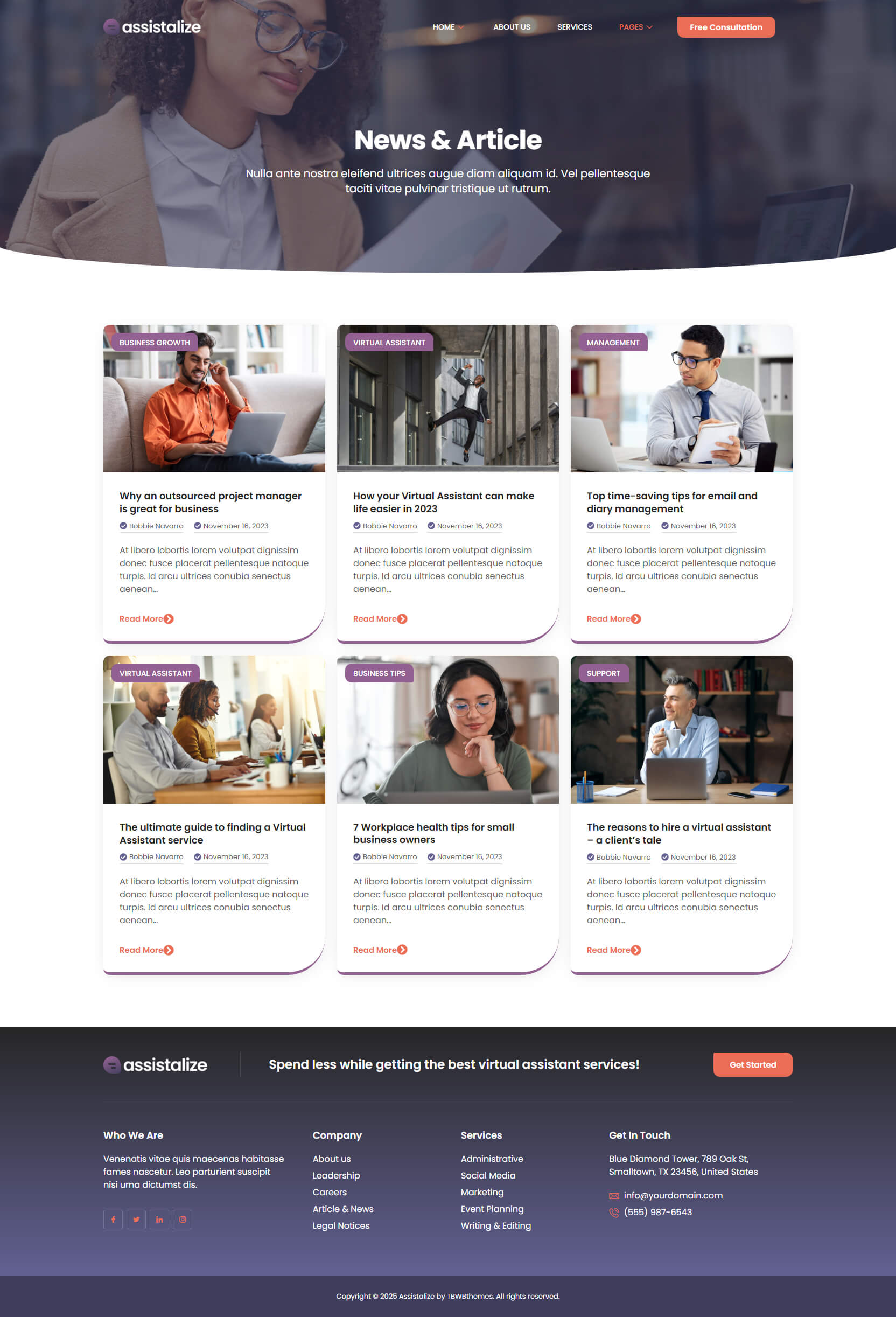
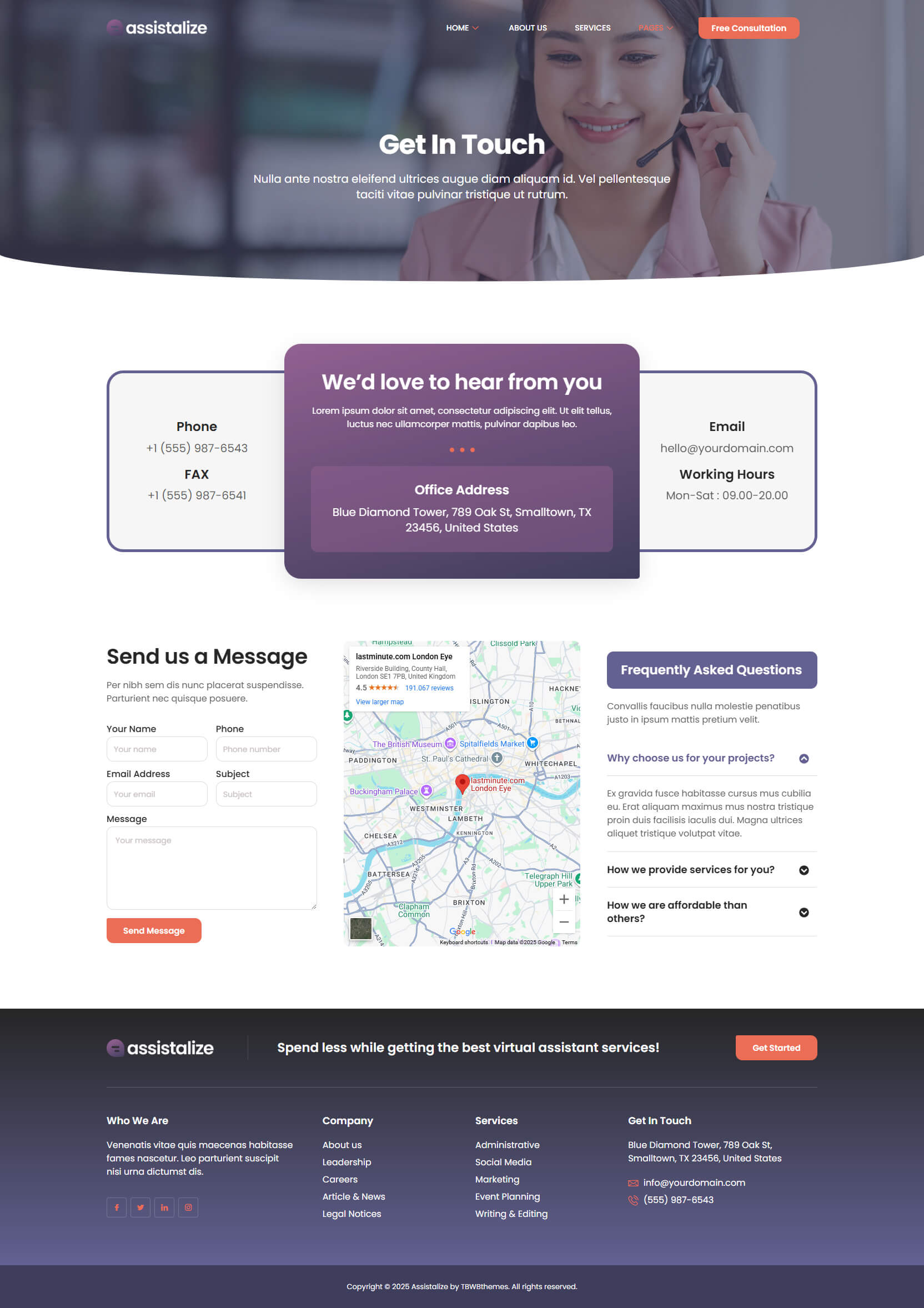
Assistalize is an Elementor template kit tailored for websites in the virtual assistant industry. With 10 pre-designed pages, it offers both convenience and flexibility for easy modification through a straightforward drag-and-drop interface, eliminating the need for coding skills. The theme boasts a modern and light design, featuring rounded angles to create a casual and inviting aesthetic. Ideal for virtual assistant and call center websites, Assistalize seamlessly combines user-friendly functionality with a contemporary look.
Features :
- Clean and modern design
- 15 ready-to-use page templates & forms
- Built with Flexbox Container
- Uses only free plugins (no Elementor Pro required)
- 100% fully responsive layout
- Fully customizable
Templates in Zip :
- Global Kit Styles
- Homepage
- Homepage 2
- About Us
- Services
- Single Service
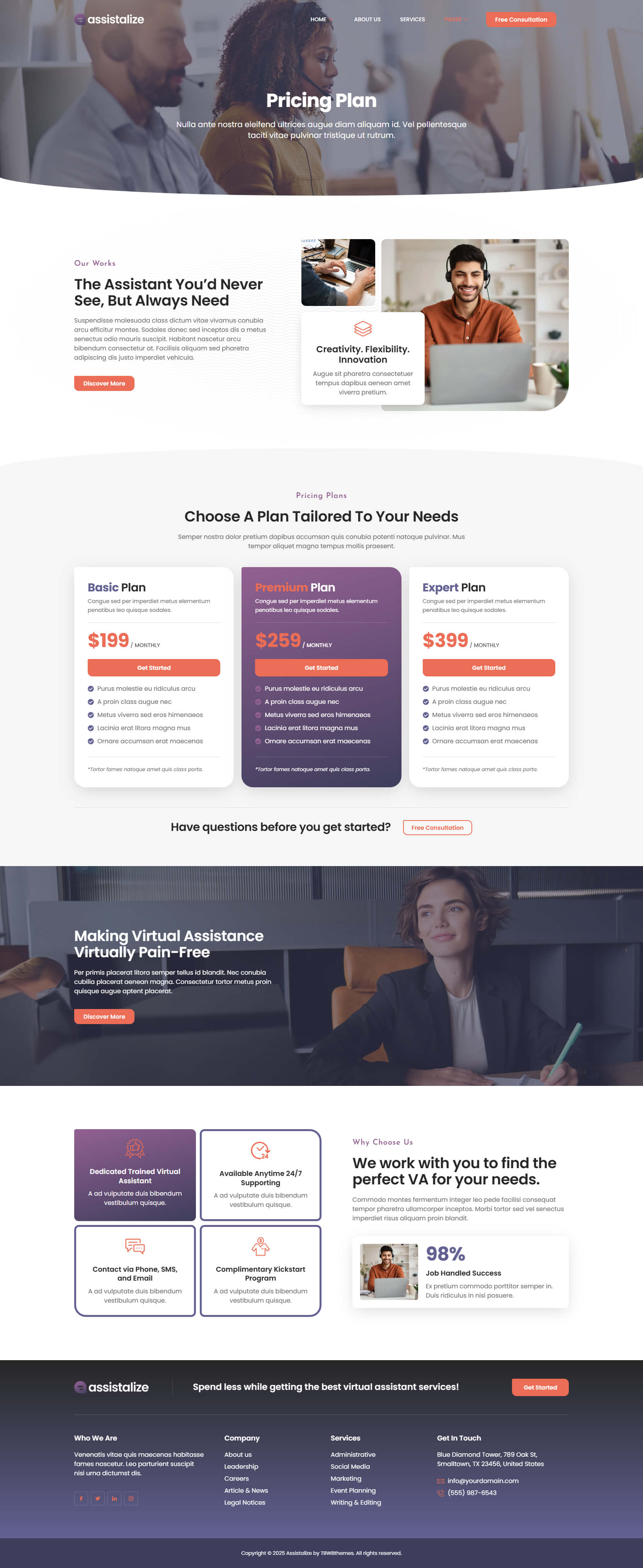
- Pricing Plan
- Contact Us
- Success Stories
- Blog
- Single Post
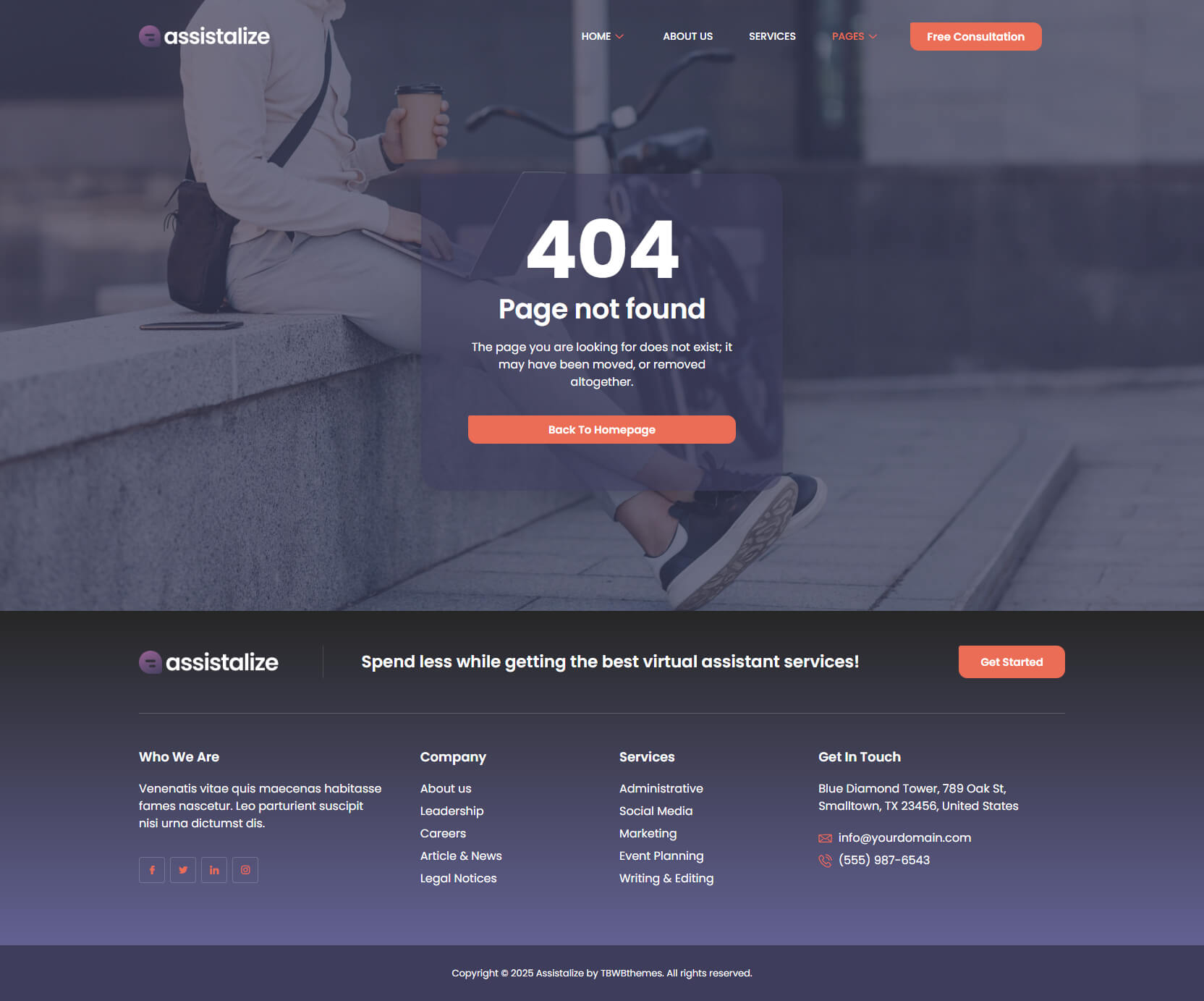
- 404 Page
- Header
- Footer
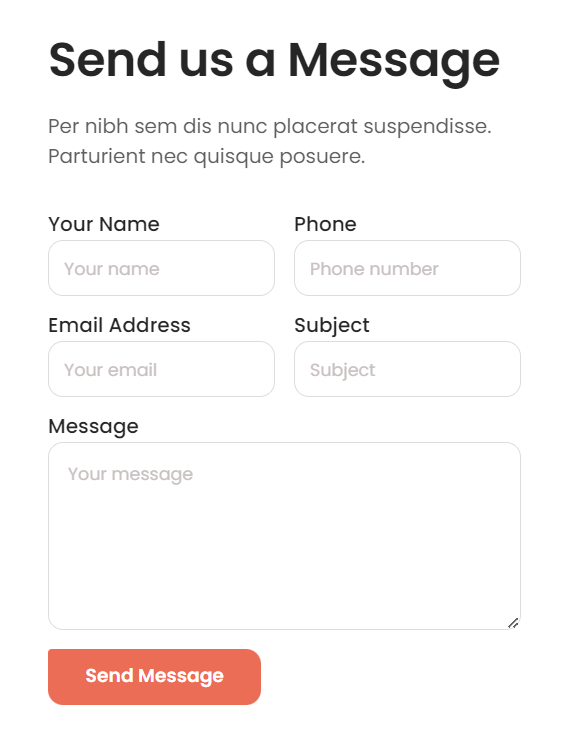
- Contact Form
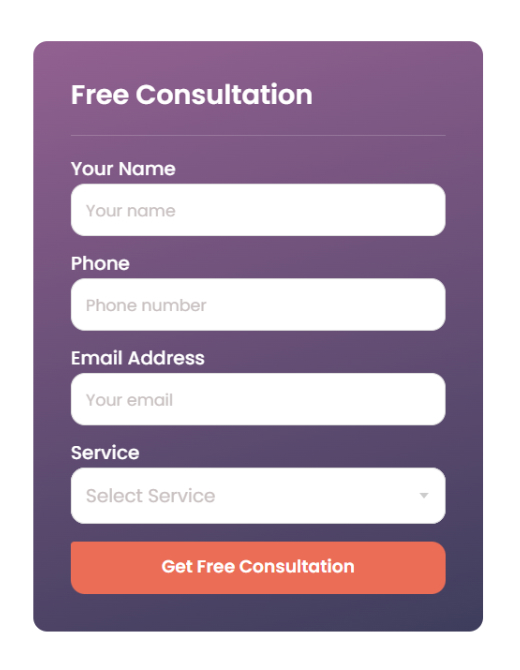
- Consultation Form
Required Plugins :
- Jeg Elementor Kit
- Elementskit Lite
- Metform
How to Use Template Kits:
This is not a WordPress Theme. Template kits contain the design data for Elementor only and are installed using the envato Elements plugin for WordPress or directly through Elementor.
Elementor Template Kits use the Envato Elements plugin to install.
Detailed Guide:
For further support, go to Elementor > Get Help in WordPress menu.
How to Import Metforms :
- Import the metform block templates
- Import the page template where the form appears and right-click to enable the Navigator
- Locate and select the Metform widget and click Edit Form. Choose New, then Edit Form. The builder will appear
- Click ‘Add Template’ grey folder icon
- Click ‘My Templates’ tab
- Choose your imported metform template, then click ‘Insert’ (click No for page settings)
- Once the template is loaded, make any desired customizations and click ‘Update & Close’ The form will appear in the template
- Click Update
Setup Global Header and Footer in ElementsKit :
- Import the header and footer template
- Go to ElementsKit > Header Footer and click Add New (if prompted with a wizard, you may click Next through it without taking any action)
- Title the header, leave Entire Site selected and toggle Activation to On
- Click the gray Edit Content button to load the builder
- Click the gray folder icon and select the header template to import, select your menu in the nav element and click Update
- Repeat for Footer
Image License : This Template Kit uses demo images from Envato Elements. You will need to license these images from Envato Elements to use them on your website, or you can substitute them with your own.