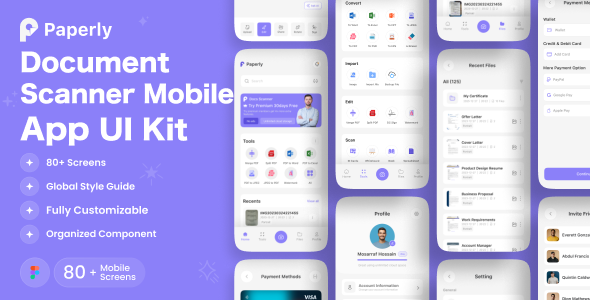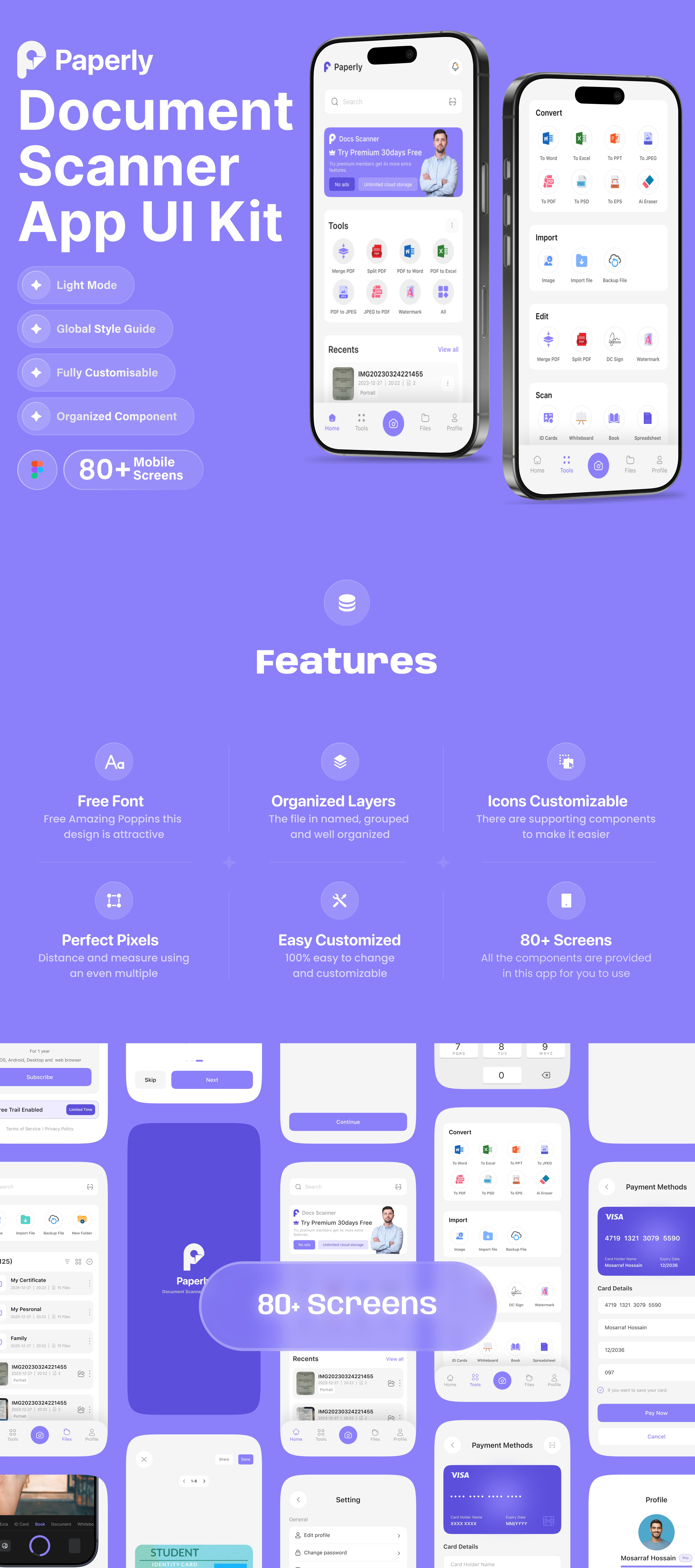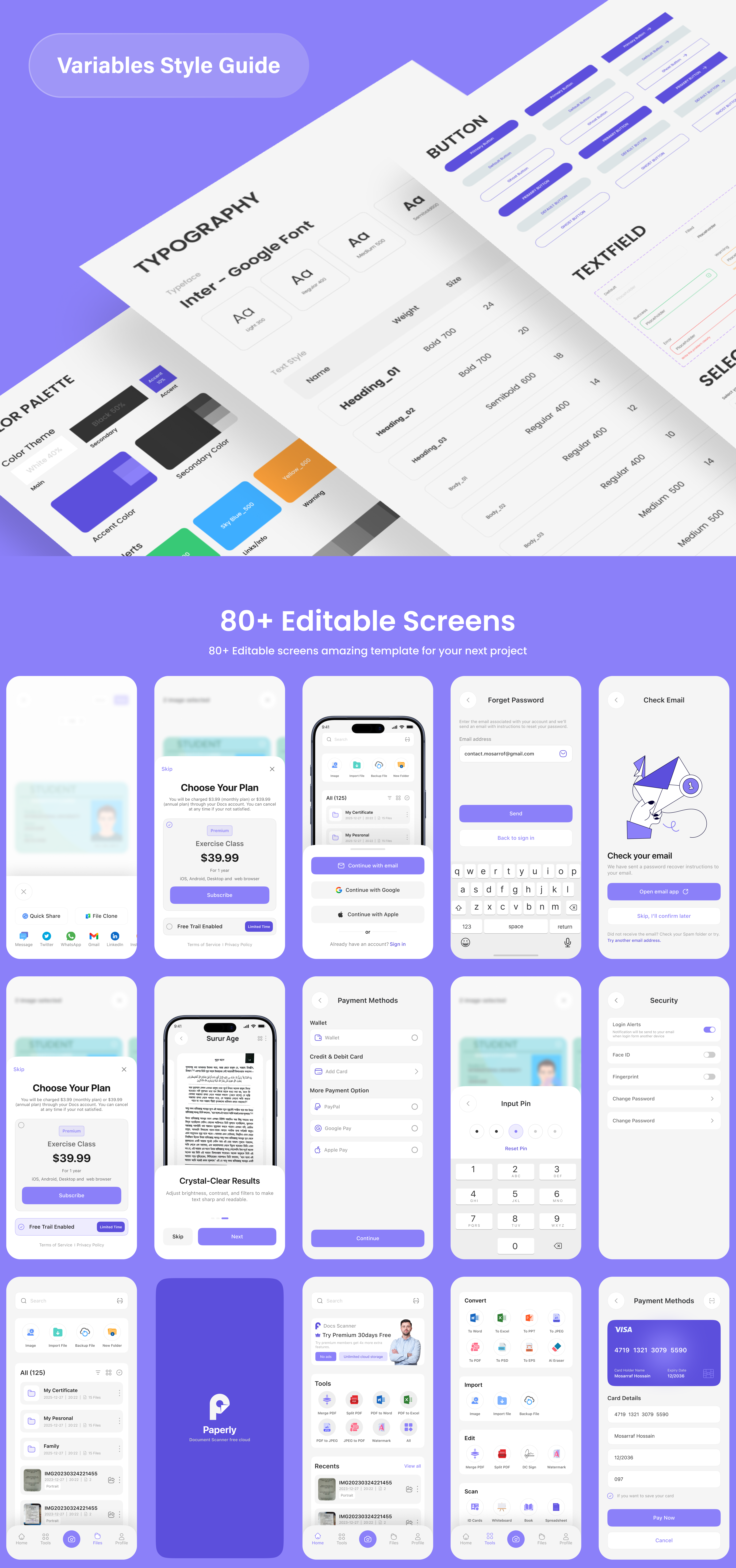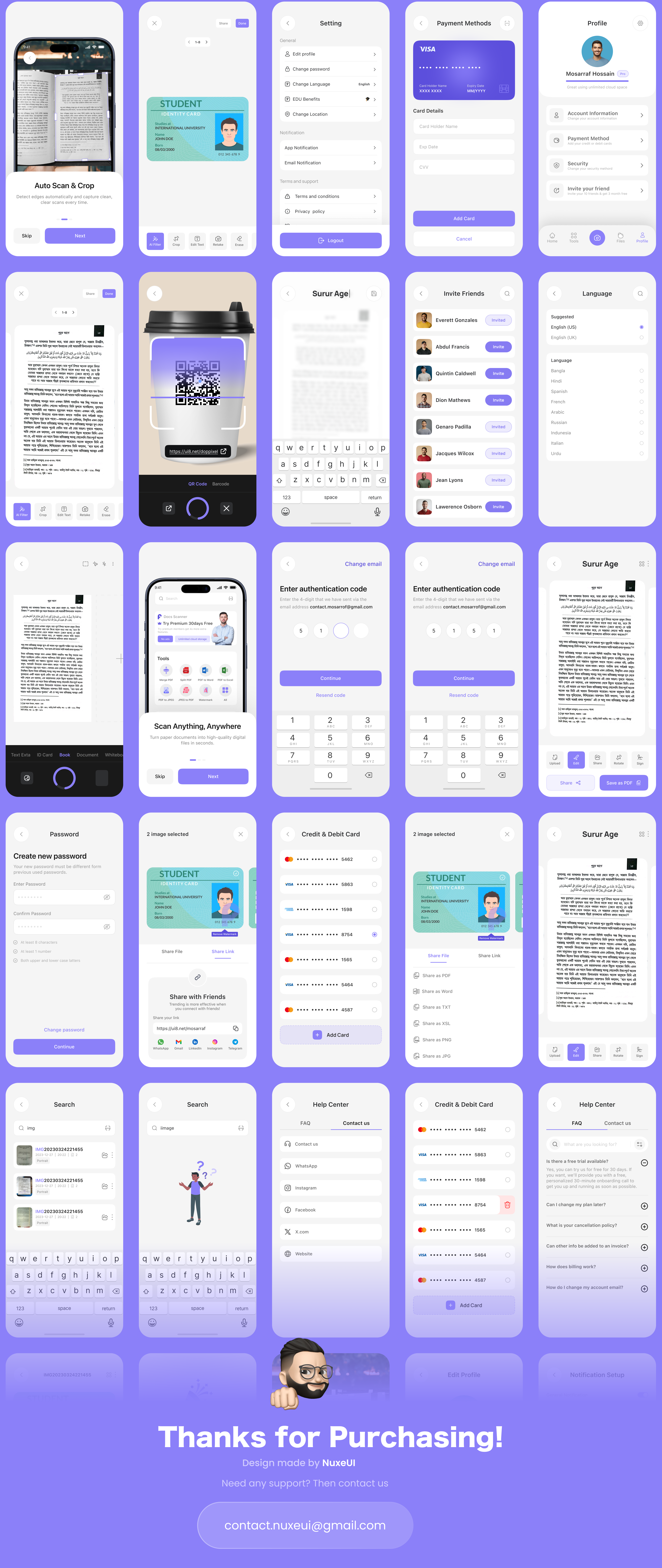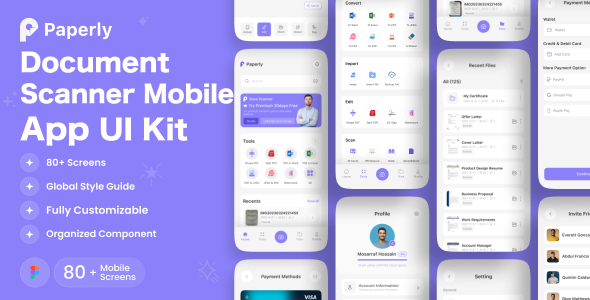
Paperly is a clean, modern, and feature-rich Document Scanner Mobile UI Kit designed to help designers and developers build professional scanning, document management, and productivity apps with ease. Crafted with a strong focus on usability, clarity, and efficiency, Paperly is ideal for startups, SaaS products, and enterprise-level document solutions. With 80+ beautifully designed mobile screens, Paperly covers the complete document scanning and management workflow from scan to export making it a powerful UI foundation for real-world mobile applications. Easy to use and screens is ready to use for iOS & Android app. You can easily change any design. It’s easy to customize and also well documented.
File included in Fig –
- 01.Welcome Screen
- 02.Onboarding 01
- 03.Onboarding 02
- 04.Onboarding 03
- 05.Get Started
- 06.Sign Up 01
- 07.Sign Up 02
- 08.Sign In 01
- 09.Sign In 02
- 10.Forget Password 01
- 11.Forget Password 02
- 12.Check Email
- 13.Log In OTP 01
- 14.Log In OPT 02
- 15.Password 01
- 16.Password 02
- 17.Congratulation Screen
- 18.Home Screen
- 19.COnvert Type
- 20.Files
- 21.Search 01
- 22.Search 02
- 23.Open File
- 24.Edit ID
- 25.Shere File
- 26.Scan QR Code
- 27.Scan Book 01
- 28.Scan Later
- 29.Edit Later
- 30.Edit Menu Image
- 31.Edit Menu Markup
- 32.Edit Menu Page
- 33.Scan
- 34.Share File
- 35.Share Link
- 36.Recent Files
- 37.More Menu
- 38.Merge PDF
- 39.Protect PDF
- 40.Compress
- 41.Delete
- 42.Color Filter
- 43.Crop & Rotate
- 44.Text Edit
- 45.Erase
- 46.Pen Menu
- 47.Rectangle Menu
- 48.Erase Text
- 49.Sign Create 01
- 50.Sign Create 02
- 51.Re-Size Sign & Re-Position Sign
- 52.Brush
- 53.Watermark
- 54.Add Watermark
- 55.Adjust Watermark
- 56.Watermark Filter & Single Watermark
- 57.Watermark Filter & Tile Watermark
- 58.Remove Watermark
- 59.Page Title Edit
- 60.Title Edit
- 61.Page Reorder
- 62.Page Size Re-Size
- 63.Delete
- 64.Delete Page
- 65.Subscription 01
- 66.Subscription 02
- 67.Payment Method 01
- 68.Add Card 01
- 69.Add Card 02
- 70.Credit & Debit Card
- 71.Remove Credit & Debit Card
- 72.Input Pin
- 73.Payment Successful
- 74.Profile
- 75.Setting
- 76.Edit Profile
- 77.Security
- 78.Invite Friends
- 79.Language
- 80.Notification Setup
- 81.Help Center 01
- 82.Help Center 02
Features –
- 80+ High Quality iOS & Android Screens
- Clean, unique and modern style
- Symbol & well layer organized
- 100% Vector and Customizable
- Fully Auto Layout with Style Guide
- Well organized layers and groups
- Easy customizable fig files
- Pixel perfect design
- File named layers and groups
- 24/7 great support
- Premium font and icon used
- Designed in Figma
The fig include –
- Documentation
- fig files
How to Edit:
In order to edit the file, you need to have figma installed on your system, and the fonts mentioned in the credits installed. As you can see on the right, the layers are well organized and grouped into folders, which make editing very easy. So, all you have to do is select the layer from the right, and then edit it with figma
Font used
Icons Used
Note –
If you need any help, Please contact us