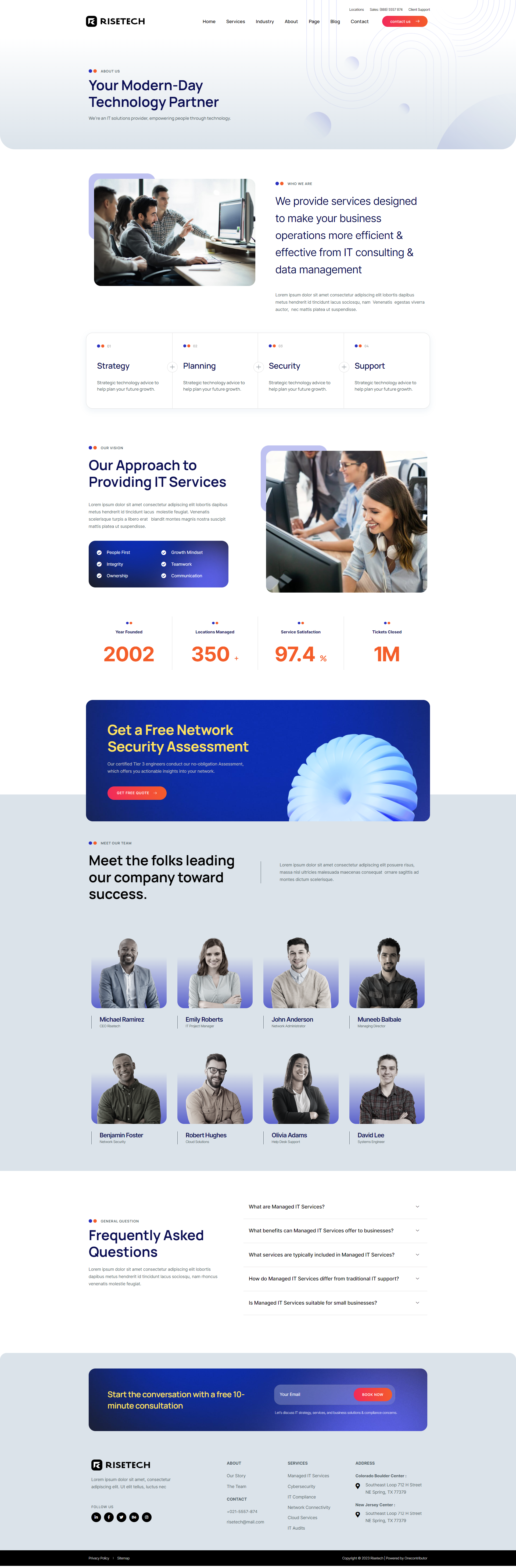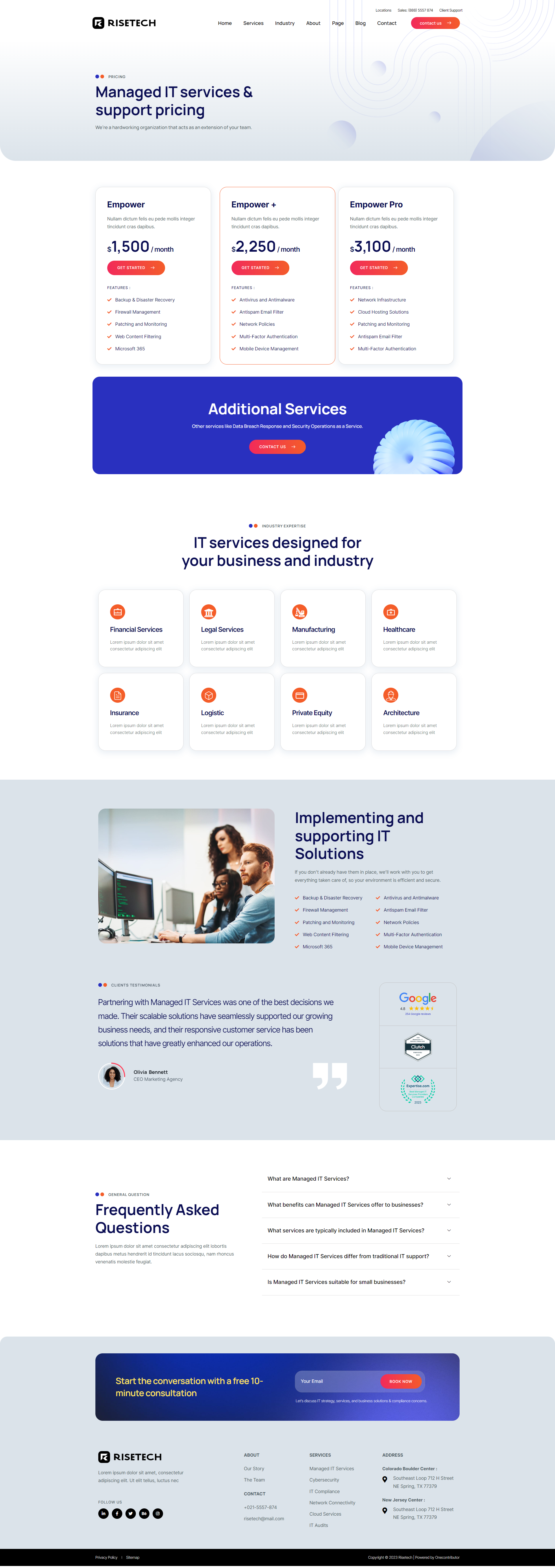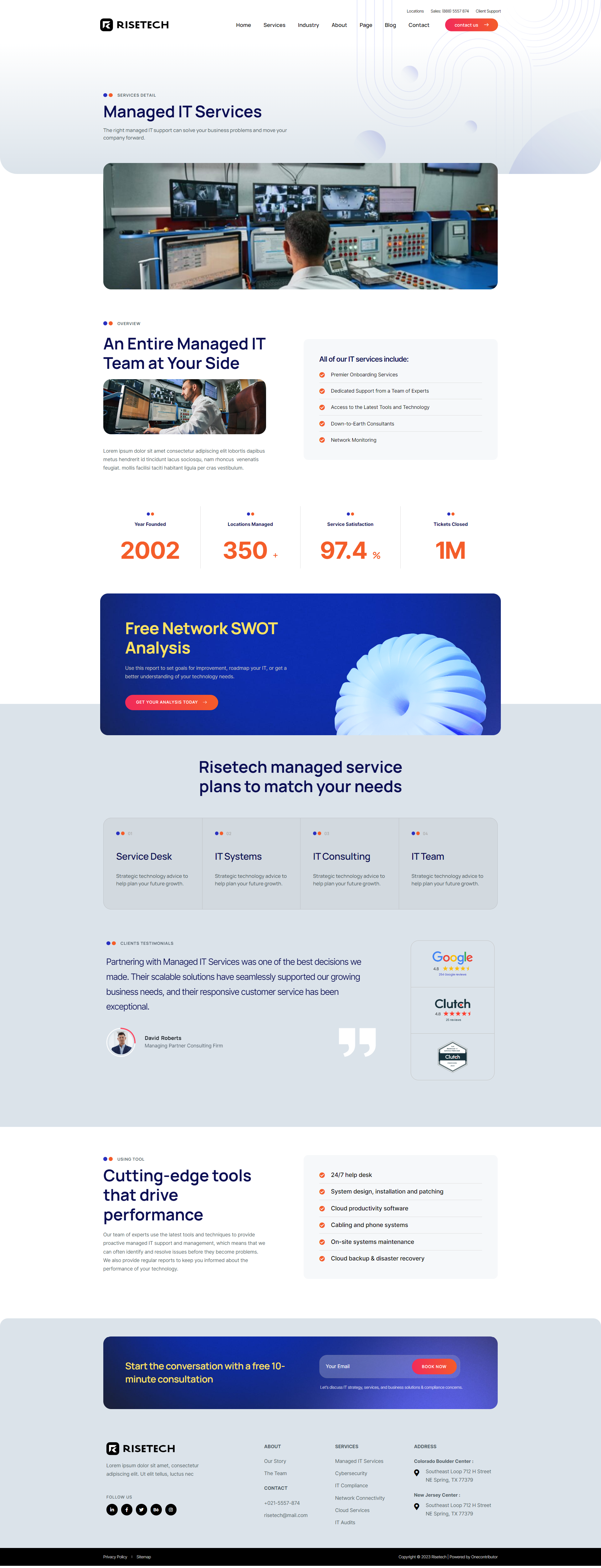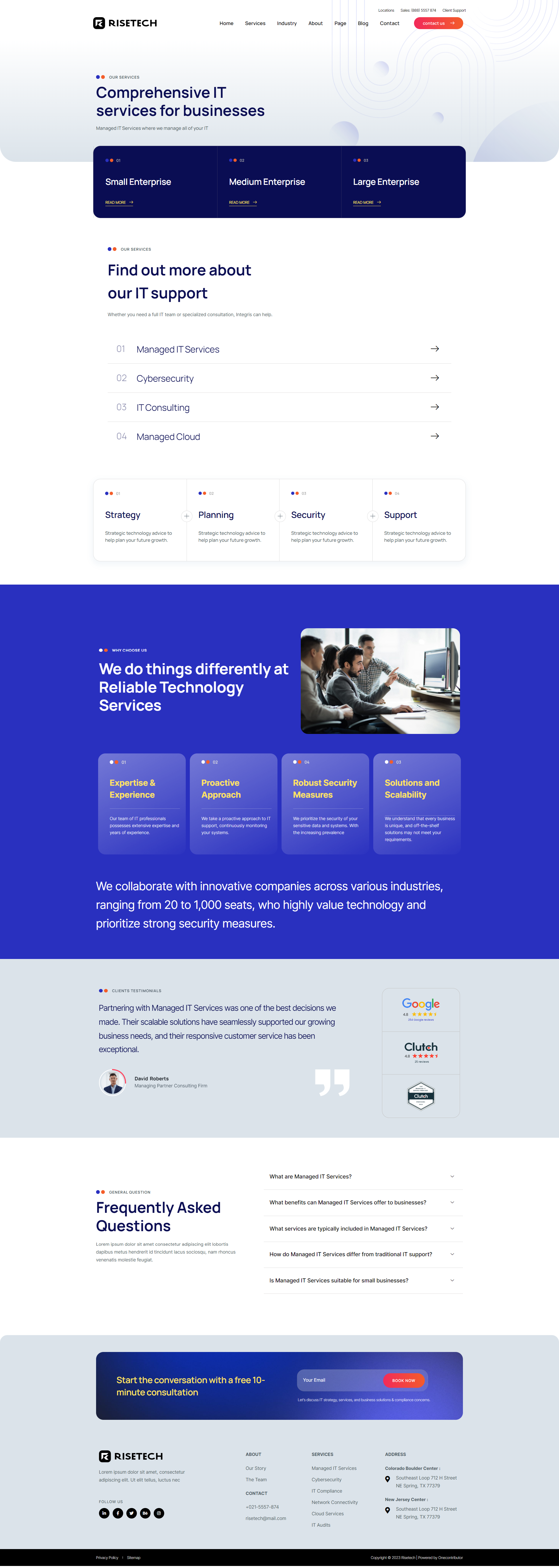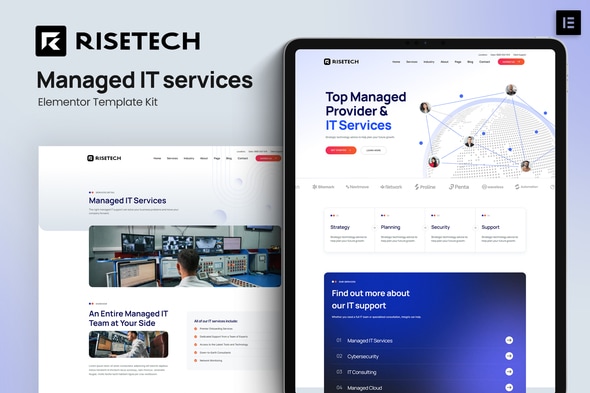
Risetech is a modern and clean Managed IT services Template Kit for creating professional and fully functional WordPress-based websites without writing a single line of code. Risetech is fully responsive and retina-ready, and comes with several features to offer, such as templates that will be the perfect starting point for Managed IT, Cybersecurity, IT system maintenance, IT Consulting, and any Managed Cloud.
This template kit includes 20+ carefully crafted templates so you can build your professional website just a click away.
Features:
- Modern & Clean Design
- 10+ Ready to use templates
- Fully Responsive Layout
- Retina Ready
- Fully Customizable
- Cross Browser Compatibility: Chrome, Firefox, Safari, Opera
Templates Include:
- Home
- Services
- Services Detail
- Industry
- Pricing
- Testimonial
- Team
- FAQ
- 404
- Blog
- Single post
- About
- Contact
- Header
- Footer
- Global Theme Style
Plugins installed with kit:
Free Elementor
ElementsKit Lite
MetForm
-
Jeg Elementor Kit
How to Use Template Kits: This is not a WordPress Theme. Template kits contain the design data for Elementor only and are installed using the envato Elements plugin for WordPress or directly through Elementor.
Elementor Template Kits use the Envato Elements plugin to install.
Detailed Guide:
For further support, go to Elementor > Get Help in WordPress menu.
How to Import Metforms
- Import the metform block templates
- Import the page template where the form appears and right-click to enable the Navigator
- Locate and select the Metform widget and click Edit Form. Choose New, then Edit Form. The builder will appear
- Click ‘Add Template’ grey folder icon.
- Click ‘My Templates’ tab.
- Choose your imported metform template, then click ‘Insert’ (click No for page settings).
- Once the template is loaded, make any desired customizations and click ‘Update & Close’ The form will appear in the template
- Click Update
Setup Global Header and Footer in Header Footer & Blocks plugin
- Import the header and footer template
- Go to Appearance > Header Footer and click Add New button
- Give it a title and select Header, Display on Entire Site and click Publish
- Click Edit with Elementor
- Click the gray folder icon to access My Templates tab and select the header template to import and Update.
- Repeat for Footer
Images:
This Template Kit uses demo images from Envato Elements. You will need to license these images from Envato Elements to use them on your website, or you can substitute them with your
To remove the backgrounds from your own team member photos, take photo against a clear background and use a free online background remover.