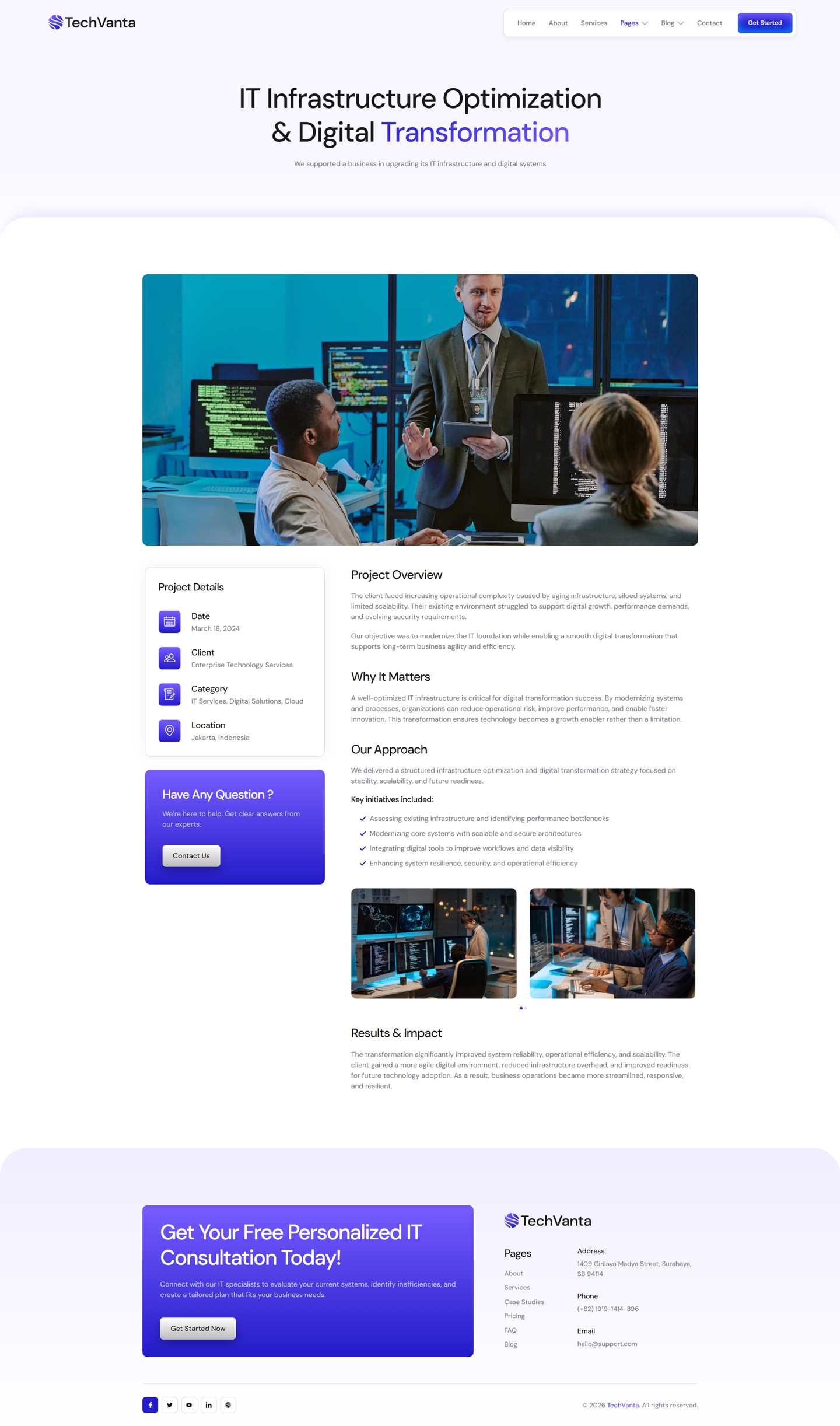
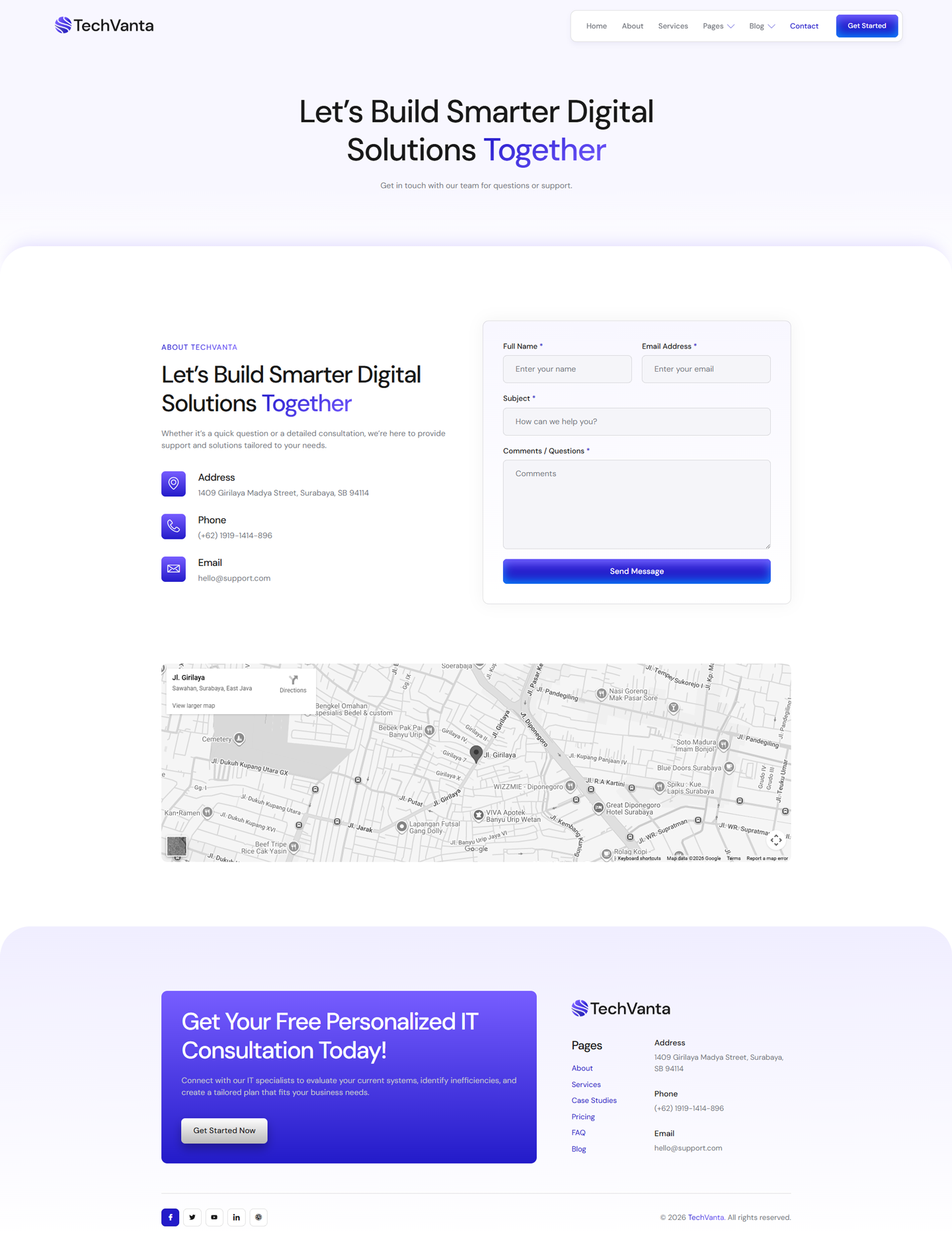
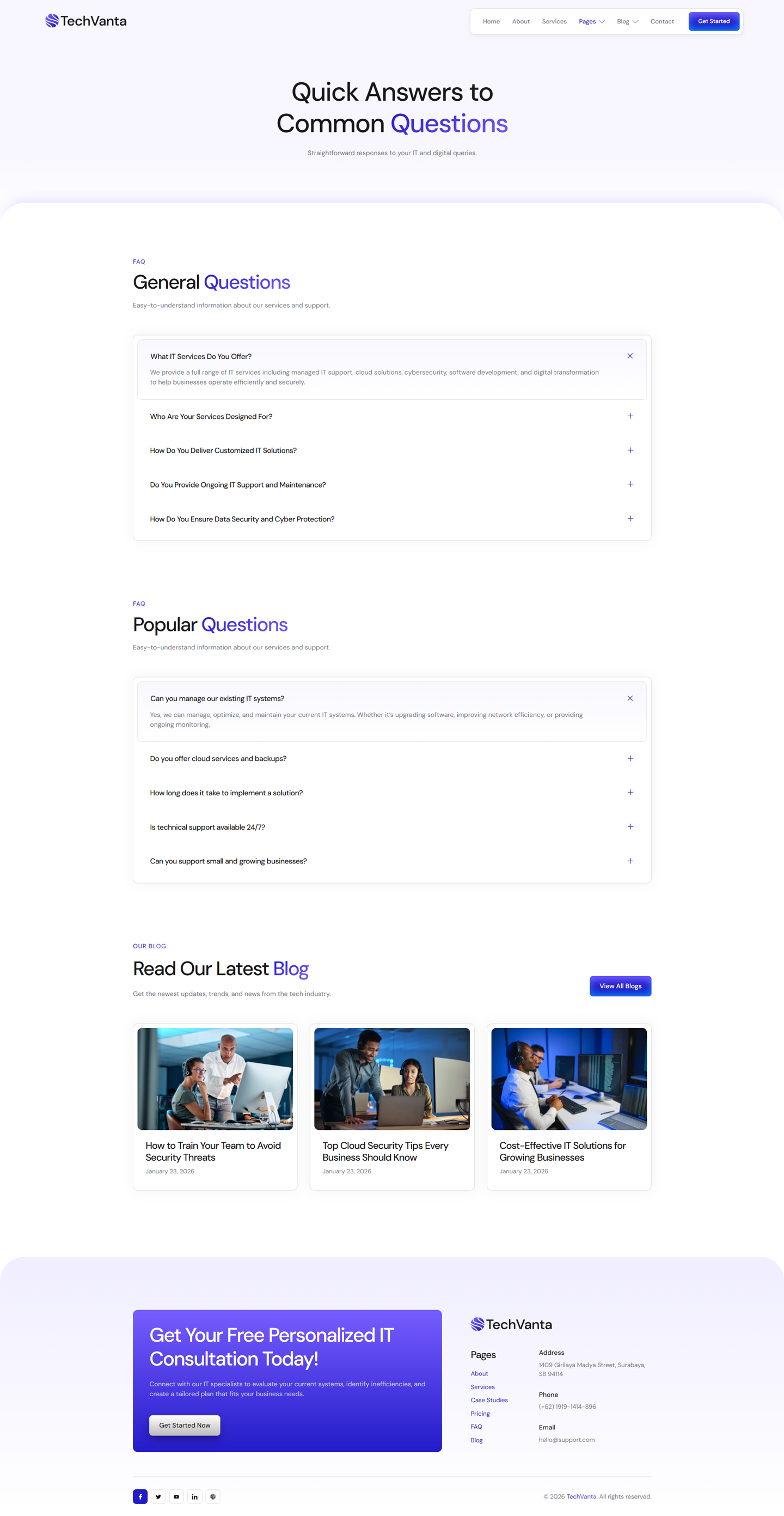
TechVanta – Tech Startup & IT Solutions Elementor Template Kit created especially to build versatile sites such as SaaS, Software, IT, Technology, Startup, IT Solutions, Digital Agency and Related Business Websites without a single line of coding!
This template kit includes ready-to-use beautifully crafted 18+ Page Templates. You can build your professional looking websites with the most popular page builder Elementor that can easily drag-and-drop your ideas from the interface.
Features:
- Premium layout and clean design
- Built with Free Plugins
- Retina Ready
- 18+ Ready to use templates
- 100% Ultra responsive layout
- Easy to Customize
- No Coding Knowledge Required
- Cross Browser Compatibility: Chrome, Firefox, Safari, Opera
Templates Include:
- Home
- About
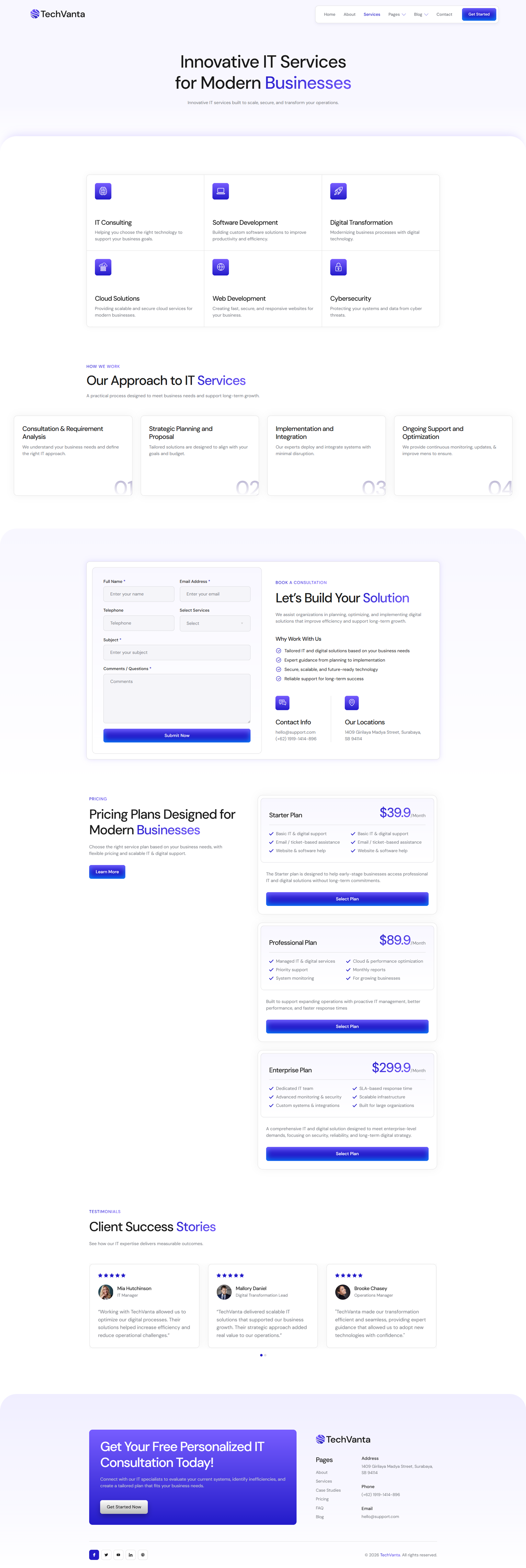
- Services
- Case Studies
- Case Details
- Team
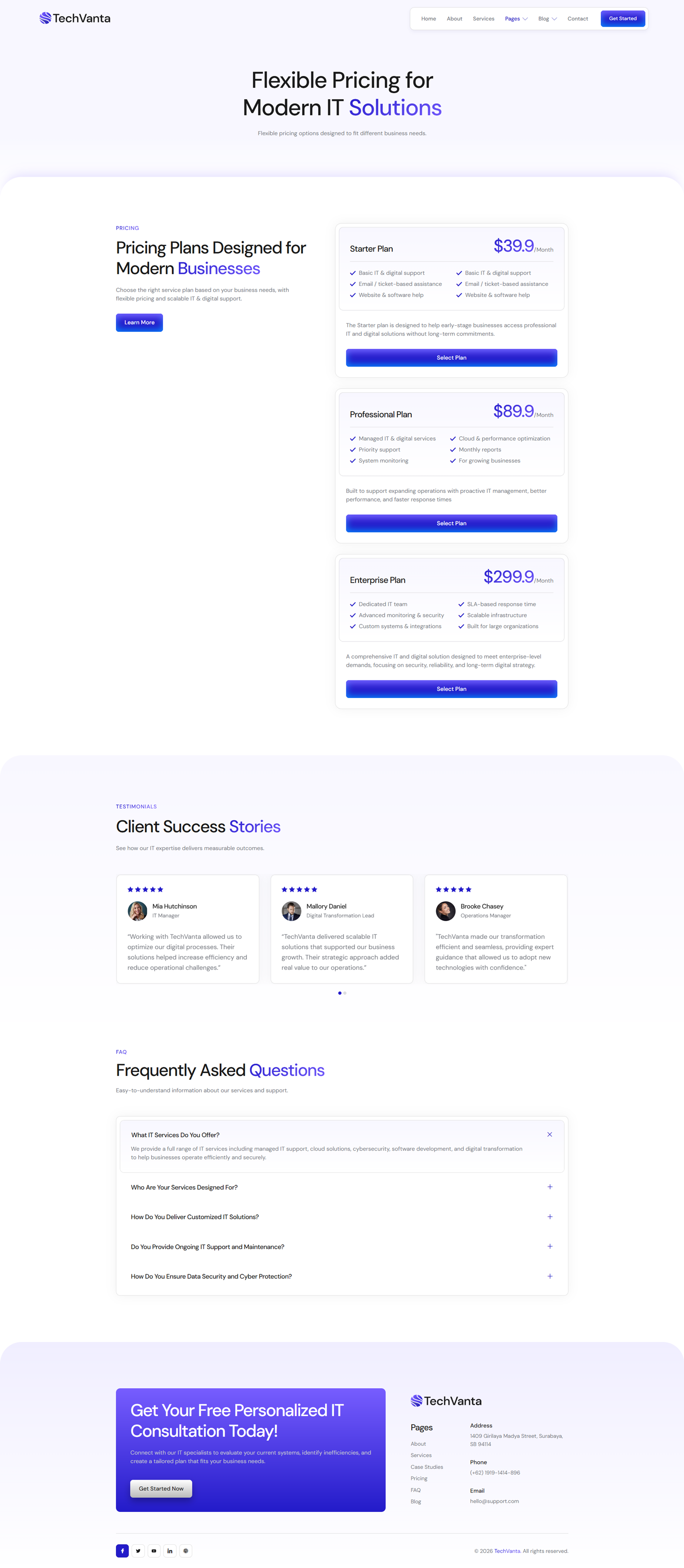
- Pricing
- FAQ
- Blog
- Single Post
- 404 Page
- Coming Soon
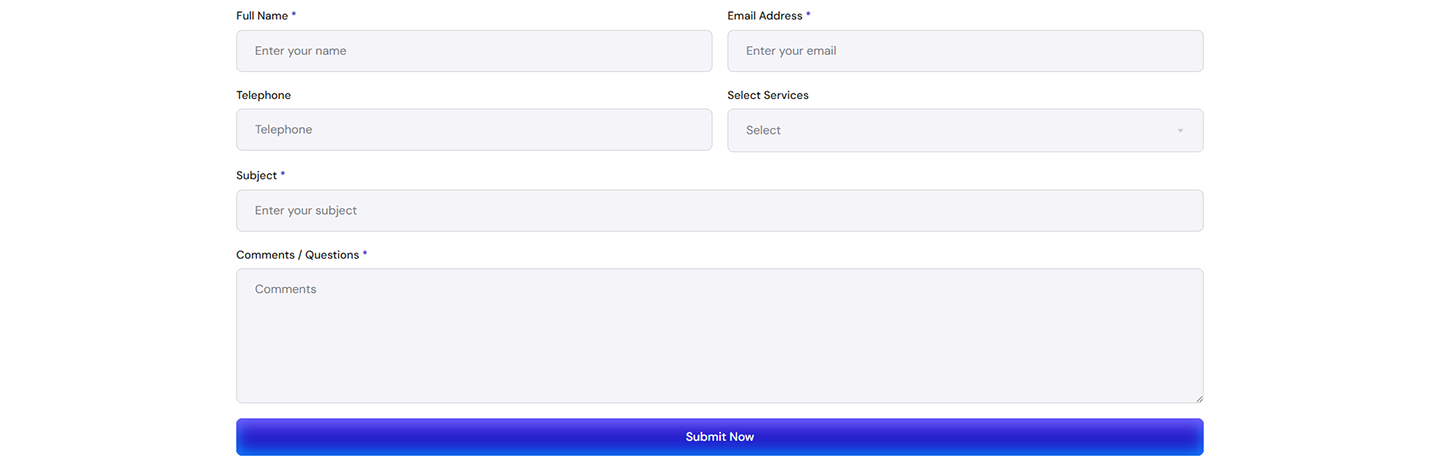
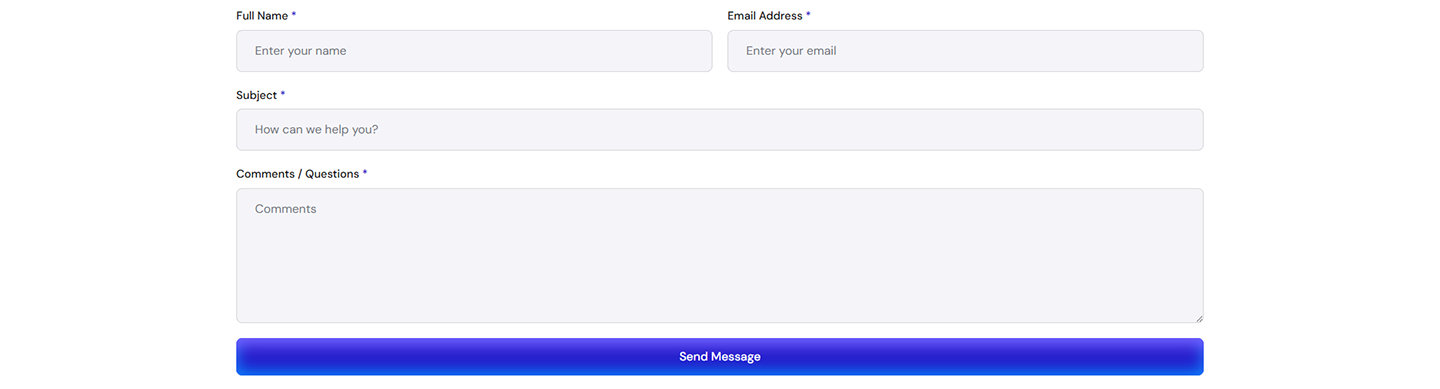
- Metform Contact
- Metform Booking
- Contact
- Header
- Footer
- Global Theme Style
Required Plugin:
- Elementor (Free)
- Jeg Elementor Kit
- MetForm
How to Use Template Kits:
This is not a WordPress Theme. Template kits contain the design data for Elementor only and are installed using the envato Template Kit Import plugin for WordPress or directly through Elementor.
Detailed Guide:
For further support, go to Elementor > Get Help in WordPress menu.
How to setup header in Jeg Elementor Kit plugin If you have Elementor Pro, setup headers and footers in Theme Builder. Pages you create with Elementor must have the Page Layout set to Elementor Full width for the global header and footer to appear.
- Go to Jeg Elementor Kit menu item > Header Template
- Click Add New Header
- Add condition > All Site and click Create
- Click the pencil icon to Edit and elementor will appear
- Click gray folder icon to access My Templates tab
- Insert the header template.
- Customize and Save.
How to Import MetForm Custom Form:
- While edititing a page where a form should appear, open the Elementor navigator to locate the Metform widget.
- Click Edit Form in the builder panel.
- Select New, leave blank selected then click Edit Form button.
- Click ‘Add Template’ grey folder button.
- Click ‘My Templates’ tab.
- Choose your imported MetForm template, then click ‘Insert’.
- Once the template is loaded, click ‘Update’.
Images This Template Kit uses demo images from Envato Elements. You will need to license these images from Envato Elements to use them on your website, or you can substitute them with your own.