1370 comments found.
Hi The theme is great but I want to know how the Google maps option work in contact page?
Thanks
Hi,
Firstly, please make sure you have setup the Google Maps API key in Theme Options -> Google Maps.
To use the Google Maps element, you have to put the address or the place name into the Address field. Once you set the address you will see a marker on the map, you can drag the marker to move it to the right location as you please.
Also, you can set the Map Type, Map Zoom and Map Height so the map displays as these settings too.
If you’d like to change the marker icon, you can set it in the Icon option.

I’m wondering if you could give any guidance on how to prepare images in regards to ratios so they display as best as possible in your blog landing pages.
The images in the blog posts list are displaying in the landscape view, the image ratio is 16:9 and they will be automatically cropped to fit for each blog layout that displays images in different sizes.
Your uploaded images should be larger than 960×540px so they will be cropped properly and fit in any blog layouts. Anyway the recommended size is: 1280×800px.
Hi there,
I’ve been using your theme (which is great), but there’s one thing I am unable to do…
I’d like to be able to display social media buttons in the header at all times, just above the menu on in the top right-hand corner of the homepage.
Please, could you explain how this is done?
Here is my site:
http://bdbnevents.co.uk/Cheers,
Hi there,
Unfortunately, this theme doesn’t include the top bar menu and you couldn’t display the social media buttons there.
This theme comes with the Sliding Bar that allows you to display the social media buttons instead of the top bar menu. You can enable it in Theme Options -> Navigation, and then turn on the Sliding Bar and Social Icons so you will have a plugin icon in the top menu, when you click on that icon it will show the sliding bar in the right hand side, try it on our demo -> http://wydethemes.com/flora3/
Hi! I bought your theme and everything works great, but Im just having a big trouble with a product show at shop. The problem is with the size for “MONO BRAQUE”. The site is www.what-if.com.ar Is there any solution? Thanks!
Hi,
Looks like you have changed the Product Images sizes settings so they have different aspect ratios. By default the product images should be 300×300px as the “MONO BRAQUE”.
However, if you want it to be the same as other products. Please navigate to WooCommerce -> Settings -> Products -> Display to change the “Catalog Images” size to 200×300px. And then, you will need to upload the images for “MONO BRAQUE” again.
If it still doesn’t work, please PM me your admin login credentials: https://themeforest.net/user/wyde#contact
There is a Visual Composer related code present in your flora theme added by the theme author. You will have to get rid of it. I would advise you to do so with the help of theme author, otherwise you might loose the extra elements added by him. Once this is done, you can install the standalone plugin and it will work fine.
Can you help here?
Thanks
Hi,
Of course we have disabled some elements and features from Visual Composer plugin because they come with too many elements and features more than necessary and also come with very large resource files that can take a long time to load so we added our essential elements and features to use instead.
Anyway, we have never seen this issue before, everything is working fine on our demo sites. Try to deactivate all other plugins to see if it works.
If it still doesn’t work, please PM me your site URL and admin login credentials: https://themeforest.net/user/wyde#contact
I sent you the credentials. I tried your solution but it didn’t work. will wait for your email Thanks
I just replied directly to your email!
Hi there,
First off, great work on this theme. The company I work for asked me to suggest some WP themes to help showcase their 3D content, I suggested Flora as it’s quite unique, particularly with the portfolio styling.
However I’ve got a considerable roadblock now that I’m hoping you can help with. I absolutely need to get the portfolio previews/thumbnails to display video in the lightbox instead of an image. My client won’t budge on it, all their content is video based, and they like your theme too much to change it. I installed a plugin named Featured Video Plus (found here: https://wordpress.org/plugins/featured-video-plus/), which – as its name suggests – allows for a featured video to override the featured image. Depending on the theme used, it should work out of the box, but it looks like Flora is overriding it somehow. I had a look into the functions.php file, and the support for post-thumbnails is there (line 23 – and obviously given it’s in the backend Porfolio pages), but my PHP is not advanced enough to see if there’s anything else that’s missing. The plugin devs suggested contacting the theme creator, which is why I’m reaching out to you.
I know you’ve answered the query of lightbox videos a couple of times already for other users (like NoniPony and piyushabhaysingh some months ago), but I’m really hoping you can help out with this one.
Kind Regards
Hi there,
Thanks for your nice comments!
I have never tried that plugin and I’m not sure how it works but I suppose that it’s not compatible with the portfolio post type in this theme.
Actually, you don’t need to install the 3rd party plugin but you can edit the portfolio template instead.
This theme comes with the Media Options that allows you to insert your video URL to display as the featured video.
In order to display the featured video in the lightbox on portfolio grid, you have to edit the portfolio template by following the below steps:
1. Install and activate flora-child-theme.zip.
2. Open cPanel File Manager on your web host, copy the portfolio template from the Flora theme “wp-content/themes/flora/templates/portfolio/content.php” and paste it into your child theme “wp-content/themes/flora-child-theme/templates/portfolio/content.php”.
3. Edit the template file “content.php” in your child theme, then replace the whole code in the file with the new one as below:
<figure>
    <?php

    $image_size = 'large';

    $cover_id = get_post_thumbnail_id( get_the_ID() );

    $embed_url = esc_url( get_post_meta( get_the_ID(), '_w_embed_url', true ) );

    $lightbox_url = '';

    if( $cover_id ){
        echo wp_get_attachment_image($cover_id, $image_size, false, array('class' => 'cover-image'));
    }else{
        $cover_image = wyde_get_option('portfolio_placeholder_image');
        if( is_array($cover_image) && !empty($cover_image['url']) ) echo '<img src="'. esc_url( $cover_image['url'] ) .'" alt="'. esc_attr( get_the_title() ) .'" />';
    }

    if( !empty( $embed_url ) ){
        $lightbox_url = wyde_get_media_preview( $embed_url );
    }

    ?>
    <figcaption>
        <h3><?php echo esc_html( get_the_title() );?></h3>
        <?php
        $cate_names = array();
        $categories = get_the_terms( get_the_ID(), 'portfolio_category' );
        if (is_array( $categories )) {
            foreach ( $categories as $item )
            {
                $cate_names[] = $item->name;
            }
        }
        ?>
        <p><?php echo esc_html( implode(', ', $cate_names) ) ?></p>
        <a href="<?php echo esc_url( get_permalink() );?>"></a>
        <span>
        <?php if($lightbox_url){ ?>
            <a href="<?php echo esc_url( $lightbox_url );?>" data-rel="prettyPhoto[portfolio]" title="<?php echo esc_attr( get_the_title() ); ?>"></a>
        <?php } ?>
        </span>
    </figcaption>
</figure>
However, this is for only Grid layout. If you’d like to change other layouts please PM me your email: https://themeforest.net/user/wyde#contact so I can provide the code for other layouts via email instead.
Hi again, and thanks for getting back so quickly.
And you’re welcome – it really is a great WP theme.
Ah great – I’ve deactivated and removed the plugin then, I was only using it in the hope of enabling lightbox videos, not so much for featured videos.
Oh really? That’s great (featured video already being enabled). I couldn’t see those settings in the Media page, is that just in the portfolio page instead, under Media Options? Because I already linked a Vimeo video in there but it wouldn’t show.
Okay, followed your instructions and that worked to a tee, thank you so much! I was already working with a grid layout (with spaces), am advising the client to keep that layout, if there’s any changes or I can’t figure out the PHP on my own I’ll drop you an email. Thanks again so much for the support, really appreciated.
Kindest Regards.
Of course it’s a Media URL field under the Media Options below the Portfolio Layout when you edit the portfolio post.
Glad to hear that it works 
One more query – I’ve noticed now that on the lightbox videos the fullscreen option is missing. I checked the scripts for PrettyPhoto and all the modules that display videos and it looks like everything is all set up to allow fullscreen, which I assumed you probably did anyway. When I checked the element inspector it looks like the div inside the output iframe has a ‘no-fullscreen-support’ line in the tag. But all the video settings (on Vimeo) are set to allow fullscreen. When I view a video in any other type of page or setting the fullscreen option appears, it’s only in the lightbox that it doesn’t. Do you know if this is a specific issue with Vimeo? I’d checked some of their forums and it seems like it’s happened before. The possibility that it was the Flora theme overriding it seemed really unlikely to me, but just thought I’d ask anyway.
Thanks in advance.
Hi,
This is a limitation of the PrettyPhoto lightbox, it doesn’t allow you to play a video in fullscreen in the lightbox, you have to click on a vimeo logo to see it on Vimeo when you’d like to play in fullscreen. As you can see on the demo page of this plugin: http://www.no-margin-for-errors.com/projects/prettyphoto-jquery-lightbox-clone/#prettyPhoto it doesn’t allow you to play Vimeo and Youtube videos in fullscreen at all.
Ah, I see. Thanks for the heads-up on that one.
I have an update that might help though – did some digging and sure enough, found that PrettyPhoto haven’t updated their script to match Vimeo’s update to the fullscreen functionality. Figured out how to get it working, it’s just that the iframe markup needs to include the ‘webkitallowfullscreen mozallowfullscreen allowfullscreen’ after the frameborder=”no”. I added it to line 1751 in the shortcodes.js file (flora/shortcodes/js/shortcodes.js) and voila, it works now.
Don’t know what restrictions you might have with touching the PP distributed script for your theme, but maybe you can include this in a future update?
Thank you so much, I greatly appreciate your efforts and your helpful comments! Of course we will include this in the future update
Ah all good, community’s got to help each other out, and your support with this theme has been awesome. Thanks again.
Thanks for your nice comments
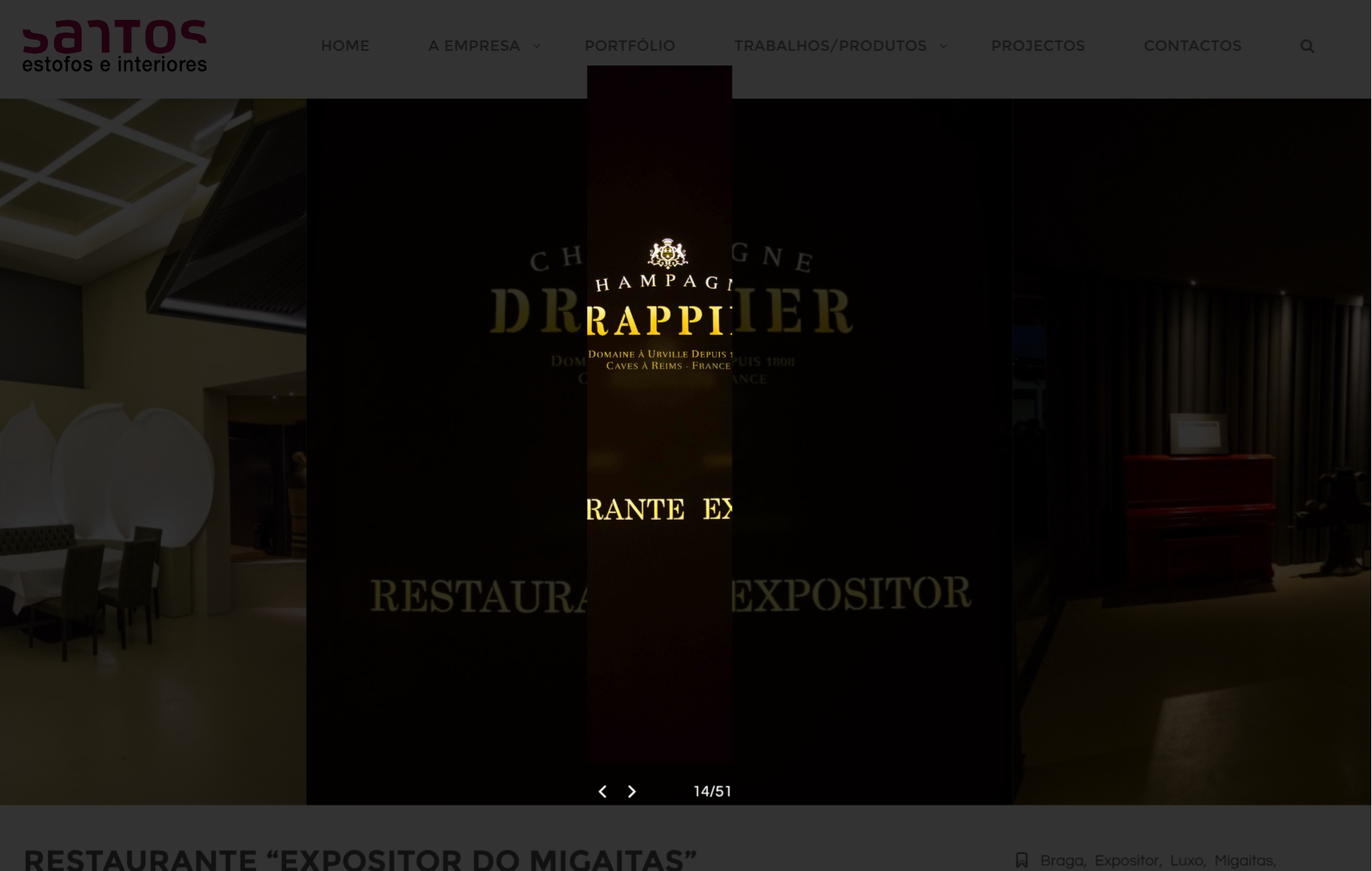
Hello, Since I updated to 1.3.5, when I create a new portfolio, when clicking to show the lightbox of a certain gallery, the image presented isn’t with the correct dimensions:
Here you have a new one: http://www.estofossantos.pt/portfolio-item/restaurante-expositor-do-migaitas/ Here you have a old one working nice: http://www.estofossantos.pt/portfolio-item/vivenda-em-vila-do-conde/What I am doing wrong? Please Help! Thank you
Hello,
Actually, the new one ( http://www.estofossantos.pt/portfolio-item/restaurante-expositor-do-migaitas/ ) displays in the correct dimensions (640×640px) but the old one doesn’t.
That’s because the old one ( http://www.estofossantos.pt/portfolio-item/vivenda-em-vila-do-conde/ ) has smaller images than the recommended size. Your images should be larger than 640×640px.
The problem isn’t the galley itself, is the LIGHTBOX image, when you click on them to open in a lightbox.
That’s because we have changed the “Full Width” image size in recent updates so it allows vertical images. Unfortunately, your images source are too large so when they look not good when they have been cropped.
To work around this, you choose change the “Lightbox Image Size” in Theme Options -> Portfolio -> Portfolio Single Post from “Full Width” to “Original” or “Large” instead. Or resize your images before uploading.
We will fix it in the next update.
Also, you can fix it right now by following the below steps:
1. Go to Appearance -> Editor to edit the Flora theme.
2. Edit the Theme Functions (functions.php) as below:
Replace:
add_image_size('full-width', 1280, 9999, true);
With:
add_image_size('full-width', 1280, 9999);
This will affect your future uploaded images, you will need to upload those images again or install the Regenerate Thumbnails plugin to regenerate your images into new sizes: https://wordpress.org/plugins/regenerate-thumbnails/
All done! Thank you!
Actually I have one more problem now, when displaying the images on the square format, the ones that are “vertical”, they don’t crop correctly!
It’s better if you guys see:
http://www.estofossantos.pt/portfolio-item/quinta-do-colegio/That’s because some images smaller than the recommended size. They should be larger than 640×640px so they will be cropped to the square sizes properly.
Hello, I have some problems with transferring whole site with these theme between two host operators – there’s some issues with language coding, missing plugins and configurations of these plugins – system shows default logo, hedaer, footer and other components. Can you show me the reason of that?
Hello,
The issues with language coding, missing plugins and configurations of the plugins are not related to the theme. The theme is for displaying your content int the front end but your data and settings are according to your WordPress site.
You can export the theme settings (i.e. logo, header and footer settings) in Theme Options -> Import/Export. So you can import these settings into your new site.
Hello,
Is it possible to add/change the style of the current bullet points?
Thanks
Hello,
Of course you can change it to your own icon image through CSS, try to add custom CSS to Theme Options -> Advanced -> Head Content as below:
<style type="text/css">
.w-text-block ul li:before {
   content: '';
    width: 16px;
    height: 16px;
    background: url(https://cdn4.iconfinder.com/data/icons/multisizeicon-edition/512/baru-24-128.png) no-repeat center center;
    -webkit-background-size: 100%;
    background-size: cover;
}
</style>
Replace the image URL with yours.
Thanks!
Cant active W3 Total Cache plugin as it says its not compatible with current PHP version.
ERROR: “Please update your PHP. W3 Total Cache requires PHP version 5.3 or above”
Can the theme run on an updated version, if so, how we we update the php?
Actually this theme requires PHP 5.6 or above. Of course, this theme is compatible with PHP 5.6 to 7.0. Our demo sites are all running on PHP 7.0 too.
So you are saying if i do not have PHP 5.6 my site will not run properly because from what i understand. My hosting services only goes up to 5.4
Are you saying that my theme will not run properly if not on PHP 5.6 ? Because as far as i know i am not running on that.
Are you saying that my theme will not run properly if not on PHP 5.6 ? Because as far as i know i am not running on that.
For the theme, it’s just a recommended because WordPress also recommend you to use PHP 5.6 or above as you can see here: https://wordpress.org/about/requirements/
Also, this theme comes with WooCommerce plugin to build your shop page, and this plugin requires PHP 5.6 or above as you can see here: https://docs.woocommerce.com/document/server-requirements/
Since the theme is running on WordPress and working with WooCommerce so we’re not sure and couldn’t confirm that your site will work properly on PHP 5.4 because we’ve never tested with it.
I think any other themes also have the minimum requirements like this theme because they’re all running on WordPress so we recommend you to ask your webhost to upgrade PHP version to make sure your host will be fully compatible with WordPress site and WooCommerce as well as any other plugins.
However, I suppose that all of the theme functions and features will work with PHP 5.4 so you can try it to see if it works.
Hello, How can I remove the subtitle from the Page-Title on portfolio-tag pages ?
You can add the custom CSS below to Theme Options -> Advanced -> Head Content to hide the subtitle from the portfolio tag pages:
<style type="text/css">

    .archive.tax-portfolio_tag .title-wrapper .subtitle{
        display:none;
    }

</style>
When I go to activate Visual Composer, I get this error: Sorry, you are not allowed to access this page.
Please advise.
How do you activate the Visual Composer?
You have to simply activate this plugin only on the Plugins page like any other plugins.
For the Visual Composer plugin, it also comes with product activation option (to activate product purchase code). This option is available for users who have purchased this plugin individually and need to access direct support from plugin creator. You don’t need to activate this option because it was packed with the theme and needs to be updated by the theme creator.
If it still doesn’t work, please PM me your site URL and admin login credentials: https://themeforest.net/user/wyde#contact
Hello, How I can change the portfolio-tag page layout ? I want to be boxed with sidebar.
Hello,
Unfortunately, the portfolio tags page and other portfolio archive pages have no sidebar. It always displays on the boxed layout without sidebar. The sidebar is only available for blog post page.
Hi, after the last update I don’t see my custom heading on mobile phones anymore, It works on tablets. Help is appreciated. Thanks
Hi,
This issue has been fixed in the latest update 1.3.5. Please make sure you are currently working on this version.
Thx, but i’m running the latest version 1.3.5.
Could you please PM me your site URL? -> https://themeforest.net/user/wyde#contact so I can inspect this issue on your live website.
Thank you so much for before answer. I have another problem. In http://coopquadrifoglio.michelisimone.com/, where there is the icon with counter. Its 4 counter. But in the counter that more of 3 number, the another number not see but I see the … Help me please, thank you so much
That’s because some counter elements have the long number and there is no enough space to show the full number so you will see … instead.
There are 2 ways to work around this, please choose one from below:
1. You should display the counter boxes in the full width section instead. Go to Pages on your WordPress admin, select “Cosa Facciamo” to edit that page, then edit the row container of the counter box elements, change the “Content Width” option to “Full Width”.
2. Add custom CSS into Theme Options -> Advanced -> Head Content as below to change the font size of number:
<style type="text/css">

.w-counter-box.w-1 span{
   font-size: 50px;
}

.w-counter-box.w-1 .counter-value{
    height: 50px;
    line-height: 50px;
    font-size: 40px;
}

</style>
Good morning! I have a problem with the header logo. The css settings always make the logo too small. I would like that the logo is larger both in the initial header, both after scroll. The site is http://coopquadrifoglio.michelisimone.com/. You can edit the CSS so that the logo is visible?
Sure, you can add custom CSS into Theme Options -> Advanced -> Head Content as below to increase the logo size:
<style type="text/css">

#header-logo img{
    max-height: 75%;
}

</style>
Hi there, I am trying to diagnose a problem with my Wordpress site: It doesn’t load on iPads or iPhones (any browser) but seems to work fine on desktops – all browsers. I am only a novice-intermediate developer so I am a bit at a loss on the source of the problem. On the iDevices, the browser remains blank and does not display an error message. Thinking it may be something blocking the loading I ran the URL through https://developers.google.com/speed/pagespeed/insights and it recommended the following items be fixed:
“Eliminate render-blocking JavaScript and CSS in above-the-fold content
Your page has 5 blocking script resources and 9 blocking CSS resources. This causes a delay in rendering your page.
None of the above-the-fold content on your page could be rendered without waiting for the following resources to load. Try to defer or asynchronously load blocking resources, or inline the critical portions of those resources directly in the HTML. Remove render-blocking JavaScript:
http://decemberbabies.com/…-includes/js/jquery/jquery.js?ver=1.12.4 http://decemberbabies.com/…s/jquery/jquery-migrate.min.js?ver=1.4.1 http://decemberbabies.com/…jquery.themepunch.tools.min.js?ver=5.2.6 http://decemberbabies.com/…y.themepunch.revolution.min.js?ver=5.2.6 http://decemberbabies.com/wp-content/themes/flora/js/modernizr.js Optimize CSS Delivery of the following: http://decemberbabies.com/…/shortcodes/css/shortcodes.css?ver=1.2.8 http://decemberbabies.com/…public/assets/css/settings.css?ver=5.2.6 http://decemberbabies.com/…ntent/themes/flora/style.css?ver=1.3.3.1 http://decemberbabies.com/…t/themes/flora/css/flora.css?ver=1.3.3.1 http://decemberbabies.com/…t/themes/flora/css/icons.css?ver=1.3.3.1 http://decemberbabies.com/…emes/flora/css/animation.css?ver=1.3.3.1 http://fonts.googleapis.com/…italic%7CLora%3A400italic&ver=1477801182 http://fonts.googleapis.com/css?family=Raleway%3A500%2C800 http://fonts.googleapis.com/css?family=Raleway%3A400%2C800%2C500 Since there are a few Flora items on the list is it possible something form the theme is preventing the page from loading on an iDevice? If there is, can you suggest a possible fix?Obviously, this analysis points to a few items in the Slider Revolution plugin, as well. I have contact them for advice, too.
Thanks for any direction you can offer. Andy
Hi there,
All JavaScript and CSS files on your WordPress site won’t prevent the page from loading on iDevice, they are resource files from WordPress and the Flora theme that will work normally on both desktop and mobile. You reduce the number of render-blocking files on your site by using a cache plugin. We use W3 Total Cache on our demo site to minify and combine those resource files, it can improve your server performance and reduce the download times. It can increase your page speed scores too.
Also, I tried your website with Safari on my iPhone (6s), everything looks good. The main slider on your home page is working fine as well as everything on the Contact page. I’m not sure why it didn’t work on your end but please try it on another device to see if it works.
Ok, thanks so much Wyde. Your support has always been superb (especially as I continue on my sometimes confusing learning curve with these matters…)
All the best!
No problem Thanks!
1) i have the same heading settings for both pages:
http://clean-quiet.com/wp/index.php/all_products/ http://clean-quiet.com/wp/how can i make the header in all_products stick like the one in the home page?
2) how can i get rid of the h1 “All Products”. i see this as a repetition to the breadcrumbs that is not present in http://wydethemes.com/flora1/shop/
1. It’s because your Home page has no Title Area but your Shop page has. If there is a Title Area on the page, the header menu will change to sticky mode after you scroll through the bottom of the Title Area. You will need to hide the Title Area on your Shop page so the header menu will change to sticky mode without transition. To hide the Title Area, please see the next answer.
2. Edit your Shop page, scroll down to the Flora Options at the bottom of the page, select the Title Area tab, then change the “Display Title Area” option to “Hide”.
Hi Wyde,
i realize that i would like to get ride of Rev Slider on all website i have, but unfortunatly i cant get on Flora “full height row” to replace the slider. With full height row, i will be able to get exactly or almost same result that i get with rev slider without the extra scripts and ressources (and sometimes security fails).
Does it is in any way possible soon ?
Regards.
Hi,
You can use the Full Screen Title Area instead of Full Screen Rev Slider.
Regarding the Full Height Row, it is not included in the next update but might be in near future updates.
Pre buy question: is it possible to have a portfolio grid with portrait items?
All portfolio images will be cropped automatically as square to display in the portfolio grid. You will see the portrait images in the portfolio single page instead -> http://wydethemes.com/flora1/portfolio-item/portfolio-7/

This item was featured on ThemeForest

Elite Author
Contact the Envato Market Help Team