

1306 comments found.

Hi, I just bought your theme and I’ve been working on it for a few hours. It actually seems very good, althoug I found a little issue with header background: in the documentaion file I read about setting a color background, but this feature is currently missing (i just can choose light or dark, but always transparent bg). Do I misunfderstand something?
Thank you in advance for your help.
Silvia
Hi,
The background color of the header is a global setting so you can set it in Theme Options -> Navigation -> Top Navigation.
There is only Foreground Style in the Overlap Options that are available for each page, this will set the text and logo color, not the background.
Also, to show the header background, you have to change the Transparent Header in the Overlap Options -> Header to “Disable”, if you enable this option, you will have the transparent header instead.
Hi, all clear and working fine. Thank you for your kind reply!
Dera author , I have a problem with the google maps. Although the adress is included correctly the map does point to different destination. In more detail the pin of the map should be located in Thessaloniki, Greece but is currently displayed on USA . The wordpress installation is the latest and the theme is also updated. The link to to page is www.bleresortcollection.com How can we fix this issue ?
First of all, try to update the theme to see if it works. You’re currently using Overlap 1.2.5 but the latest update of this theme is 1.2.7. Also, please update Wyde Core plugin too.
After you update them all, edit your Google Maps element to set the address again because I just inspected the code on your website but couldn’t find any address data was set for the map.
If it doesn’t works, please PM me your admin login: https://themeforest.net/user/wyde#contact
My apology, after I investigate this issue. It seems like this is a bug of the theme with the new update of Wyde Core plugin.
Thank you for reporting this issue, it will be fixed in the next update.
is it possible to make the gallery have pagination? instead of all images on the same page?
The Image Gallery element doesn’t include pagination, it always displays all images.
However, you can create custom pagination by adding multiple galleries to the same page. Please follow the step by step guide below:
1. Create a new page, choose “Boxed” for the Page Layout.
2. Add new row and add an Image Gallery element into the row. Choose images to show in the first page of the gallery. You can also choose any options for this element.
3. If you’d like to add a second page. You should add a new row and then add a new one of Image Gallery element into that row. Choose images to show in the second page of gallery to that Image Gallery element. Choose any options like you did on the first one.
4. Now you have 2 Image Gallery elements in different rows. Switch from Backend Editor to Classic mode, you will see the code like below:
[vc_row][vc_column][wyde_image_gallery image_size="overlap-medium" images="5497,5496,5495,5494"][/vc_column][/vc_row][vc_row][vc_column][wyde_image_gallery image_size="overlap-medium" images="5426,5425,5424,5449"][/vc_column][/vc_row]
Insert the code <!-nextpage-> between rows so you will have the new code like below:
[vc_row][vc_column][wyde_image_gallery image_size="overlap-medium" images="5497,5496,5495,5494"][/vc_column][/vc_row]<!--nextpage-->[vc_row][vc_column][wyde_image_gallery image_size="overlap-medium" images="5426,5425,5424,5449"][/vc_column][/vc_row]
And then save changes.
Hello. It appears that I’m missing some elements in my demo. I’m attempting to edit the testimonials and when searching for other comments, there is reference to a “Testimonial Slider Element”. I don’t have this in my menu options. Is this a plug-in that I should download or something that should have come with the theme?
Thanks!
I also noticed that when I publish a new testimonial—this auto populates in the text field.
96
Normal 0
false false false
EN-US X-NONE X-NONE
/* Style Definitions */ table.MsoNormalTable {mso-style-name:”Table Normal”; mso-tstyle-rowband-size:0; mso-tstyle-colband-size:0; mso-style-noshow:yes; mso-style-priority:99; mso-style-parent:””; mso-padding-alt:0in 5.4pt 0in 5.4pt; mso-para-margin:0in; mso-para-margin-bottom:.0001pt; mso-pagination:widow-orphan; font-size:12.0pt; font-family:Calibri; mso-ascii-font-family:Calibri; mso-ascii-theme-font:minor-latin; mso-hansi-font-family:Calibri; mso-hansi-theme-font:minor-latin;}
The Testimonials Slider element is included in the theme, you don’t need to install any other plugins, here is our Testimonials demo: http://wydethemes.com/overlap/elements/testimonials/
After you import demo content, you should received all predefined pages as in our demo site. If you couldn’t find any page called “Testimonials” in the Pages list, that means you couldn’t import demo complete successfully. There may be a timeout error while importing demo so you couldn’t import some pages/posts.
Anyway, you can create a new page and then add a Testimonials Slider element to the page so it automatically displays the Testimonial posts from your site.
Regarding the error when you publish a new testimonial, I’ve never seen this problem before. The text field shouldn’t have any text but should be blank. If you have any other plugins installed, try to deactivate them to see if it works.
If it doesn’t work, please provide me your site URL and admin login: https://themeforest.net/user/wyde#contact
Hi I was wondering if it will be updated to fully support the mobile. Or do you have similar alternatives for these theme? Thanks
This theme comes with responsive design, of course it support mobile and any devices. The layout will be changed automatically when you visit the website on different screen sizes as you can see on our demo: http://wydethemes.com/overlap/home/home-creative-agency/
Try it on mobile or tablet to see how it works.
Hi there, I have searched back through previous comments and found the custom css to change the background colour of the header menu (thanks!), but I can’t seem to see how to also change the background colour of the sub/drop-down menu … Any help would be much appreciated! Thanks in advance
Here’s the custom CSS to set the background color of the sub menu:
<style type="text/css">

   .dropdown-nav .top-menu li ul{
       background-color: #000;
   }

</style>
Hi there,
can’t rate this theme enough. I’ve customised it for my new portfolio site and love the final result.
2 last snags though:
1) how do I change the format of the portfolio categories (when someone clicks on a category title or tag from a case study). The masonry doesn’t line up and it looks a little untidy. ( http://redrebelcreative.com/portfolio-category/corporate/ ) 2) how do I edit the sidebar on the single blog post page? Menu items seem to be duplicated and I can’t see anywhere to get rid of them ( http://redrebelcreative.com/graphic-web-design-blog/ )
Really looking forward to launching my website – so close now!
Thanks
Iain
1) You can change it in Theme Options -> Portfolio -> Portfolio Archive.
2) Go to Appearance -> Widgets, edit the widgets in the Blog Sidebar.
Fantastic support as always! Much appreciated.
Sorry to be a pain, but unfortunately I have one problem with my site.
The parallax backgrounds don’t work at all and I have no idea why. Could someone please help me with that?
and thanks again
Iain
I just tried it on your website, it works fine on my end. However, by default the parallax effect was disabled on touch screen devices such as tablet and mobile, if you’re working on these devices of course you will see it doesn’t work. You can enable the parallax on these devices in Theme Options -> General -> Parallax on Mobile.
Aha! That narrows it down. I tried ensuring Animation on Mobile is on, but even it still didn’t work…. But success!
I’m using a touchscreen enabled Dell laptop, so by disabling the touch screen functionality made the parallax work again! I didn’t know that but might be worth remembering in future for your customers too.  Thanks again!
Actually, that does raise a problem. The Animation on Mobile is enabled, but it isn’t showing parallax sections on my ipad or when the touch screen is enabled on my laptop. Is there something wrong with my installation?
It is not the Animation on Mobile but the Parallax on Mobile. If it’s not available, you have to update the theme.
Ok, so I updated the theme and now none of my pages will load….!
Looking in the Code Inspector in Chrome, it’s returning the following error:
Uncaught TypeError: $(...).wydeTwitterFeed is not a function at shortcodes.js?ver=1.0:1031 at dispatch (1493467644index.js:4) at r.handle (1493467644index.js:4) at Object.trigger (1493467644index.js:4) at Object.a.event.trigger (1493467644index.js:10) at 1493467644index.js:4 at Function.each (1493467644index.js:3) at a.fn.init.each (1493467644index.js:3) at a.fn.init.trigger (1493467644index.js:4) at main.js?ver=1.0:65 (anonymous) @ shortcodes.js?ver=1.0:1031 dispatch @ 1493467644index.js:4 r.handle @ 1493467644index.js:4 trigger @ 1493467644index.js:4 a.event.trigger @ 1493467644index.js:10 (anonymous) @ 1493467644index.js:4 each @ 1493467644index.js:3 each @ 1493467644index.js:3 trigger @ 1493467644index.js:4 (anonymous) @ main.js?ver=1.0:65 finished @ main.js?ver=1.0:127 l @ plugins.js?ver=1.0:22 dispatch @ 1493467644index.js:4 r.handle @ 1493467644index.js:4
I really need to fix this now because I wanted to launch the site to the public this weekend… :/
Just to clarify, I downloaded the new theme, then on wordpress selected different theme / deleted the old main Overlap theme / uploaded the new theme and then selected the child theme.
Ahhh – wait a minute. I’ll download the new child theme and update that too.
So if I download the data file from Theme Options > Settings – would that ensure that everything is carried over from this Child theme to the next one? I don’t want to miss anything I might have customised.
You don’t need to update the child theme and don’t need to export and import any settings from the theme options. Updating the theme won’t affect your current data and settings.
Actually you did the right way to update the theme, select different theme, delete the old Overlap theme, upload the new Overlap theme and then select the child theme again.
However, after you update the theme you will see a notification message to update bundled plugins too. If the notification message was dismissed, navigate to Appearance > Install Plugins to see the bundled plugins list.
There was a script error on Chrome console because you have the old version of shortcode scripts, please make sure you have updated Wyde Core plugin.
Also, if you have a cache plugin, please don’t forget to purge all caches after you update the theme and plugins.
We provided both manual and auto update in our documentation. The easiest way is using the Envato Market plugin to update the theme from your WordPress admin, it can download and update the theme automatically so you don’t need to delete the old theme before updating. Please see more details on how to update the theme in our documentation.
Right, sorted! Thanks so much again!
Ok, so I followed your advice and here’s a what happened: - I went back and downloaded the whole package including documentation and installed a fresh copy then disabled my “WP Fastest Cache” plugin completely and then cleared all my browser cache. - Tada! It works again. - After testing on mobile devices, I had to disable some of the parallax scrolling because it was too memory intensive. - Unfortunately when I switch the touch interface back on my laptop screen, it stops working again. Bearing in mind the amount of touch enabled PC’s on the market nowadays, it would be good if there was some other way of distinguishing mobile devices from touch enabled PC’s.
Thank you for reporting this issue. We will enable it on touch enabled PCs in the next update.
I was working on my site tonight, then when I saved the nav menu, the site stopped loading. The Dashboard loads fine.
Thanks so much!
I’ve never seen this issue, if you have other plugins installed, try to deactivate them. If it doesn’t work, try to increase the PHP configuration limits below to see if it works.
max_input_vars = 5000
Also, please make sure you have increased other PHP limits as we provided in the Import Demo section in our documentation.
If it doesn’t work, please PM me your site URL and admin login: https://themeforest.net/user/wyde#contact
Thank you for your site credentials!
There was an error from Instagram widget in the Sliding Bar widget on your site so the loader’s still spinning. My apology, actually the Instagram widget is not compatible with the Overlap theme, it’s available for only our new theme called “Aoraki”. I’m sorry but it is included in the new update of Wyde Core plugin so it also show up in the Overlap theme. We will remove it in the next update. Thank you for reporting this issue.
I just removed it from your Sliding Bar widget so your site is working now.
Thanks so much – but surely you would be working to integrate an Instagram feed?! Most businesses are on Instagram these days, not Flickr, esp. creative companies like mine.
Thank you for your suggestions! We will look into this, it would be included in the Overlap theme in the future 
Hi Wyde Team,
I know you mentioned that the logo hover is very difficult to implement and you’ll do not recommend it. But, I’m still trying my luck once again. If you could elaborate the steps I need to follow for the logo hover that would be awesome.
Also, I do know that you’ll do not support customization. But the hover state is extremely important for me. Please help me.
Thank you in advance.
The Theme Options panel doesn’t allow you to add new option so you have to swap between Dark and Light logos instead. Here’s the guide to change the logo on hovering.
1. Choose the hover state logo in the Light Logo in Theme Options -> Navigation -> Light Logo. The Dark Logo is for the idle state.
2. Add custom CSS below to Theme Options -> Advanced -> Head Content:
<style type="text/css">
    #header:not(.w-fixed) #header-logo a .dark-logo,
    #header:not(.w-fixed) #header-logo a:hover .light-logo {
        opacity: 1 !important;
    }

    #header:not(.w-fixed) #header-logo a .light-logo,
    #header:not(.w-fixed) #header-logo a:hover .dark-logo{
        opacity: 0 !important;
    }
</style>
However, this will disable the Light logo on the dark background so when you change the Foreground Style in the Overlap Options -> Header to Light, it wont’ work anymore.
I have an issue regarding Heading title. I’ve created several pages with heading titles in back-end. So I want each heading title be visible in different height positions according to my own style. I changed top positions for heading-1, heading-3, heading-4, etc. separately in CSS and that’s ok. But the problem is with heading-2 – two different titles has the same heading-2, so when I changed the position of a heading-2 (just wrote a css code in shordcodes.css), it affected for both title headings. What would you suggest me to do if I just want to control each heading title separately – in this case, with heading-2 which is missing in css file? Maybe there is some workaround in Back-end? I tried to delete a heading title from back-end with Visual Composer and created a new one – so after inspection, the system show the same heading – as heading-2. I stuck.
Hello,
Please do not edit the code in the theme directly. If you’d like to customize the style, you should add custom CSS to your child theme or Theme Options panel instead.
Also, editing the style of the element will affect all elements in the same type. Actually you can edit the position of the element in the Design Options tab when you edit it. Of course you can add the top margin to move the element to bottom or put the negative value of the margin top to move it to the top.
Anyway, if you would like to edit it by using CSS, you should follow the steps below:
1. In the Backend Editor, edit the element that you want to change the style.
2. In the Element Settings window, add a CSS class into the Extra CSS Class field. For example: new-heading-2
3. Click on a Page Settings icon, see below picture:
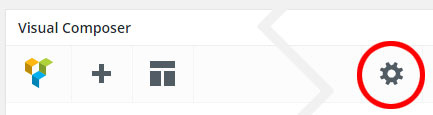
Add custom CSS to the Custom CSS settings box. For instance:
.new-heading-2{
margin-top: 20px;
}
Hello.
1. Actually there are 2 pins on your map, the 1st one locates on Mountain View and the 2nd one is on Santa Clara. If you zoom out the map and go to USA, you will see both pins there. That’s because you have 2 addresses in the map settings, one in Mountain View and another one in Santa Clara. You should edit your Google Maps element, change the address or remove all addresses and add a new one. If it doesn’t work, try to update the theme to see if it works.
2. The first menu always brings you to the top of the page. You have only one menu item, of course it will bring you to the top instead of the anchor. You have to add one more menu item such as Home to be the first item in your menu to work around this.
Hello, I am having issues with my portfolio pages that I had added content to a couple months ago. When I click on the pages to view I am getting a 404 error.
Hello,
This is a permalink caching issue, go to Settings -> Permalinks, select “Post name” and save changes to refresh the permalink settings.
Thank you!
Hi, I really love your theme. It’s great. But I’m facing issues with the js composer. When I activate the plugin, it displays a blank screen and I cannot access the Dashboard. When I deactivate the plugin from the cpanel, I can access the Dashboard. Could you please help me? Thank you in advance.
Hi,
I’ve never seen this issue before! There may be a plugin conflict, if you have other plugins installed, try to deactivate them to see if it works.
If it doesn’t work, please check your server configuration such as PHP version, memory limit. If you have WooCommerce plugin installed, you can check the configuration in WooCommerce -> System Status page. All settings should be green.
If it still doesn’t work, please PM me your site URL and admin login: https://themeforest.net/user/wyde#contact
Hi, Thank you very much for your assistance. Yes, there was a plugin conflict. I deactivated the plugin and everything is working fine.
I’m sorry to bother you but I have another question. In the blog masonry grid, I want all the blog post’s to have an equal size. So I hid the 1st item & 2nd item in shortcode.css. But the grid doesn’t function properly.
Kindly Help. Once again I thank you in advance.
Hi,
Please do not edit any file in the theme directly, your changes will be lost when you update the theme.
Here’s the custom CSS to hide the 1st and 2nd posts. You should add it in Theme Options -> Advanced -> Head Content:
<style type="text/css">
    .w-blog-posts.w-masonry .w-item.item-0,
    .w-blog-posts.w-masonry .w-item.item-1{
        display: none;
    }
</style>
However, the masonry layout displays different sizes of images, even you hide the first item but other items in the masonry layout may have different sizes.
Hi, Thank you for your prompt response.
I don’t want to hide the first two posts. I want all the blog posts of the masonry grid to have equal height. What I mean to say is I don’t want the most recent post emphasized. It should look as the the other posts(3 col grid).
Thank you once again
I’m sorry but it’s too hard to set all posts in the masonry layout to have equal height.
I guess that you’re looking for a grid layout like another one of our theme called Flora: http://wydethemes.com/flora1/blog-grid-2-columns/
Unfortunately, there is no Blog Grid layout in this theme. This is a masonry layout. As you know the masonry layout should have different sizes of posts.
Actually not only the first item but other posts also have different height as you can see on our demo: http://wydethemes.com/overlap/blog/blog-masonry/
So even you change the first item to have the same height as other posts but some posts may have different sizes, I do not recommend you to change this layout.
Thank you very much for the prompt response.
Sorry to bother you with another question. I know the theme does not support this function but I’m still asking this stupid question. If it is easily doable could you please help me. It’s regarding the hover state for the logo. Wherein the logo changes a different image.
Thank you. the support is phenomenal. Much appreciated.
I’m not sure which exactly logo but if it’s a logo in the top menu, it’s too hard to do. In order to change the logo image when you hover, you should have one more image for the hover state but in the Theme Options panel we have only one version of the logo. That means you will need to edit the Theme Options panel too, this is not recommended.
Hi there, sorry to bug you again…. I just wondered if there was any way to transfer a value to the portfolio page and select only one filter in the process?
For instance, on this page:
http://newx.redrebelcreative.com/case-studies/I see that when you hover over the “branding” filter button, the hyperlink name pops up as “http://newx.redrebelcreative.com/case-studies/#c-branding” but when I type that in, nothing happens. Is it not possible to directly use that as a hyperlink?
thanks for all the help!
I’m sorry but it won’t work when you put the filter in the URL directly.
However, if you’d like to show only one category on the portfolio page, you should build custom query to display items from specific category.
When you edit the Portfolio Grid element, click on “Build query” button in the “Custom Posts”, and then put a category name into the “Taxonomies” field so it displays only items in that category.
hi! where I can change the favicon logo? thanks
It’s a built-in setting of WordPress, go to Appearance > Customize -> Site Identify -> Site Icon, see more here: https://codex.wordpress.org/Creating_a_Favicon
How to limit visible Mansory elements (post blocks) numbers in front end? They are visible in front end depending on a posts you created. For example, I want do display 3 posts only and the other ones should be hidden with a link to them or smth.
You can set the Post Count option to limit the number of posts to show on the Blog Posts or Portfolio Grid.
Also, if you’re working on the Blog page, you can set it on your WordPress admin, go to Settings -> Reading, set the “Blog pages show at most”.
Thank you. But… 1. Whre to find Post Count option? I searched everywhere in Back-end and found nothing like that. 2. That’s the problem that “Blog pages show at most” does not work – nothing changes with any value I set. Now, here is 3, but still all post are visible in front-end.
If you’re using Blog Posts element from Visual Composer to display the blog posts on any pages, you can set the Posts Count option in the Blog Posts element settings. However, if it is a Posts page, you can set it in the “Blog pages show at most” on Settings -> Reading. If it doesn’t work, try to deactivate other plugins to see if it works. If it still doesn’t work please PM me your site URL and admin login: https://themeforest.net/user/wyde#contact
Hi there, I’ve tried multiple plugins to optimise my website and to minify the js and CSS but without result. Can you help me with that? Can you recommend me a plugin or a setting? I’m currently using SiteGround as my hosting company and they have Google Page Speed cache but when I activate it the top nav logo have super bad quality (can I use SVG file there?). Here is a link to my website: https://slingshotlondon.com/
Hi there,
We’re using W3 Total Cache: https://wordpress.org/plugins/w3-total-cache/ on our demo sites, it comes with all features you need.
Also, when you test your website by using Google Page Speed, you should resolve the problem in the Suggestions Summary to increase the page scores. It will notify that you should compress your images and use the smaller ones instead.
Regarding the logo, by default WordPress doesn’t allow you to update SVG image so you couldn’t set it as the logo. However, you can add custom CSS below to Theme Options -> Advanced -> Head Content to increase the size and quality of the logo:
<style type="text/css">

#header-logo img {
    max-height: 65%;
    -webkit-transform: translateZ(0);
    transform: translateZ(0);
}

</style>
Thank you very much for your reply. Can you send me the setting of the plugin that I should use? I’m only asking this because I saw you did it for another buyer thank you very much
After you install W3 Total Cache plugin, go to Performance -> General Settings and enable the features as follows:
1. Page Cache
2. Minify
3. Browser Cache
Thank you for the answer. I did as suggested and it worked for me – my page speed is slightly higher. But my website doesn’t open properly in Firefox now. The Slider revolution doesn’t display and I have problems with the portfolios – they become super long and empty. Can you tell me how to fix that? I tried switching on/of the plugin but it doesn’t seem to help.
Thank you
Seems like you have figured it out. I’ve tried it on Firefox and everything is working.
Anyway, I found the wrong custom CSS on your website. When I provide any custom CSS, you should copy it from the comment page, not from the email. If you copy it from email you have to remove the PRE tag from the code I provided.
Hi, thank you for the answer. I corrected the code. The problem with w3 chache remains – I turned it ON now and you can check it in Firefox.
you can see also how my logo get very poor quality when i turn on the google page speed module
now I see it also gives bugs in the other browsers…it doesn’t display the team member and the portfolios become super long and empty pages
In the HTML minify settings, you should disable the “Line break removal” option.
I have never tried the Google Page Speed module but I guess it compress all images on your site so they have very poor quality. You should disable it if you’d like the good quality images.
I couldn’t find the Team Member on your site so I couldn’t see what wrong on this element. However, there was a script conflict on your website because you have enabled HTML minify and remove line break. So try to disable HTML minify as I provided to see if it works.
Hi! I want to sell tickets for a concert in my page with Ticketea. They gave me a html code for to put on the web. But when I put it on the web, it does not recognize it and I only see the code. what can I do? Thanks
Please make sure you’ve selected the Text mode in the Text Editor before adding the code. If you’d like you can provide me your site URL so I can help you out.
Hi there,
Any ideas why my large image shows up looking like garbage? https://snag.gy/bXg5rj.jpg
I have uploaded at several sizes, including larger than the required 1280×800 size you have recommended.
Hi there,
The featured image in the portfolio gallery layout will be cropped to 1280px so it looks blurry on the large screen.
We will change the size of that image in the next update so it will show the full size as uploaded. Thank you for reporting this issue.
Amazing, thank you!
We can’t figure out why our product pages are displaying oddly – http://8ae.c57.myftpupload.com/products/ariel-glasses/ Any ideas?
The current version of this theme doesn’t support WooCommerce 3.0. It will be fixed in the next update.
Oh okay, thank you. Do you have a timetable of what week we can expect that update?
We will release the new update within a week.



