

1370 comments found.

Hi, is there a way to make a page entirely black and have a small amount of content sit in the middle and be responsive to all sizes of screen?
The easiest way is using a fullscreen slider. With Slider Revolution, you can add a fullscreen slider with a black background, then put the content in the middle so you will always have a black page on all sizes of screen.
Also, you can enable the Custom Grid Size so you can adjust font size and styles of the content for each screen size, you can find more details about Custom Grid Sizes here: https://www.themepunch.com/revslider-doc/slider-setup/#custom-grid-sizes
Once you have a fullscreen slider, you will need to add it to the full-width row. Also, if you’d like you can remove the Header and Footer in the Flora Settings at the bottom of the page edit screen.
Hi,
I use the Flora theme.
How can i get featured image in Portfolio in a ‘Grid’ but full width? One photo per row not cutting in photo? No sidebars.
Thanks for our answer.
Herman Belgium
The portfolio grid layout always displays the pictures in squared thumbnails. I would recommend you to use the Standard layout (Vertical) instead: http://wydethemes.com/flora1/portfolio-item/portfolio-7/
Also, you will need to add your pictures to the portfolio content instead of the Gallery Options.
Here’s a quick guide:
1. Edit your portfolio post.
2. Choose the Standard layout (first option).
3. Add your images to the portfolio content. If you’re using a page builder, you can use a Single Image element. If you’re using a Classic text editor, you can click on a button “Add Media” to add your images to the post content directly. Please don’t forget to choose original size so it won’t crop your images.
4. Remove all images from the Gallery Options. Then save changes.
5. Go to Theme Options -> Portfolio -> Portfolio Single Post to disable the option “Display Featured Image”.
6. Add custom CSS below to Appearance -> Customize -> Additional CSS to remove the sidebars:
.portfolio-default .main {
    width: 100%;
    float: none;
}

.portfolio-default .sidebar {
    display: none;
}
Have a nice day. Please do not use my slider after installing the theme-If it does not work my whole page and it is pure white.
I guess that there may be something wrong while installing the Slider Revolution plugin so it couldn’t be installed complete successfully. Try to delete it first, then install it again to see if it works. If you couldn’t delete it from the Plugins page, you will need to delete the folder called “revslider” from “wp-content/plugins/” on your web host directly.
If it still doesn’t work, please give me your site URL so I can take a closer look. You can send a private message in the contact form below, if you’d like:
https://themeforest.net/user/wyde#contactI would like to ask for advice. I have the theme of Flora and I do not know how to use the new code to keep the content on the site
If you mean that you’d like to update the theme without losing content and settings. Please don’t edit any theme files in the theme folder directly. If you’d like you edit any files, you will need to do it in your child theme instead. So, your changes won’t be lost when you update the theme. If this is not what you’re looking for, please provide me more details.
I would like to ask for advice. I have the theme of Flora and I do not know how to use the new code to keep the content on the site
I’m sorry but please contact us from the account that purchased this theme to make sure you’re currently in the correct product page that corresponds to what you have purchased.
If you select the main demo, can you still access the icons used on the Agency Demo? If so, where? Also what is the function called when you hover over the icon box that then shows text called?
I found the icons listed under another set, but my question remains about having the hover over effect, like on the about us section of the agency demo. Also, is it possible to force a break in the text, some of the text is longer and extends to two lines, and it is messing up the formating of the other boxes.
That is an Info Box, it is also available in the main demo. You can add an Info Box from the page builder, then change the Icon Size to “Large”, it will automatically add the hover effect to the icon so it will show the text when you hover on it, as seen on the Agency demo.
Also, when you select the Large Icon, it will show only titles so you can display 2 and more lines without messing up other boxes.
However, if you’d like to force it to show only one line, you will need to add custom CSS below to Appearance -> Customize -> Additional CSS:
.w-info-box .w-header h3 {
    height: 40px;
    overflow: hidden;
    white-space: nowrap;
    text-overflow: ellipsis;
}
Thank you! That was it! I have a few more questions below if you can assist, thank you so much!
- Need info on how to add miniture icons to left of titles.
- Need to remove (replace) the icon that is on the bottom of the text section of the Info Block.
- How can I slightly increase the size of the Title text of the Info Block? It is showing a little small, in comparrison to Icon.
- How can I have the Main Menu navigation, instead of going to a new page, anchor to a section on the homepage?
1) You will need to change the Icon Size to Small to add the icon to the left of the titles.
2) You can add custom CSS below to Appearance -> Customize -> Additional CSS to remove that icon:
.w-info-box.w-large .w-content p:after {
display: none;
}
3) Here’s custom CSS to increase the size of the info box title:
.w-info-box .w-header h3 {
font-size: 26px;
}
4) There are 2 ways to make menu scroll to a section on the home page.
1. Enable the “One Page Website” in Theme Options -> Page, it will automatically combine all pages into your home page and generate anchor of each section so when you click on each menu, it will scroll to the section on the home page instead of going to another page.
2. Create an anchor of the section manually. Edit the row on your home page to set the Row ID (i.g. about-us). In Appearance -> Menus, add a Custom Links menu item to the main menu, set the URL to http://www.yourdomain.com/#about-us and put the About Us, for instance, to the Navigation Label.
Thank you so much!
Thank you so much! Here are just a few questions I had on the Ninja form:
- Is there a way to change the Submit button color on the Ninja Form?
- Is there a way to have the user link to a unique THANK YOU page after submitting the Ninja form?
I’m sorry but I have never tried the Ninja Form plugin before and it is not included in the plugins support list so I couldn’t answer these questions.
Thanks again! Just some more small questions!
1. I have it set to have a dark background behind the sticky navigation – but when the page is all the way at the top, the dark background doesn’t show. It only shows if you scroll the page down a little bit. Is there a way to set it that the menu background is always dark?
2. I added a transparent shape on the main image slider area, but it doesn’t go all the way to the top, where the main navigation comes in. It makes it look kinda strange, is there a way to have the transparency go all the way to the top? note I found the Header section on the page that has the ‘show’ options, but I am still running into the same issue.
1. It sounds like the Transparent Header of that page is enabled so it displays the transparent navigation instead of dark background.
To make it always dark, you will need to edit that page. On the page edit screen, scroll down to the Flora Options, select the Header tab and change the Transparent Header to “Disable”.
2. Try to enable the Transparent Header in the Flora Options -> Header to see if it works. Would you mind giving me the link of that page so I can take a closer look?
I can not find the Plugin Wyde Core….Can you help me?
The Wyde Core is included in the theme. After you install the theme, you will see a notification message to install Wyde Core and other bundled plugins. Click on a link in that message to install them. If the notification message was dismissed, go to Appearance -> Install Plugins to see them.
You can find more details on how to install the bundled plugins in our documentation.
Hi there. Is it possible to have comments under pages? Do you recommend any solution for that?
The comments section is only available on the Boxed page layout. Here’s a quick guide to show it:
1. Enable “Comments” in Theme Options -> Page -> Page Options.
2. Edit the page, to change the “Layout” in Flora Options -> Page to “Boxed”.
Thanks! Is this true even for other comments plugin?
We’ve never tried any other comments plugin so I’m unsure about whether it will work or not.
Does your theme support this? If not, can you recommend another solution? Thanks
Link: https://codecanyon.net/item/ubermenu-wordpress-mega-menu-plugin/154703
I’m sorry but I’ve never tried that plugin with this theme and it is not included in the plugins support list so I’m unsure about whether it will work or not.
However, this theme includes mega menu feature so I would not recommend you to install another mega menu plugin.
Hi, I’m using the full screen menu and was wondering if there is a way to make the colour overlay completely solid rather than transparent? And would also like to make the menu button 100% black all the time, not just when hovered over.
Thanks in advance
Hi, I’m using the full screen menu and was wondering if there is a way to make the colour overlay completely solid rather than transparent? And would also like to make the menu button 100% black all the time, not just when hovered over.
Thanks in advance
You will need to add custom CSS below to Appearance -> Customize -> Additional CSS:
/*Makes the colour overlay completely solid*/
#fullscreen-nav:before {
opacity: 1;
}

/*Changes the colour of menu button to black*/
.vertical-menu li a,
.vertical-menu .back-to-parent span {
color: #000;
}
So the full screen colour overlay worked, but its not quite 100% black, its more of a dark grey, is there a way to make it a specific colour?
also the changing the colour of the menu didn’t seem to change anything, it is still a mid grey colour
To change the background color of the fullscreen menu to 100% black, you will need to add custom CSS below to Appearance -> Customize -> Additional CSS:
div#fullscreen-nav.w-light:before,
div#fullscreen-nav.w-dark:before {
    background: #000;
    opacity: 1;
}
Sure, you can change from #000 to any colors.
The CSS snippet I provided will change the color of the menu items in the fullscreen menu to black. If it doesn’t work, please give me your site URL so I can take a better look.
Yep that worked, the full screen menu is now 100% black, however I can’t seem to change the colour of the menu items text, the social icons are white, but I can’t make any of the text white for some reason
also the url is www.yknot.net.au, I’m trying to make the 3 lines menu button 100% black but can’t seem to get it to work
My bad! I thought that you’d like to change the menu items text to black.
Now, I think I got it. So, you will need to remove all CSS snippets from Appearance -> Customize -> Additional CSS. And then add the new one below instead.
div#fullscreen-nav.w-light:before,
div#fullscreen-nav.w-dark:before {
    background: #000;
    opacity: 1;
}

.vertical-menu li a,
.vertical-menu .back-to-parent span {
    color: #fff !important;
}

.vertical-menu li:hover a,
.vertical-menu .back-to-parent:hover span,
.social-icons > li:hover a {
    color: #ccc !important;
}

.w-text-dark:not(.w-fixed) .menu-icon, .w-text-dark:not(.w-fixed) .menu-icon:before, .w-text-dark:not(.w-fixed) .menu-icon:after, .w-light .menu-icon, .w-light .menu-icon:before, .w-light .menu-icon:after, .expand-nav.full-nav-active .w-light:not(.w-text-dark):not(.w-fixed) .menu-icon, .expand-nav.full-nav-active .w-light:not(.w-text-dark):not(.w-fixed) .menu-icon:before, .expand-nav.full-nav-active .w-light:not(.w-text-dark):not(.w-fixed) .menu-icon:after {
    background: #000;
}

.fullscreen-nav.full-nav-active #header.w-light .full-nav-icon:hover > .menu-icon:before, .fullscreen-nav.full-nav-active #header.w-light .full-nav-icon:hover > .menu-icon:after {
    background: #fff;
}
Thank you so much, thats amazing! Last couple of things I want to change are, now Im going to have the background white, which I managed to find and change within the code, and the text black which I also managed to figure out, but I cant figure out how to make the social icons black, if you could help with this, that would be awesome. And the last thing is that I want the 3 line menu button, to be further into the left on the page, so that its not as close to the edge of the screen, is there any way to move this a bit?
Try the new one below to see if it works:
/* Menu background */
div#fullscreen-nav.w-light:before,
div#fullscreen-nav.w-dark:before {
    background: #fff;
    opacity: 1;
}

/* Menu text color */
.vertical-menu li a,
.vertical-menu .back-to-parent span,
.social-icons > li a{
    color: #000 !important;
}

/* Menu text color when hovering */
.vertical-menu li:hover a,
.vertical-menu .back-to-parent:hover span,
.social-icons > li:hover a {
    color: #ccc !important;
}

/* Hamburger button */
.w-text-dark:not(.w-fixed) .menu-icon, .w-text-dark:not(.w-fixed) .menu-icon:before, .w-text-dark:not(.w-fixed) .menu-icon:after, .w-light .menu-icon, .w-light .menu-icon:before, .w-light .menu-icon:after, .expand-nav.full-nav-active .w-light:not(.w-text-dark):not(.w-fixed) .menu-icon, .expand-nav.full-nav-active .w-light:not(.w-text-dark):not(.w-fixed) .menu-icon:before, .expand-nav.full-nav-active .w-light:not(.w-text-dark):not(.w-fixed) .menu-icon:after {
    background: #000;
}

/* Hamburger button (fullscreen menu active) */
.w-text-light:not(.w-fixed) .menu-icon, .w-text-light:not(.w-fixed) .menu-icon:before, .w-text-light:not(.w-fixed) .menu-icon:after, .w-dark .menu-icon, .w-dark .menu-icon:before, .w-dark .menu-icon:after, .expand-nav:not(.full-nav-active) #header:not(.w-text-dark):not(.w-fixed) .menu-icon, .expand-nav:not(.full-nav-active) #header:not(.w-text-dark):not(.w-fixed) .menu-icon:before, .expand-nav:not(.full-nav-active) #header:not(.w-text-dark):not(.w-fixed) .menu-icon:after, .fullscreen-nav.full-nav-active .w-light .full-nav-icon .menu-icon:before, .fullscreen-nav.full-nav-active .w-light .full-nav-icon .menu-icon:after {
    background: #000;
}

/* Hamburger button when hovering (fullscreen menu active)*/
.fullscreen-nav.full-nav-active #header.w-light .full-nav-icon:hover > .menu-icon:before, .fullscreen-nav.full-nav-active #header.w-light .full-nav-icon:hover > .menu-icon:after {
    background: #ccc;
}

/* Moves the hamburger button to the left a bit */
.full-nav-button {
   right: 30px;
}
Thats perfect, thank you so much! I’ve also noticed that the Instagram icon is outdated, is there any way to update that to the new logo?
Thank you for your suggestion! We will update it in the next update.
Also wondering if theres any way to remove the fade animation from opening the full screen menu, so that the menu appears as soon as the menu button is clicked?
You will need to add custom CSS below to disable the fade animation of the full screen menu:
#fullscreen-nav {
    -webkit-transition: none;
    transition: none;
}
Thats perfect, Thank you!
Hey. help fix it. On the main page I have a Slider Revolution. But I just can not do that, that Scroll Buttom would be on the screen. The button is always at the bottom: ( Even if I put slider of demo material. my site www.vlozovoy.ru
You’re using a Full Screen slider that will always change the size to the same size as the entire screen size without the admin bar and the header menu.
There are a couple of ways to make it to be completely full the screen size when you have the header menu.
1. Enable the Transparent Header so it will overlay on the slider instead of will be at the top. Edit your home page, scroll down to the Flora Options, select the Header tab and then change the Transparent Header to Enable.
2. If you wouldn’t like to have a transparent header. You will need to reduce the slider height instead. In the Slider Settings screen, see the picture below:

You can put #header into the text field #3 Increase/Decrease Fullscreen Height.
3. Or put the height that you’d like it to reduce such as 95px (the height of the header menu) into the text field #4 in the picture.
thanks 
Do you have a customization recommendation from the ENVATO STUDIO group that would allow me to review their ratings and standard pricing? many charge from $50 to $200. I want the functionality to change every image and background on the site at the lowest cost.
Thanks! Larry f6bc45c1-a016-4f0a-b6b5-021da2c75d09
Anyway, I would recommend you to change it yourself. You can easily change images and background including any content in the page by using WPBakery Page Builder that’s bundled with the theme.
If you’d like to change the background of the row, you can click on a pencil icon at the top right corner of the row so you will see the Row Settings window, select the Background tab to change the Background image. You can also do the same things with the column to change the background of the column.
To change the image and text in the page content, you can hover on each element so you will see the edit toolbar, click on a pencil icon to edit it.
Is there any way of inputting a specific size for icons in an info box rather than the default ‘small’ ‘medium’ and ‘large’. None of these are the size I want so I would like to put in a specific size. Thanks
To set a specific size for the icon in the Info Box, you will need to add custom CSS below to Appearance -> Customize -> Additional CSS:
.w-info-box .w-icon {
    font-size: 50px !important;
}
You can change from 50px to any other sizes.
However, the custom CSS above will change the size of icons in all Info Boxes on your site. If you’d like to set the size of specific element, you will need to add an extra class for that element. Here’s a quick guide:
1. In the Info Box Settings window, put a CSS class name into the Extra CSS Class field. For example, ‘my-infobox-1’.
2. Click on a gear icon in the right corner of the Visual Composer toolbar to open the Page Settings window, see the picture below:
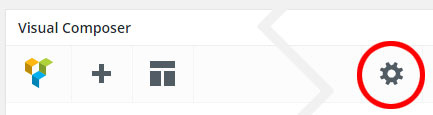
3. Add custom CSS to the Custom CSS settings like the one below:
.w-info-box.my-infobox-1 .w-icon {
    font-size: 50px !important;
}
Hi there, I imported the demo for this, however it didn’t actually create the home page how you have it on the demo.
Could you help please?
After you import demo content, you will receive all pages, posts and images so your site will look exactly like our demo. You can reset your site and try it again.
However, please ensure that you’ve increased your server configuration limits as provided in our documentation before importing. Also, I would recommend you to deactivate any other plugins (except the ones that are bundled with the theme). This to make sure all content including images will be imported complete successfully.
If it still doesn’t work, you can give me your WordPress admin login details if you’d like. You can send a private message in the contact form here: https://themeforest.net/user/wyde#contact
Hello,
Our attempt to load the Flora theme failed. The WordPress message states, “The theme is missing the style.css framework.” Can you help ASAP this morning with a response? If needed, my purchase code is f6bc45c1-a016-4f0a-b6b5-021da2c75d09 – 19 Oct 2017 and I have 8 months remaining.
Larry larrysmall3@gmail.comIn the Downloads tab, if you download “All files & documentation”, you will need to extract that zip file first. You will find the theme file “flora.zip” in the folder WordPress Theme. You can find the instructions on how to install the theme in our documentation.
I need to add a white “X” to the corner of all images when they are opened in the built-in lightbox features. There is currently no way in portfolio to close the images outside of clicking outside of them…
Thank you for reporting this issue. We will add it in the next update of the theme.
When will the next update be released?
We will release the new update in a couple of days.
Hello, I was able to install the child theme but the parent flora.zip is not installing. It is taking me to a grey screen with the text “Are you sure you want to continue?” Was there an update that effected the install folder? I’m following installation documentation. thank you.
max_execution_time = 300

memory_limit = 128M

post_max_size = 32M

upload_max_filesize = 32M

max_input_vars = 5000
You can do this on your own by editing the file php.ini on your host, or contact your web host admin and ask them to increase those limits.
You will find more details on editing the PHP.ini file here: http://www.wpbeginner.com/wp-tutorials/how-to-increase-the-maximum-file-upload-size-in-wordpress/
thank you! that was it!
Hi, I have found my site totally broken, and do not know why. Pls is there any bug? Last days I could found at the web page strange spam articles pubished not by me, and now this, pls help me, thanks. Problem is at www.revue50plus.sk, Thank You.
We’ve never seen this issue before. Also, everything seems to work fine on our demo site so I think that this is not a theme issue.
Try a couple of steps below:
1. Update your WordPress and all plugins to the latest update.
2. Update the Flora theme and all bundled plugins, you can find more details about the update here: https://themeforest.net/item/flora-responsive-creative-wordpress-theme/12038776#item-description__update-log
3. If all are up-to-date but it couldn’t fix this issue. There may be a plugin conflict on your site, try to deactivate other plugins one by one to see if it works. If it still doesn’t work, please send me your WordPress admin login details in the contact form: https://themeforest.net/user/wyde#contact
Hello there:
I just acquired Flora theme. I like the design of the theme!, but I have a problem trying to install the Slider Revolution plug-in, when i activate the plug in, automatically send me to an error message:
This website it’s not working toye.com website cannot process this command right now. HTTP ERROR 500
I deleted it from the root server and everything its ok, this is my 4 try and it’s the slider revolution plug in, it keeps crashing
Hope you can help me! thank you for your time.
Dario
Hello, quick update, when press on Appearance/customize send me to the same error page…help…:)
http://toye.com/wordpress/ i have a code line at the top of my home.We’ve never seen this issue before. There may be a plugin conflict on your site. If you have other plugins installed, try to deactivate them to see if it works.
If it still doesn’t work, please provide me your WordPress admin login details. You can send a private message in the contact form: https://themeforest.net/user/wyde#contact
Thank for your response, I will contact you trough private message. Thank you

This item was featured on ThemeForest

Elite Author
Contact the Envato Market Help Team


