

1306 comments found.

HI, my contact form is using the following:
[text* your-name placeholder “Name “]
[email your-email placeholder “Email “]
[tel your-tel placeholder “Phone”]
[text your-subject placeholder “Subject *“]
[textarea your-message 40×12 placeholder “Message”]
[recaptcha id:Contact-Us class:contact-us theme:light]
<input type=”submit” value=”Send Your Message” />
However, the message box isn’t the same height as the other column/field inputs (bottom finishes just above the field on the other side. I’ve tried changing the value to 40×13 or 40×14 but it doesn’t line up still. Can you help with this or suggest another of laying it out so that both “columns” are equal height, no matter the device its viewed on. RegardsYou may need to set the height for the message box to make it equal to the other side.
Put the CSS snippet below to the CSS Settings for the contact page:
.wpcf7-textarea {
  height: 235px;
}
Hope this helps!
Hi there, I think I may have struck this issue before with the sliding bar – when the button/link “purchase now” is hovered over, it disappears (maybe it’s set to white text on hover?) Can I have a fix for this please? Hover colour needs to be ##ff0000 on my theme. Many thanks.
Here’s the shortcode for the button that you’re looking for:
[wyde_link_button style="none" size="large" title="Purchase Now" link="url:http%3A%2F%2Fthemeforest.net%2Fitem%2Foverlap-high-performance-wordpress-theme%2F15344205%3Fref%3DWyde||" hover_color="#ff0000"]
Also, I would recommend using the page builder to build the content for the Text widget. You may need to create a blank page first, then add a button and choose the settings for it. Switch to the Classic mode and select the Text tab in the Text Editor, then copy the code and put it into the Text widget on the Sliding bar.
Header/Navigation Hi support…I’ve been trying to work out the best way to recreate the following menu layout: https://align1solutions.com/product/muuv/ with your theme. I’ve arrived at possibly using the sidebar for the menu on desktop, with a regular menu (hidden on desktop) and reverse for both on mobile.
My question is whether I can hide specific menu items on desktop or its an “all or nothing” approach? Other themes offer a top header section where I could place the phone number but I don’t think this theme offers this – correct me if I’m wrong as it would be a really simple solution!).
I’ve loaded the personal portfolio demo (if I can hide the menu and specific items still remain visible) so would need to now switch to the standard menu style – what’s the best way to do this? Regards
That menu layout is not available in this theme. This theme comes with only 3 navigation layouts and doesn’t have a top bar to show the phone number as you can see in our demos. This is only available in our new theme called “Aoraki”: https://themeforest.net/item/aoraki-multiconcept-business-wordpress-theme/19652714
To hide specific menu items on desktop, you will need to put an extra CSS class named hidden-lg into the CSS Classes field of the menu item. That field is hidden by default, you can enable it under the Screen Options in the top right corner of the menu edit screen, select “CSS Classes” so that field will show up in the menu item setting box. Put hidden-lg to that field to hide the menu item on desktop.
Also, here are extra CSS classes to hide it on other screens:hidden-lg = Large (desktop) hidden-md = Medium (laptop, tablet landscape mode) hidden-sm = Small (tablet portrait mode) hidden-xs = Extra small (mobile).
Hi thanks, I thought I’d found the perfect solution to my layout issues with this! However, adding the css into the menu also now hides it in my sliding bar (which I’m using for the desktop menu system) argh! Is there any way to further specify? I To be clear, I want my full menu to show in my sliding bar on desktop/large screens, only two items to be visible in the actual menu (across the header area), with all the menu items to be visible on mobile and act normally as per the template…. thanks SO much for your assistance on this one…
Unfortunately, you couldn’t adjust this by using a built-in extra CSS class from the theme. You will need to add custom CSS to style.css in your child theme to hide specific menu items. However, this is a theme modification, you will need to do it yourself and at your own risk.
Hi, I’d like my menu to be capitalised (rather than all caps)...what’s the css snippet for this or the place to set it? Cheers.
.vertical-menu > li > a,
.vertical-menu .back-to-parent span {
    text-transform: capitalize;
}
Hi support I have a question regarding shop thumbnails – under the Woocommerce, Products settings it has 3 options: 1:1, custom or uncropped, but I’m not seeing any chances to my thumbnails when selecting these options. Would you mind explaining them? Also, what is the size to upload an image (for both main image and thumbnail? TIA
Hi support
I’m wanting to style the buttons on just a single page, not throughout the site to capitalised. What is the css snippet please? I assume I put it in the extra css settings under the button element. Do I need to put it anywhere else? Regards
(I tried this css snippet but didn’t have much luck? text-transform: capitalize)
Thanks in advance.
You should add CSS snippet to the Page Settings so it will affect only the elements on that page.
1. Click on a gear icon in the top right of the page builder toolbar, see the picture below:
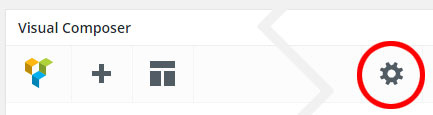
.w-button {
    text-transform: capitalize;
}
Hope this helps!
Hi, thanks…I am wanting to style it more specifically ie only certain buttons on a page lol (otherwise the above would be great)..Is this possible at an individual button level? Sorry I wasn’t more clear in my original question…
Here’s a quick tip:
1. You will need to add custom CSS class to the CSS Settings as I provided above. For example:
.custom-button {
  text-transform: capitalize;
}
2. Put the class name custom-button into the Extra CSS Class field in the element settings window when you edit the button or any other content elements.
Hi is it possible to add additional images into the product page/post? I have three inserted (as a gallery and using columns shortcodes) but the last image sits lower (although fits alongside) than the other two. Not really sure how to achieve the look I’m after. Happy to send screenshot if needed.
I would recommend using the WPBakery Page Builder to build the product content so you can add an Image Gallery and other content elements like building the page.
If the page builder is not enabled on the product edit screen, you can enable it under WPBakery Page Builder -> Role Manager, choose “Custom” for the Post types, select “product” and save changes.
ok, that’s great. I’ve switched to this method. However, my row is set is ‘full width’ but isn’t showing as full width (is this a shop page template setting?)
Hi again, have switched it all over, the product looked ok on preview but now isn’t showing any of the information (inside the page builder), only the image… not showing the product short info either. Help please?
1. The fullwidth row is not available in the single post template including single product, it always displays as a boxed layout even you choose fullwidth for the row.
2. Looks like you’ve figured it out, everything seems to work well on your product page.
Hi, is there a zoom on hover option available for the main product image? Where do I set this? Regards
We’re sorry but the zoom option is not available in this theme, it doesn’t support.
Hi, regarding shop thumbnails (gallery)...If I want to set them to display within a 150×262 window (original image uploaded at 510×892), what’s the best way to do this? TIA
The size of shop thumbnails is defined by WooCommerce plugin. Unfortunately, it is set as squared thumbnails and always be 100×100px.
Hi,
I have three requests from my clients:
1) We need to modify “Overlap Slider” – need to eliminate bullets on the bottom (we have too many pictures) – need to scale down the big arrow: 1/3 thickness and 1/2 dimension
2) We would like to use “Uranus” arrows in Home page “Slider Revolution”, but we would like to have the possibility to change their color
3) We would like to keep the header fixed without the changing of dimension with mouse scrolling.
Thank you very much for your help.
Also, if possible, the header with an alpha effect…
4) We would like to use “Ares” bullets in Home page “Slider Revolution”, but we do not want the title appears on mouse over the bullet…
Again… thank you so much!
.w-slider-dots {
    display: none;
}

.w-slider-nav a:after {
   font-size: 75px;
}
2) It seems like the color option is not available for the Uranus arrows, only the Background Color is. Unfortunately, those settings are built-in settings from the Slider Revolution plugin, we couldn’t adjust this for you. However, if you’d like to change it, you will need to add CSS snippet below to Appearance -> Customize -> Additional CSS to achieve this:
.uranus.tparrows:before {
    color: red;
}
3) You can change only the height of the sticky header. Here’s CSS snippet to set the height of the sticky header to the same as the normal header:
#header.w-scrolled .container,
#header.w-fixed .container {
    height: 85px;
}
4) Try adding CSS snippet below to see if it works:
.ares .tp-bullet-title {
    display: none;
}
Hi, i’d like to add more padding between my product main image and the product details to the right (it seems a bit squished). Can I adjust this somehow? Regards
@media only screen and (min-width: 992px) {

.product .images {
    margin-right: 80px;
}

}
Great! Thanks 
Hi, I’d like to hide my product title and the amount/price showing underneath. How is this achieved please? TIA
Try adding CSS snippet below to see if it works:
.products li figure figcaption {
  display: none;
}
Hmm, that didn’t seem to work?
.single-product .product_title,
.single-product .price {
    display: none;
}
That’s perfect! Thanks. Is there a way to also hide the breadcrumb: ‘Shop/Category/Product’... Cheers?
Here’s snippet to hide the breadcrumb on shop and product pages:
.woocommerce-breadcrumb {
    display: none;
}
cheers
Hi there, I’m using the personal portfolio layout (with the menu showing as in hamburger style at right). However, when I change my header to light (under theme settings), the hamburger shows as white (so, not visible) but then shows up in my theme colour on hover. I would prefer it displays as the theme colour (#e20000) OR white but inside a boxed background (in my theme colour #e20000). How can I achieve this? I also noticed that when changing to the ‘light’ header colour, the menu opens up against the theme coloured background (#e20000) when previously it was a dark background. I’d prefer the later…can I adjust this with css?? Thanks and regards
By default, when you choose “Light” for the Header Background under Theme Options -> Navigation, the menu color should be grey (#777), not white. It seems like you’ve also set the menu text color to “Light” then it is white. If the page has a light or white background, you should change the “Foreground Style” in the Overlap Options -> Header on the page edit screen to “Dark”.
Hi, I’m not sure where or how I would’ve changed the menu text colour? In any event, I’ve checked the settings and adjusted but it still doesn’t quite resolve my issue. Setting them as suggested is fine, until I open up the hamburger menu and the background is then shown in red (the set theme colour).. I’d like to keep the setting from the dark header background settings ONLY for when the hamburger menu is opened. Can I achieve this with CSS? Cheers
I’m wondering if another workaround to this would be to use the sliding bar as an option for the menu? Can the sliding bar icon be changed? Do you see any issues with doing this? Presumably the menu could be hidden on desktop and show on mobile and the reverse for the sliding bar?
OR (sorry for so many questions) can I perhaps customise the menu opening background colour and display size (to the size of the sidebar) with css?
body #fullscreen-nav.w-light:before,
body #live-search.w-light:before {
    background-color: #211F1E;
}

.w-light #full-nav .vertical-menu .back-to-parent:hover span, .w-light #full-nav .vertical-menu li:hover > a, .w-light #full-nav .vertical-menu .current-menu-ancestor > a, .w-light #full-nav .vertical-menu .current-menu-item > a, #fullscreen-nav.w-light .social-icons > li:hover a {
    color: #ff0000;
}

.fullscreen-nav.full-nav-active #header.w-light .full-nav-icon:hover > .menu-icon:before, .fullscreen-nav.full-nav-active #header.w-light .full-nav-icon:hover > .menu-icon:after {
    background: #ff0000;
}
2 – Here’s the snippet to change the sliding bar icon on desktop and hide the hamburger menu:
.full-nav-button {
    display: none;
}

@media only screen and (min-width: 1080px) {

    .menu-item-slidingbar .sliding-icon:before {
       content: "\e83c";
       font-size: 22px;
       }

    .fullscreen-nav #top-nav .top-menu {
            padding-right: 0;
    }

}
Hey thank you so much, that first snippet is great! I’ll stick with the menu in this format. Just a small (final) question, is it possible to reduce the size of the opened menu (ie not full screen, maybe quarter screen size, on the right hand side?)
#full-nav {
    font-size: 20px;
}
However, when using a fullscreen menu, it always displays as fullscreen, you couldn’t adjust this by CSS.
Hi, so I’m gonna try the second option then seeing as I can’t make the menu anything different to full screen. Can I change the background colour of the sliding bar then? Also, am I correct in assuming the sliding bar will hide on mobile and the menu will display (as it would normally) on mobile?
I’ve added the main navigation menu to the sliding bar, but its ‘lost’ the icon set in the menu for the shopping cart…any way to ensure that shows up?
1 – The background color of sliding bar depends on the header background you’re using. You can choose between “Dark” or “Light” under Theme Options -> Navigation -> Top Navigation -> Header Background.
2 – The menu widget is a built-in widget from WordPress that’s different from the primary navigation menu from the theme, it displays only menu items. The shopping cart icon is only available in the primary navigation menu (Top and Fullscreen menu).
Hi there, I’d like to clarify the second point. Is it possible to have the classic menu layout showing, (but hide some items on desktop) without those same items being hidden in the menu in the sliding bar?
Also, clarifying the first point, I’d like to set the header background to light, but specify the background colour of the sliding bar with css – the colour I’d like to make it is: #ff0000 with the menu showing in light (white) text… can this be achieved?
We’re sorry but you couldn’t adjust this under the theme options panel and this is not included in the theme design. You will need to modify template files in your child theme to achieve this.
However, the theme modification and customization are not included in the theme support, you will need to do it yourself and at your own risk.
ok, could i get around this then by setting a dark header in navigation, but on a page level setting header to transparent and then specifying the sliding bar colour? (now styled as hamburger menu)
#slidingbar {
    background: #ff0000;
    color: #fff;
}
Hi, i have duplicated a page and recreated a simliar page. I have inserted a rev slider in the new page but for some reason its showing with a thin white gap either side (even though the row is set to full width). The page settings are the same as the original page I duplicated from and the sliders on that page are showing fine. I’m a bit stumped as to what the issue could be? Can you take a minute to check this issue? Regards
You have to set the Padding Size in the column settings to No Padding to remove the gap from both sides of the column. To set this option, you have to edit the column, not the row.
HI, I’d like to specify font size and line height within a specific row (using text block and paragraph style)...what’s the best way to achieve this? Cheers,
The Text Block uses default WordPress text editor to edit the text and headings. Unfortunately, it doesn’t have font size and line height options. I would recommend using the Custom Heading instead. You can change the Element tag to “p” to add plain text and paragraph.
Hi, i have three images (equal size) which I want to display side by side (full width) with no spaces in between – what’s the best way to set this up in this theme? Row with 3 columns (no space between columns? – that option doesn’t seem to be available in the row settings?) or as a gallery? TIA Regards Carrie
I would recommend adding them to a row with 3 columns because when adding to the Image Gallery, it will show the full size in the lightbox when you click on each image.
To get rid of the space between columns, you have to set the Padding Size option for each column to No Padding. This option is in the column settings window when you edit the column.
perfect, thanks!
Hi, I’d like to specify the size of my H4 – that option doesn’t seem available in the theme settings. How do I achieve this please? Thanks
The size of headings is not available in the theme settings because they might have different sizes in different content elements and parts. I would recommend using the Custom Heading element so you can set the font size including other font styles for the headings.
However, if you’d like to change default font size for H4 in the Text Block and the blog post content, you will need to add CSS snippet below to achieve this:
h4 {

font-size: 26px;

}
thanks
Hi support, I seem to be having issues with revolution slider. It works when inserting the slider shortcode via a text element but not when using the Visual Composer Element and selecting the slider alias… I haven’t struck this problem before – do you know if there is a current issue or bug? I downloaded Overlap yesterday so am assuming the Slider Revolution plugin (Version 5.4.7.3) is the latest version. Your help would be appreciated. Thanks and regards, Carrie
my bad. have fixed this. error was my end…lol
Hi there, Just wanting to change the background colour of my contact 7 form text input fields (to #808080 with text colour of #e6e6e6)...how/where do I set this please? Cheers
Hi there,
You may need to add CSS snippet below to Appearance -> Customize -> Additional CSS to set this:
input,
textarea {
   background: #808080;
   color: #e6e6e6;
}
Hi, thanks for the reply. This solution works for me, but I do have a question about the form. It’s using the following code (and the theme seems to have set the input fields to have a white border around them):
[text* your-name placeholder “Name “]
[email your-email placeholder “Email “]
[tel your-tel placeholder “Phone”]
[text your-subject placeholder “Subject *“]
[textarea your-message 40×12 placeholder “Message”]
[recaptcha id:Contact-Us class:contact-us theme:light]
<input type=”submit” value=”Send Your Message” />
My question is: 1. If I wanted to remove the white border, what is the css snippet I’d require? 2. The form indents (left margin, by about 10px)) on my web page and then further indents the “send your message” box. If I want to ensure it’s all flush with the left margin of the visual composer row (and lines up vertically with text siting above), how do I achieve this? Happy to send URL if you need to sight the page. TIA
input,
textarea {
  border: none;
}
2 – I guess that the indents are from the column, not the form. By default, all columns have the gap in both sides, you will need to edit the column container of the contact form and change the Padding Size to No Padding to remove the indents. If this doesn’t work, you may need to send me your site URL so I can take a look.
Hi, thanks for your reply: 1. Perfect, thank you. 2. That didn’t seem to work…can I send the URL in a private message?
You can send a private message in the contact form on the page below:
https://themeforest.net/user/wyde#contactThank you for the login details!
You’re using a column CSS class in the contact form. You will need to edit the contact form HTML in the Form tab on the contact form edit screen to insert the CSS class called ‘no-padding’ to remove the indents from the column so it should be:<div class="row"> <div class="col col-6 no-padding"> ... </div> <div class="col col-6"> ... </div> </div> <div class="col col-12 no-padding clear text-center"> ... </div>
Thanks for the tip! Cheers – problem resolved
Just quickly revisiting the initial snippet… I have changed the background and colour values (the rest of the snippet remains the same) but the label text (ie “email”, “name” etc) doesn’t seem to change colour (the input text seems right) – am I missing something?
That is a placeholder text for the input field, you will need to add snippet below to change it:
::-webkit-input-placeholder {
    color: #fff;
}

::-moz-placeholder {
    color: #fff;
}

:-ms-input-placeholder {
    color: #fff;
}

input:-moz-placeholder {
    color: #fff;
}
Hi, I’m having trouble accessing the site’s live previews and demo content – has the overlap theme been made redundant??
Hi,
It’s now online and we can access the site’s live previews and can import demo content too. This might be an issue with our VPS or CDN, please try it again to see if it works.


