22304 comments found.

Hi, I’m having an issue with one of the websites I built for one of my clients. Basically, their server prohibit svg icons, possibly for security reasons, but no SVG can be loaded. The latest version makes use of SVG icons, instead of the standard icons, to help with loading speed, which is fine, but not an option here. I think you mentioned a plugin that could help restoring the old icons? Many thanks.
Sorry, this is sorted. It was a weird cache issue (host level, I don’t have access!) which prevented the display of the SVG icons, they are now showing  However I also add the issue described below by Nyx1961 about the logo not being centered – option 5: Centered Logo Inside Menu. I added #site-logo { justify-content: center; align-items: center;} in the child-theme to fix it for now. Cheers
Hi,
Thanks for letting know the issues are resolved. And regarding the second bug, another customer reported this also and I’ve fixed it for the upcoming patch – https://totalwptheme.com/docs/upcoming-update-changelog/ – sorry for the troubles!
- AJ
Hi AJ. Sorry to bother but since updating to Total 6.0, the logo in my menu no longer centers on mobile or tablet; it’s now on the left. It still displays properly on desktop, however. In the customizer, under site header, I use style option 5: Centered Logo Inside Menu. It was displaying properly before I upgraded. Can you help me with this, please? My website is evpaxton.com
Hi,
Thank you for the heads up! I am releasing a 6.0.1 shortly because the latest WP update introduced a debug error that needs fixing and WPBakery released another update shortly after mine. So the fix for this will be added.
The issue is technically related to the setting Mobile Menu Toggle style – https://totalwptheme.com/docs/mobile-menu-toggle-styles/ – “Centered Hamburger Icon”. Since updating the logo to use modern flex styles the old text align center no longer works, I needed to tweak the CSS for this toggle style and forgot (there are so many options and features in the theme I was bound to miss something – shoot).
Thank you for reporting the bug and sorry for the troubles!
Updated theme with the fix coming shortly.
- Aj
Thanks so much for getting back to me so quickly, AJ. I really appreciate the level of client support you provide along with your high quality theme.
I’ve tried the various modern flex styled and would love to use one. They center the logo properly over the hamburger on mobile BUT (isn’t there always a but?) there doesn’t seem to be an option to center the logo with the menu divided equally on either side in desktop mode. I tried the flex center logo style but the entire menu was to the left of the centered logo and the right side was empty. So I need to keep using the “old-fashioned” centered logo style. lol I’ll keep my eyes peeled for the update. Thanks again!
Hi,
Correct, there isn’t a “Flex” style that can have the logo centered as it’s not really needed because creating a “Flex” variation wouldn’t offer anything “new” for this specific header style. There is just no need for a flex variation.
By the way…in Total 6.0 I have new elements (Horizontal Menu & Off Canvas Menu) elements that can be used to create a custom header via Theme Panel > Header Builder.
And I have some pre-built patterns that you can insert into your template as a starter. One of them features a centered logo – https://totalwptheme.com/pattern/header-13/ – this is done by using a 3 column row and inserting a menu on in the left column, image in the middle and logo in the right column. So it does require creating 2 menus (left/right) unlike the preset header style you are using which can be slit automatically. But some customers prefer this because it can give them a bit more control.
With the header builder you would basically be creating 2 rows – one for the desktop design and one for the mobile design (using the visibility field in the row to show/hide them accordingly). This way you can have full control over the mobile and desktop design separately.
So you could always create a custom header if you wanted. But of course this is more complicated then just using a preset header style and your site is already done so I don’t see any benefit. But the ability does exist if you ever need a more customized header for this or another site. So I wanted to mention it.
- AJ
ps: I can give you a quick CSS fix for the mobile issue, but the update with the fix should be out tomorrow!
Thanks for letting me know about the Header Builder, AJ. I’ll look into at some point. I can wait for the CSS tomorrow but thanks for offering to give it to me now. Just one more thing: when I tap on the hamburger on either my phone (Galaxy S21) and my tablet (Galaxy S9), nothing happens. The menu doesn’t open. I didn’t notice this before because I was looking at the logo’s position.
Was waiting for the official WPBakery 8.0.1 update so I could push it out with the Total patch, so I didn’t update over the weekend. But will push out the patch today now that I can.
I can see that the mobile menu isn’t working on any device. The problem is that your site is using some some sort of optimization plugin that is incorrectly modifying your site scripts. I am assuming it’s “Hummingbird Performance” since there are some comments in the saying this plugin is being used.
In Total 6.0 the scripts for the mobile menu were optimized to use modern standards via the defer attribute like this – https://a.cl.ly/E0uNGj0g
The optimization plugin on your site is removing the defer attribute which causes the javascript to run before the page finishes loading and thus the mobile menu won’t work. This is a huge issue, if the optimization plugin is not respecting the defer attribute. You could contact them and let them know, however, the issue is most likely caused by their function to combine scripts. Combining scripts is an outdated method to speed up sites. With modern protocols combining scripts is not actually recommended. So, you can probably just edit your optimization settings to disable JS/CSS script combining and hopefully that not only fixes this issue but will also make sure your site loads as quickly as possible.
- AJ
Thanks for the heads up, AJ. I appreciate it. Is there another optimization plugin you recommend?
Honestly, most optimization plugins have issues from what I’ve seen or at the very least need careful setup to ensure everything works with your server, plugins and theme.
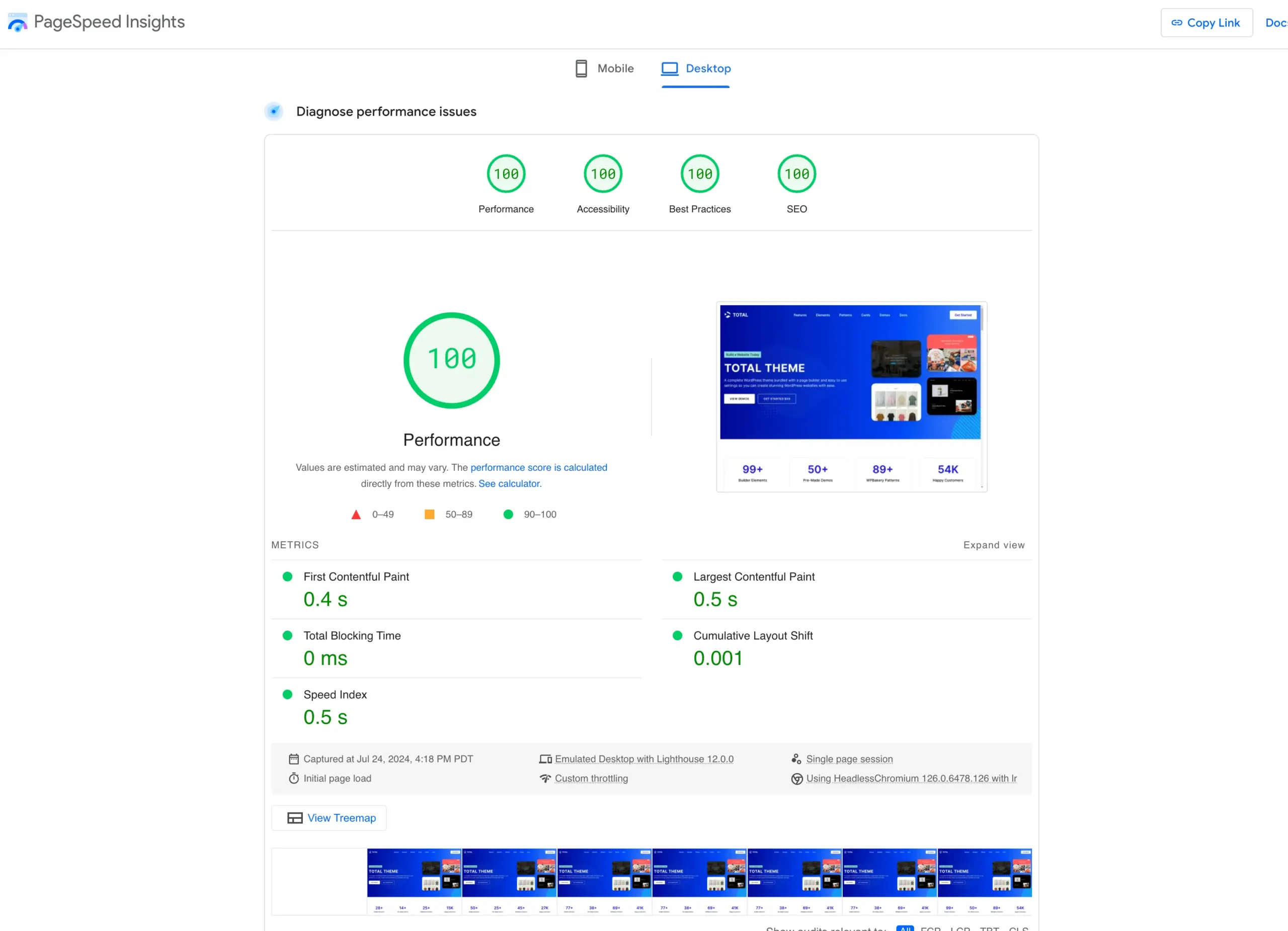
I personally don’t use any plugin because I use a fast and high quality host (WPEngine) and don’t need the extra plugin. My sites are fast and get great scores – https://totalwptheme.com/docs/wp-content/uploads/sites/51/total-theme-landing-page-speed-score-scaled.webp – I could add an extra optimization plugin to make a few tweaks but the actual benefit would be minimal so I rather keep the site un-bloated.
Not all hosting is the same so some web hosts basically require having a 3rd party optimization plugin.
WPRocket is probably the best optimization plugin, but it’s a premium solution and I have had to report issues with their plugin in the past, although I believe they have been fixed.
I don’t think your optimization plugin is bad, but it clearly has a bug that needs fixing as deferred scripts are not properly deferred. You probably don’t need to waste any time switching plugins. Perhaps you can just disable the options to combine/minify your scripts to get around the bug.
If at all possible, my recommendation is always to use a high quality WordPress hosting solution that doesn’t need the added bloat of a plugin. My top choices are WPEngine, Kinsta and Pagely. Or if you need a budget solution SiteGround, which has all the built in optimization functions but it’s a slower host because it’s cheaper.
- AJ
Thank you for getting back to me, AJ. I appreciate it. The update fixed my logo not centering on mobile. Thank you for fixing this.
Great! Thank you for reporting the bug!
Hi!
I am logged out of my WP Bakery plugin which came with Total Theme and am wondering if you can help me log back in.
The past several times that I’ve updated Total Theme, the WP Bakery does not update. I think the reason for this is bc a while back when I started to revamp my site on the SiteGround staging area, I accidentally logged out of WP Bakery and never could log back in. Today WP Bakery is so outdated it created a problem when I updated to the new version of WordPress, which crashed my site. I had to go back to an older php version to get my site up and running again. Is it possible for you to help me log back in to my WP Bakery account which came with Total Theme so that I can update it?
Hi,
Updates to WPBakery are provided with the theme, there is no such thing as “logging into WPBakery”. All you need to do is click on the notice to update your plugins after you’ve updated the theme as noted in the docs – https://totalwptheme.com/docs/update-plugins/
But I do see that your username doesn’t have the “purchased” tag next to it. Please purchase a license of the Total theme or if you have one in another account please log in with the account used to purchase the theme for access to support. Unfortunately a lot of people use my theme illegally so I need to mention this when I see it. Thank you!
Also, if you are using am old version of PHP I have some extra information on this documentation page on how to properly proceed with updates to avoid your site from crashing – https://totalwptheme.com/docs/update-theme/
- AJ
Hi AJ – I did actually purchase your theme twice, one for each of my two websites. I’ll log into the account I used to purchase it for one of my sites now and post the question again.
Thanks!
Hi AJ, what is the time window/zone that you will reply to this comment column?
I generally reply to comments within 24 hours, usually faster.
But I did take yesterday as a day off – since I haven’t had a day off in probably a year and really needed it for my mental health.
- AJ
Hi AJ,
This question is about Post Types Unlimited.
When using Taxonomies, is there any way to change the way the post author selects them? At the moment, the user has to “know” what the taxonomies are, as the selection element is just a free text box – like this:
https://ibb.co/8sMbtgRI would prefer it if the already-defined taxonomies could be listed out, so the author knows what they are (a bit like the way categories are presented).
Or a bit like the “choose from the most used” feature but it shows ALL taxonomies, not just those that are most used.
Hope I’ve explained this OK.
Thanks
James
Ooh. Changing this to TRUE seems to have done the trick:
Hierarchical (default: false) Is this taxonomy hierarchical (have descendants) like categories or not hierarchical like tags.
That is exactly the solution 
I know most of the time this is how people want their custom taxonomies, but what I did in my plugin was use all the default values in WordPress – https://developer.wordpress.org/reference/functions/register_taxonomy/ – this way when you create a taxonomy (without modifying anything) it’s consistent with the default way WordPress works.
I’m also using the same descriptions as the WordPress docs, which may not be the greatest. But I always try and keep things as close to WP core as possible.
So…my apologies if the solution wasn’t super obvious, I’m glad you found it!
- AJ
Hello Aj, I don’t know if it is because the last update but I cant save changes in image grid settings. The “save changes” button does not respond.
OK, forget it.. I deleted/cleaned cache from google chrome, and it works good again.
I’ve noticed because of how WPBakery is coded when they do updates to their JS files it generally requires a browser cache clear as well. I will look into their code to see if I can suggest a fix because it’s annoying. Sorry for the troubles!
- AJ
Hi AJ
Having trouble getting a feature box image to be a perfect circle using border-radius 50%.
https://pjl-13pt.temp-dns.com/The first one, I had to use custom CSS to get it to work.
The second one doesn’t have the custom CSS, it uses the element border radius setting = 50% but it is being ignored.
What am I doing wrong?
Thanks
James
Hi James,
If you don’t want to crop your image to a perfect square simply use the Aspect Ratio setting: https://a.cl.ly/L1uEL7op
It looks like there is a bug in the theme where it’s setting the border radius to the parent element and not the image itself. I fixed this for the upcoming 6.0.1 version. For the meantime if you just log into WordPress delete the Total Theme Core plugin then go to Appearance > Install Plugins and re-install it. This will download the patched version so you don’t have to wait for an official update.
Thanks for reporting that & sorry for the troubles!
- AJ
Hi AJ,
I am trying to update to 6.0.1 (currently on 5.1.9) but it’s not showing an update available.
Is there a way to refresh this? or just wait until it offers the update?
Hi,
WordPress caches update transients for a while, it’s possible your site recently made checks so they won’t show up for a bit. The only way to for the checks it edit the code at Total/inc/updates/theme-updater.php and remove the comment (aka double dash) on line 46 under the heading ”// This is for testing only !!!!” then comment out line 118 in the same file where it says “return $transient”.
This will force WordPress to run it’s checks right away.
WordPress sets the update checks on an interval otherwise your site would constantly be checking for updates which not only slows down your site but would crash my server if everyone’s site was pinging mine all the time.
Of course make sure also your license is active on the site under Theme Panel > Theme License otherwise you won’t get the updates in the WP admin.
- AJ
ps: The latest version available is 6.0 not 6.0.1
Hi AJ
after I did the last update 6. its show me like this on the left corner:
https://share.zight.com/nOu2AEk7How can I fix that?
This is a caching bug.
Make sure to clear your site cache. I know you are using LightSpeed cache and I mentioned some things to you via email about it as well. Because you have such heavy optimization on your site anytime you update the theme, plugins or WordPress you need to fully clear LightSpeed cache to prevent any issues – the plugin will not automatically clear itself after updates are peformed.
- AJ
Thank you so much! Yes, I fixed it, and it all works perfectly. I appreciate your help always.
Great, glad it was an easy fix
Hi,
I have added an ACF text field to Menu Items. I can see that field under the menu items.
I am using this menu on my product page through dynamic template built with WPBakery (It is using vcex_navbar shortcode I guess)
But whatever I write into that ACF field, I am not able to display it in the frontend. I guess those menus coming through a shortcode in wpbakery are not affected by standard Wordpress hooks or filters. (such as wp_nav_menu_objects. This only affects the main menu)
For example how to add that info (the text I wrote in ACF field) as an extra class to the custom menu item?
Hi,
You are correct, the Total Navbar element is not using the core WordPress function to display the menu, it uses it’s own code (for various reasons). You would need to use the element’s hooks instead such as “vcex_navbar_link_attributes” to modify the link attributes. Which passes 2 parameters, the first is the attributes and the second is the $menu_item object.
However, the new Horizontal Menu element in Total 6.0 does use the core wp_nav_menu function along with a custom Walker for the output. So this element does have the core WP hooks.
This new element also has the ability to display menu descriptions as well. You can view a sample here – https://totalwptheme.com/elements/horizontal-menu/ (hover on the “Fancy Dropdown” menu link).
- AJ
ps: Adding an ACF field for an extra class doesn’t make any sense because menu items already have a class field, so you should just use that. If you aren’t seeing the class field then you have it hidden and you need to click on “Screen Options” on the top right of the menu dashboard to enable it.
Hi AJ,
it seems that 6.0 update broke our site header see it https://www.vanillaradio.com/Thank you for any help in advance. I noticed a message ” Skip to content” on the upper left hand side of the header and white stripe on top.
image link : https://ibb.co/c2zkW2J
thanks
This is just a caching issue if your site is not loading the new CSS.
When I check your site though everything is fine, it looks like you already cleared your cache. If you are still having problems though, then the issue is with cache busting on your site.
When I inspect the theme’s scripts are NOT adding their versions to the end for cache busting (which is default in WordPress) instead it looks like an optimization plugin on your site is modifying the files and adding a different version to the end. In which case you need to clear the plugins cache so the files are regenerated with a new version.
From what I see you are using WP Rocket – this plugin does not automatically clear itself whenever you perform updates. Anytime you update WordPress, a plugin or the theme you need to manually clear the WP Rocket cache.
- AJ
i am ok now, thanks AJ !
Great, thank you for letting me know!
Hello, I updated the theme today and noticed that it no longer shows the theme icons that I have in use with ::after/::before. How do I fix it now to show the icons again?
Example: I want to display an arrow on the right of all theme buttons by default and have implemented this with ::after. Or another example for footer nav: I have added an arrow to the left of the navigation items with ::before.
Hi,
This is AJ the theme author.
This is correct, the theme has been updated to use SVG icons instead of a font family as noted on the changelog – https://totalwptheme.com/docs/changelog/6-0/ – this was a highly requested change for years because using font icons is much slower and bloated as opposed to only loading icons you need on your site via SVG’s.
It’s a little bit of a pain (I understand) if you were using CSS like you mentioned because now the theme’s font icons aren’t loaded on the site so you will need to tweak your CSS a bit.
I create and give you a plugin that loads the old icon CSS (let me know if you want this) so you can just enable it on your site. But then you lose the benefits of a faster site and higher page speed score.
So I would recommend instead changing your CSS to use SVG’s.
For example to add an arrow on the right of all buttons you can use something like this:
.theme-button::after {
    content: '';
    display: inline-block;
    margin-inline-start: 10px;
    width: 1em;
    height: 1em;
    background-color: currentColor; /* Inherits the text color of the element */
    -webkit-mask-image: url('data:image/svg+xml;charset=UTF-8,%3Csvg xmlns=%27http://www.w3.org/2000/svg%27 viewBox=%270 0 448 512%27%3E%3Cpath d=%27M438.6 278.6c12.5-12.5 12.5-32.8 0-45.3l-160-160c-12.5-12.5-32.8-12.5-45.3 0s-12.5 32.8 0 45.3L338.8 224 32 224c-17.7 0-32 14.3-32 32s14.3 32 32 32l306.7 0L233.4 393.4c-12.5 12.5-12.5 32.8 0 45.3s32.8 12.5 45.3 0l160-160z%27/%3E%3C/svg%3E');
    -webkit-mask-repeat: no-repeat;
    -webkit-mask-size: contain;
    mask-image: url('data:image/svg+xml;charset=UTF-8,%3Csvg xmlns=%27http://www.w3.org/2000/svg%27 viewBox=%270 0 448 512%27%3E%3Cpath d=%27M438.6 278.6c12.5-12.5 12.5-32.8 0-45.
}
‘
Sorry for the troubles, but I really wanted to bring Total to modern standards in this regards and not icon fonts and using SVG’s instead does significantly help site speed scores and loading times.
I recommend these sources for SVGs:
- https://fontawesome.com/
- https://fonts.google.com/icons?icon.set=Material+Symbols
- https://icons.getbootstrap.com/
And you can just copy the SVG and ask ChatGPT to give you the CSS to speed things up.
But I can help too if you need any help updating CSS to use SVG icons.
- AJ
Hello AJ Thank you for your great work on the upgrade with the new features – I love it! And also thanks for your super fast support!
I prefer to use the code as you described instead of the plugin. There’s a bit of effort involved, but it’s worth it. Thank you!
Great
If you need any help with the code, please let me know!
- AJ
ps: Depending where you are adding icons, it’s also possible to do so using PHP instead of CSS, which I can help with as well. I would just need to know the exact context.
Hi AJ, good work on version 6. I was going through the changelog and i saw “New “Dark Mode” functionality.” How can i see an example of this or is this a demo where I can check this feature?
I will be writing a doc about the Dark mode soon. You can view an example on the docs though (literally the icon is above the changelog in the menu).
You can enable it under the Theme Panel (disabled by default). The way it works is simple…by default the theme’s colors have a light and dark mode so everything is automatic.
For customers that want to use different colors on their site they would define them in their color palette – https://totalwptheme.com/docs/color-palette/ – which now allows you to enter a default and a dark mode color. Then you would use your color palette colors in the customizer, builder elements and anywhere else. This way the theme can properly swap colors.
- AJ
I just updated this demo as well to enable dark mode functionality if you wanted to have a look: https://totalwpthemedemo.com/publisher/
Thank you so much
Hi AJ, minor typo in v6.0 partials/blog/blog-entry-excerpt.php, line 25:
if ( wp_validate_boolean( get_theme_mod( ‘blog_exceprt’, true ) ) ) {
(misspelled excerpt) Best, K.
This has been mispelled sine the beginning, I don’t change it because if people used the option and then update they will have to log back in to re-set the option. Otherwise I need to migrate the mispelled setting to the correct spelling which just seems pointless.
- AJ
Oh cheers, I will correct my correction!
Hi AJ,
I’ve just updated to the new version of Total, but checking under Appearance>> Themes, it still shows that version 5.19 is activated.
I originally came to ask if there was an update to ‘Total Core’ for version 6.0 but it looks like Total has not been upgraded
Is it possible that your site is just cached? The version that shows up under Appearance > Themes is pulled from theme’s style.css file so it’s possible it’s incorrect. You can confirm going to the Theme Panel.
I double checked the files on ThemeForest and provided via the auto updates and both are correct. Did you update manually or via the theme’s updater?
And yes there is a Total 2.0 update required with 6.0.
- AJ
I uploaded it manually via the theme uploader on WordPress.
I’ll try doing it with a disabled cache
I did a test on my own server to make sure 6.0 is properly downloaded via the theme’s updater (it is). But I also experience the same sort of “caching” delay when checking the version number (in my case it’s in the version on the Theme Panel). Heres the video of my test if interested: https://a.cl.ly/6qu1jX6j
What’s happening to me is that WPEngine has advanced file caching so it just takes a few moments to update. I wonder if you have the same thing.
Also WordPress technically says the update is done, but the process of files being replaced could still be happening in the backend so you should always give it a 30 seconds or so before checking just incase.
- AJ
It’s working fine now, but the text inside my old FAQ modules has gone really dark. Looks like I’ll need to mess around with text colours in those modules
Seems to work fine now 0 on a PC – but where’s the mobile menu gone to? ‘set to mobile manu alternative in the customiser’
Just noticed in the Changelog for this new version of Toeal that ‘Mobile menus are now rendered only when the user first opens them to optimize page loading’.
How do I make it so that the mobile menu opens every time and doesn’t disappear when it feels like it?
The menu won’t”disappear when it feels like it?” – this is impossible.
The update is that the mobile menu HTML is generated when you click on the hamburger icon as opposed to when the page loads initially. This way if the user never clicks on the menu icon the mobile menu never has to be created. This is an optimization to prevent JavaScript from running and the DOM manipulation when not needed.
I looked at your site and the mobile menu is working perfectly for me, but I can’t record and share a video for obvious reasons. If you want you can also test my landing page or any demo to confirm that it should be working – https://totalwptheme.com/
Inspecting your site, I see that you are removing the version numbers at the end of all CSS and JS files – this is a HUGE issue because it prevents cache busting. Which means you will have to completely clear your personal device cache whenever you update the theme, WordPress and/or plugins. Removing the versions at the end of your scripts is never recommended because of this.
Anyone that visited your site in the past will have to clear their own devices or computers or they will experience issues. You can always clear your site cache, but it’s impossible to clear your visitors browse cache. That’s why versioning scripts is so important.
So if your phone is loading the old scripts (which it likely is because your site doesn’t have proper cache busting) your mobile menu will not work because it’s missing the new code required to generate the menu.
I’m not sure if it’s your LiteSpeed Cache plugin that is removing the script versions as it’s not possible to tell. But you really should locate whatever plugin, setting or custom code is doing that so that you and your visitors don’t have issues whenever your site is updated.
Here is a good article on cache busting if you are interested: https://www.keycdn.com/support/what-is-cache-busting
Now, if you still have issues on both your site and the total landing page, please let me know what device you are using to see if I can locate an emulator to test. Thanks!
- AJ
I’m using both a Sony Ericson 10.iv and a Sony Ericson 5.iv (both Androids) for mobile testing.
Also. the menu label has just disappeared now, no matter which menu I use
So I suppose the question needs to be asked – is there a snippet or something that will revert back to how the old menu version worked?
There is no snippet for reverting to the old javascript. That would require modifying various files and putting the old scripts in your child theme. But there should also not be any need for this because everything should be working correctly.
Can you please try the menu on my own site – https://totalwptheme.com/ – if it works here (which uses the same exact code as your site) then the issue is on your end.
I re-checked your site and I still see your site is not using proper cache busting so you are likely having the same issues. Unless you cleared your phone cache, did you?
Please have a look at my previous response.
Also here is a video showing your mobile menu working correctly: https://a.cl.ly/JruZKE2x
Additionally, there is no point in messing with settings in the Customizer (which it sounds like you are doing since I can see you switched from the Toggle (Dropdown) mobile menu to the Sidebar mobile menu) – because the code is going to work the same way regardless of the type. Also, in the case that there is ever a bug in the theme it’s best to troubleshoot things before messing with stuff because that could cause more harm than good.
- AJ
ps: Tested on an Android device as well just now and it’s working perfectly fine. And I see you switched to the Full-Screen Overlay menu now as well.
Again, please make sure to disable whatever function on your site is preventing proper script cache busting (which is enabled by default in WordPress).
Yes, I’m using the full screen overlay as I seem to have more success with that one.
Problem that I;m having though is that the ‘Menu’ label is missing and it’s just black up there.
Can I not just go back to the previous version of Total, as this version is just not working for me?
I’m now using a JetBackup to obliterate this version and get back to normal.
I couldn’t recreate any of the issues you were having and even sent you a video: https://a.cl.ly/JruZKE2x – if you watch the video you can see both the mobile menu and the label are displayed correctly.
Here are a few demos that have the menu label if you wanted to try on you rend:
- https://totalwpthemedemo.com/webmag/
- https://totalwpthemedemo.com/glitzglam/
- https://totalwpthemedemo.com/travel/
The mobile menu works perfectly fine for me on these demos (using 6.0 of course). If they don’t work for you, let me know so I can look into things further. If they do work for you, it means the issue isn’t in the theme because these demos use the same exact code provided in the 6.0 update.
Again, I highly recommend you fix the caching issues on your site. I just inspected your site again and I see cache busting is still not properly setup so you will have caching issues every time you update.
If you aren’t sure how to fix your site feel free to open a ticket (please request it be assigned to me) or email me directly to wpexplorer [at] gmail dot com with your site login and I can look through your plugins to see which one is causing the issue. This way you can update without having so many headaches.
- AJ
I’ve reverted back to the previous version and all looks good again.
I did try using the Health Check and Troubleshooting plugin but that turned out to be pointless as the faults were in the mobile version only.
I’ll send you an email to your Gmail address so that you can see what’s happening, however, the customizer is also useless in this situation, as it always ‘looks’ as though it’s fine – until you check on a mobile when the menu text disappears.
It will look good in the customizer because plugins that disable cache busting don’t run in the WordPress admin or while logged in. That’s what is causing the confusion, because logged in you will see something different to what is being cached on your mobile device.
Because your site has cache busting disabled, your phone is loading the outdated CSS and JS files which won’t work correctly with the updated theme.
On your Android device you can go to Settings > Apps > Storage & Cache and clear your cache to “fix” the issue on your end.
But this isn’t a good solution because other users that visit your site shouldn’t be expected to do this. The proper fix is to disable the function on your site that is preventing cache busting.
- AJ
I’ve found a couple of cache-busting plugins if that’s any help?
I just replied to your email. You don’t need any plugins, you just need to disable the setting causing issues in LightSpeed Cache. I sent you some notes and recommendations – there are a couple settings you have enabled which actually can slow down your site as well and I recommend disabling them.
I’m going to bed shortly, but feel free to reply back to the email I sent with any concerns or questions! I’ll be back tomorrow
- AJ
Thanks for the informative email, A.J,
I’ll play with the Litesprrd Cache settings, and leave it until tomorrow
I’ve adjusted those Litespeed Cache settings and awaiting any further instructions prior to upgrading to version 6.0
I just updated to version 6.0 and together with those Litespeed adjustments, all looks good again – even on mobile!
Thanks for the help. A.J.
Awesome!
Thanks for letting me know! And hopefully, this will avoid any headaches with future updates as well
- AJ
Hello AJ it seemes that 6.0 update broke our site header see it at: 505smithrepair.com Thank you for any help in advance. I noticed a message ” Skip to contant” on the upper left hand side of the header.
Cleared the browser cache few times but that did not help. So I had to go to the customizer and rebuild the header. Cleared the cache again and that seems to work now. Just though to shear it to help others.
It looks good to me. This is what I see: https://a.cl.ly/eDuZNeoY
Can you please explain what is wrong with it? Thanks!
- AJ
Hi AJ, since updating WP to 6.7, the Customizer menu looks slightly wonky. Not sure if this is for all WP, or something related to Total. Thought I’d mention it. https://ibb.co/QKb602d
The fix is in the latest release: https://totalwptheme.com/docs/changelog/6-0/
Hi AJ,
I use a plugin that prevents visitors from right-clicking on an image or page, and I’ve used this plugin for several years with no problems. https://www.wp-buy.com/product/wp-content-copy-protection-pro/ Recently, I noticed a bug with the plugin where the admin menu in Appearance> Customise displays oddly – it’s spaced-out. I recorded this video to show the authors of the plugin the problem. https://app.screencast.com/oSU0kMZNyP92lThe problem does not occur with Twenty Twenty-Two theme.
Support at WP-Buy.com asked if I could send them a copy of your theme to help them trouble shoot the issue. Is this permissible?
~ Frank
sorry… the website in question is londonestatephotography.co.uk but I’m getting the same problem in my personal photography website that uses the same plugin and your theme.
Hi Frank,
WordPress updated the customizer which caused the icons to be spaced out and this is already fixed in the new update released today – https://totalwptheme.com/docs/changelog/6-0/
You may want to try first updating to the latest version to see if that fixes the issue. It’s possible the WP updates combined with the theme inserting icons next to the titles is causing the bug and it will be fixed once updated.
If not, let me know. I can log into your site to see what’s going on.
- AJ
ps: Disabling right click just adds extra bloat to your site and slows it down. Anyone wanting to steal your images can do it VERY easily without having to right click. I would not recommend wasting your money on these plugins or bloating up your site for little to no value.
but, but, but… you’re right! I do it all the time! 
The update didn’t correct the problem, but I deactivated the plugin just based on the fact that it’s causing the display issues.
I’ve had the plugin a long time, and I was leary of the company back then as their web page looks like it was made in 1995! And it still looks the same today! LOL!
Cheers!
; )
If you really want to disable right click though, I can give you a snippet (or you can even ask chat GPT for a snippet) – it’s only a few lines of code.
- AJ
ps: I noticed a caching issue with the WordPress customizer in the WordPress update where things looked broken after updating and I did have to clear my browser cache to fix it. I think perhaps they don’t have proper cache busting for the scripts loaded in there. I haven’t dug into it though.
My host provides LiteSpeed for servers and caching, but I’m not too keen on LiteSpeed caching as it seemed to be a little buggy with my LMS drone coach website.
I did just notice a “Skip to content” text displaying at the top of my https://londonestatephotography.co.uk/ website, but it’s not showing on my other sites using Total. Another bloating plugin likely?
I think it’s that stinkin LiteSpeed causing that?
It’s not happening for me when I look at your site. There were CSS changes made to the skip to content button, so if your site is loading old CSS then it may be visible. Make sure to clear all cache (site and browser).
- AJ
ps: It looks like you have the Combine CSS/JS options enabled – those are outdated settings that can actually slow down your site. I recommend disabling those.
Where is the “combine css/js” setting again? Sorry, so many option but all good.
- Page Optimization > CSS Settings
- Page Optimization > JS Settings
These optimizations are quiet complex and I often see people install them and just enable everything but this is a really bad idea. Every setting needs to be carefully thought about and various settings are dependent on your particular setup. Perhaps I should sell a site tune-up service where people can pay me to go through all that for them….
- AJ
I “think” those settings were with the LiteSpeed plugin, or at least that’s what I saw using Dev Tools. LiteSpeed was causing that “Skip to content” text to appear so I deleted LiteSpeed and the text disappeared.
I assume the referencing to Page Optimization was through a plugin(?) as I don’t see these settings anywhere within WordPress, Total, or WPBakery. But I know that doesn’t mean it’s not there.
Tune-Up? I’m first in line!
Hi,
Correct, those settings were in the LightSpeed cache plugin. Now, deleting the plugin will of course “fix” the issues but all you really needed to do was clear the LightSpeed cache. These optimization plugins basically run all their code 1x and they cache it so that they aren’t constantly doing things. What this means though, is anytime you update anything on your site (WordPress, a plugin, the theme, server, CDN, etc…) you need to go into the LightSpeed cache plugin and click clear cache button so it can re-run it’s optimization protocols.
Most quality WordPress hosting solutions already have built-in tools so you don’t need plugins like LightSpeed Cache, however, if your hosting doesn’t then it may be a good idea to use these plugins.
I really don’t know what I would charge for a tune-up. I will look around and see what others are charging for this type of thing. Anyway, I would like to hear your thoughts and if you want email me at wpexplorer [at] gmail dot com and you can be my first customer
I can go through and look at your hosting, plugins, setup and help you optimize everything.
- AJ
I am going to purchase another Total license .. do i need to add Ultimate Addons for WPBakery Page Builder (it seems to be added automatically in the cart)? If i dont buy UAWP, will my website have problem if I didnt update UAWP in future?
Hi,
This is AJ the theme author.
No it’s not necessary and I don’t recommend that plugin because Total already has everything you need. This would just introduce added bloat and slow down your site.
I did a test on a different account and this didn’t happen for me. Perhaps it was added to your cart somehow and you didn’t notice?
- AJ
Hi AJ,
Is it possible to have numbered (ajaxed) included into the image grid option?
Currently that seems to be available in the post cards only, but it would be great if the image grid could include that as well to avoid reloading the full page when clicking on the numbers.
Thanks!
I won’t be adding this because it introduces significant bloat and because it’s already possible with the Post Cards element. The Post Cards element is basically the only element you really will want to use for displaying posts or images as it’s the most efficient while also the most complete.
If you aren’t using the post gallery to define your images – https://totalwptheme.com/docs/using-post-gallery-image-galleries/ (most of the time this is the ideal way) – and you already have a gallery setup you can switch to the post cards by copying the ID’s via text mode.
Here is an example video: https://a.cl.ly/z8uRy7qp
Basically you want to copy the image_ids attribute from the Image Grid and add it to the Post Cards but name it attachments instead.
- AJ