22334 comments found.

No idea why this is so problematic, but I’m having trouble making a Post Title element work properly display an a:visited color. The site is a text-dense dashboard where visited links would actually be useful because there are so many, and it’d be nice to be able to glance at a page and easily see what’s new.
I gave the element its own class and used this CSS:
.indcon-article-title a:visited {color: #f00 !important;}
and the heading just doesn’t recognize which links have been visited, so the CSS doesn’t trigger. If I use inspector and force state to Visited, it works. . . just doesn’t pick it up in the browser without that manual nudge.
If I target other elements with the exact same CSS, it seems to work fine as well, just not these post headings. Even works when using Post Terms, so it’s pulling the links from other sources, as in this title.
The only thing I can think of is that the Post Title’s link destination is coming from an ACF custom field instead of an internal link. Not sure why that’d matter, but it’s the only thing that seems different from all the other kinds of links I’ve used in Total for years and years.
I’m sure this is something dumb and easy, just spent too much time and brain cells on it and am wondering if you can point out the obvious problem. The site in question is https://industrialconsolidated.com and the link is just the title link that appears at the top of all of these three-field Post Cards.
Hi,
If I inspect the link in Chrome and apply a visited state manually it works as you would expect: https://a.cl.ly/RBu2E06q
It also appears to work correctly in Safari and Firefox but not Edge or Chrome (when I test)
This would suggest a Chromium issue, perhaps security or privacy related most likely because you are linking to other domains.
- AJ
Forgot to mention a “fix”... if you must have the feature, the only way to make it work in all browsers (that I can think of) would be to use javascript and store the clicks in localStorage. Ex:
// Ensure the script runs after the page has loaded
document.addEventListener('DOMContentLoaded', function() {
    // Function to apply the "visited" state
    function applyVisitedState() {
        // Get all links with the specific class
        const links = document.querySelectorAll('.indcon-article-title a');

        // Loop through each link
        links.forEach(link => {
            // Check if the link is in localStorage
            if (localStorage.getItem(link.href)) {
                // Apply a "visited" class if it's in localStorage
                link.classList.add('visited');
            }

            // Add event listener to track clicks
            link.addEventListener('click', function() {
                // Store the clicked link in localStorage
                localStorage.setItem(link.href, 'visited');
            });
        });
    }

    // Apply visited state
    applyVisitedState();
});
code generated with chatGPT
Then you would target both the :visited state and the .visited class.
The JS would be added in a child theme’s js file loaded via wp_enqueue_scripts or you can insert it as an inline script via the wp_footer hook:
function add_visited_links_script() {
    // JavaScript code for tracking visited links
    ?>
    <script type="text/javascript">
       // ADD THE JS HERE
    </script>
    <?php
}
add_action('wp_footer', 'add_visited_links_script');
it’s nice to know I wasn’t overlooking something obvious and that Chromium is just doing something weird. thanks for the fast reality check and for the js tip!
I am just trying to post a taxonomy term ‘Size’ as value in an icon box, as its much easier to format the design on the dynamic template as i can use a flexible container, rather than using the post terms module and having to use columns to align an icon above the post term.
I can see there is a list of dynamic variables such as {{taxonomy}}, but is there a way to post {{taxonomy=size}} for example to post the value of term size on the screen? Or another way of doing it. I have searched the posts but can’t see anything.
Thanks
Hi,
You could use the Post Terms element as a shortcode for your text input. Example:
[vcex_post_terms first_term_only="true" archive_link="false" style="inline" taxonomy="size"]
I’ve tested and it works correctly.
Having a dynamic variable for term names built into the theme would be a bit too complex for various reasons, but you could easily create your own custom dynamic variable {{size}}
add_filter( 'totaltheme/replace_vars/vars', function( $vars ) {
    // Add custom dynamic variable for size taxonomy term name
    $vars['size'] = function() {
        // Get the terms for the 'size' taxonomy for the current post
        $terms = get_the_terms( get_the_ID(), 'size' );
        if ( $terms && ! is_wp_error( $terms ) ) {
            // Assuming the post has at least one 'size' term, get the first term's name
            $term = array_shift( $terms );
            return $term->name;
        }
        return ''; // Return an empty string if no term is found
    };
    return $vars;
});
I actually just asked chatGPT to give me this code – you could do the same in the future if you want to add custom dynamic variables, just be sure chatGPT knows it’s for the Total theme using the totaltheme/replace_vars/vars filter.
Also, depending what you are doing I added a new Term Cards element in Total 6.0 – so you can create a custom card, add an icon box and use the dynamic variable {{term_name}} in your custom card. Then use the Post Cards element in your dynamic template, set it to query the size taxonomy and to display your custom term card. This method is very useful if you have multiple terms assigned to the taxonomy to create unique displays for the terms.
- AJ
Hi AJ
Could you take a quick look at this page in development:
https://shorturl.at/4JRwlFor the “key initiatives” section I have used a Custom Card. I have used the wpex-mt-auto class on the theme button to align the buttons to the bottom, but as you can see it’s not working.
Can you let me know what I’ve done wrong?
Thanks
James
Hi James,
The problem you are having is when you use the CSS tab for the button it adds a wrapper outside of the button and the auto top margin has to be added on the last direct child of the card’s inner column. So you either need to add “auto” as the top margin in the CSS tab or best, remove the padding from the CSS tab and use only utility classes for the margin “wpex-mt-auto wpex-mx-30 wpex-mb-30” – doesn’t really make sense to use “padding” and of course it won’t work as it will add the space inside the button.
- AJ
ps: An alternative to adding padding to all the inner elements, would be to give your card row/column a padding lets say 30px then add a negative -30px top/side margin to the image to push it outside of the padding.
Hi AJ
I, trying to change the default colour of buttons on the theme, but Im unable to find it?
can you advise,
Many thanks
Is it the ‘accent’ colour setting?
Hi,
Changing the accent will change the default button color, unless your site also has a custom button color which can be changed at Customize > Global Styles > Buttons.
More info here: https://totalwptheme.com/docs/button-colors/ (I will update these docs now to have newer screenshots).
- AJ
I downloaded the latest version of the Total the am trying to install the theme but am getting this error message:-
Installing theme from uploaded file: themeforest-UJGjuAwp-total-responsive-multipurpose-wordpress-theme.zip Unpacking the package…
Installing the theme…
The package could not be installed. The theme is missing the style.css stylesheet.
Theme installation failed.
Is this a know problem?
Hi,
This error happens when you try to install the “Full Package” from Themeforest because that zip file includes other non-theme related files. Make sure you download only the “Installable WordPress File” – see the first screenshot from the docs here: https://totalwptheme.com/docs/install-total-theme/
Now, rather then updating manually you can simply activate your Theme License and receive updates via the WP admin – https://totalwptheme.com/docs/update-theme/
- AJ
Thanks AJ. That sorted it.
Hi, just FYI, the new “Local Scroll Offset setting in the Customizer” did not work for me… (not with a main menu link, not using a theme button), had to keep using the old negative margin + padding trick…
Hi,
It was working when I added it and just tested again to ensure nothing happened when bundling the final version of the last update and it’s still working for me.
The only things I can think of is that you need to clear your cache, if your site is not using proper version control then it could be loading old JS so this code wont’ work. Or that you are using the setting for something that it’s not intended for. This setting is used to have the local scroll “stop early” so for example if you enter 40px the local scroll will stop 40px before the target element.
Not sure what you mean by “negative margin + padding trick” that sounds strange, can you share the example site to see what you are doing it. Because using negative margin plus a padding would essentially cancel each other out so not sure what you mean.
Additionally, the theme has a new CSS variable as well “—wpex-local-scroll-padding” you can use to set custom offset paddings for specific elements. For example the theme adds this CSS by default:
#comments {
    --wpex-local-scroll-padding: 20px
}
This way when local scrolling to the comments there will be a 20px padding between the top of the window or sticky header and the comments.
So depending on what you are doing you may want to use CSS to target elements independently, because the setting in the customizer is used globally for all local scroll elements. Just wanted to mention this incase you were not aware of this feature.
- AJ
I’m trying to find the licensing information for using the Helvetica Neue font with the theme. I know this and other Adobe fonts are paid, but I see it’s in the theme files, so I’m assuming you (the author) licensed it to be used in the theme?
Hi,
The only font files bundled with this theme are for the WooCommerce star rating icons. Helvetica Neue, or any other non-icon font, has never been included or distributed with the theme.
I see you don’t have a license for this theme, so perhaps you are looking at the wrong theme or you’ve downloaded an illegal and/or modified version of this theme that does include these fonts.
That said, Helvetica Neue was a standard system font on Apple devices, particularly popular in web design during the early 2010s. Designers often specified it in their CSS with Arial or sans-serif as fallbacks for compatibility with non-Apple systems. However, it was never typically bundled with themes — at least not well-coded ones — as licensing restrictions apply. Instead, it would have been referenced in CSS assuming the system already had it installed.
Since the release of iOS 9 and macOS El Capitan, Apple replaced Helvetica Neue with its proprietary San Francisco font, which has become the new system default. As a result, Helvetica Neue is no longer as widely available by default, and relying on it today would require purchasing a proper license and hosting it yourself if you want consistent rendering across devices.
Because of this, and other design and performance considerations, Helvetica Neue is no longer widely used in modern web design. Most developers now opt for the system-ui font stack, which uses the native system font on each device, offering a more consistent and efficient user experience without requiring external font files.
- AJ
Thanks for the response. I have a client who has your license and I manage their WP maintenance. The leadership in the company is auditing the font use, pretty much for this exact reason, and what we’ve found is just opening the dev panel shows it. I’ve also confirmed it’s coded into the theme file in the styles.css file. If there is a way to submit a screenshot, I’m happy to do that. My client does have a valid license for your theme and I can pass that along as well, if you have a way for me to do that securely. Thank you.
If it’s coded directly in the style.css file, it means someone has modified the theme to include it, because it’s not part of the theme. Feel free to inspect the theme’s landing page or any demo to confirm: https://totalwptheme.com/
The only mention of Helvetica Neue in the style.css file would be for this custom property:
--wpex-font-sans: system-ui, -apple-system, BlinkMacSystemFont, "Segoe UI", Roboto, "Helvetica Neue", Arial, "Noto Sans", sans-serif, "Apple Color Emoji", "Segoe UI Emoji", "Segoe UI Symbol", "Noto Color Emoji";
This is a standard system ui font definition. It doesn’t mean the font is actually loaded on the site, it means if the browser supports it, then it could be used as a fallback. So if this is the CSS you are referring to, you can ignore it. Fonts are only loaded via @font-face or @import declarations.
- AJ
ps: Your client has access to theme support, so if they need assistance, they’re welcome to contact me directly. It’s not reasonable for your client to pay you for support, and then for you to expect free help from me. I’m sure you’d feel the same if the roles were reversed. If you’re offering maintenance services to clients using this theme, it would be best to either purchase your own license or have your client cover the cost of one. Just as you likely don’t provide free WordPress maintenance, I can’t offer free theme support to non-customers.
Thank you for the support. I thought this comment section was for the free support? As per this line in the Support tab:
“Submitting a private ticket requires an active support license, if you don’t have one then leave a comment on ThemeForest.”
I’m not asking questions for free use. There is a paid license for the product. You’ve been compensated, so not only am I using a free forum, but you’ve gotten compensation for the license. I don’t see the issue here.
Of course, I’m happy to help.
I just want to make things clear to avoid any misunderstandings and ensure fair use of support.
When providing website maintenance, it’s important to keep this in mind:
Your client has purchased the product, and regardless of whether their support license is active, the access to the product and its support is tied to them.
If your client hires you for maintenance, it’s your responsibility to either resolve issues independently or acquire the appropriate support, which may include purchasing a support license if needed.
Many sellers in this marketplace either ignore comments from non-buyers or provide generic responses like, “Support is only available to verified buyers with an active support license.”
That said, I make it a point to respond to all inquiries and even assist buyers without active support licenses.
If your client needs assistance, they don’t necessarily need to go through you. They can contact me directly for help with the theme. It might be worth letting them know, in case they weren’t aware.
- AJ
Hi, I keep getting the following error when trying to update WP bakery: Updating Plugin: WPBakery Page Builder Getting download link…
Incorrect license key.
I have deactivated and reactivated the license. I have refreshed all my licenses. I have searched online and here.
I was able to update the other sites without issue. Please advise! Thank you!
Hi,
WPBakery updates are provided via the theme and Total has code to prevent the errors you mention, which are triggered when the plugin tries to auto update.
It sounds like perhaps you’ve disabled “WPBakery Theme Mode” in the Theme Panel, can you please double check?
The error can also happen if Total was temporarily disabled so the code the theme has to prevent the plugin from making update checks isn’t on the site thus it runs and caches responses with WordPress. If this is the case, simply disable WPBakery – update via the normal theme methods then re-enable it – https://totalwptheme.com/docs/updating-visual-composer/
- AJ
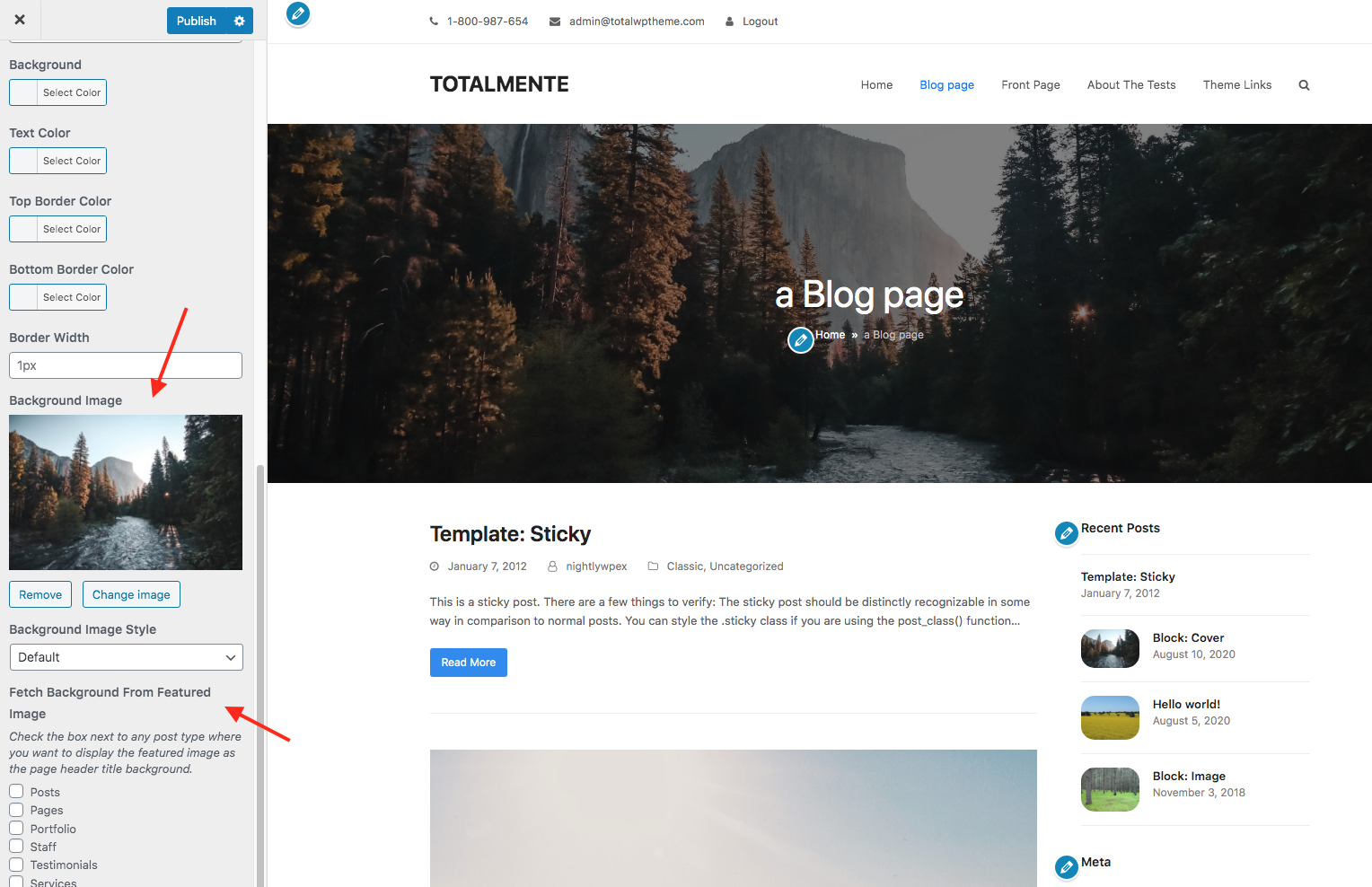
Hello. Tell me please how to add a background image for the Headings in which the entries are located? Posts – Categories https://prnt.sc/kiKdGRxL9dpX
Hi,
This screenshot looks like the “Page Header Title” area. You can style this globally via Appearance > Customize > General Page Options > Page Header Title.
You can assign a global background image for the page header title as well as enable it to display featured images (posts or categories). For posts you will use the setting in the Customizer “Fetch Background From Featured Image” like shown in this screenshot – http://totalwptheme.com/docs/wp-content/uploads/sites/51/2020/10/total-background-image-featured.png
Here are the docs: https://totalwptheme.com/docs/page-header-backgrounds/
For even more control you can disable the Page Header title in the Customizer and create your own custom header via a dynamic template. Such as the posts on this demo: https://totalwpthemedemo.com/bolt/blog/
Here is a video showing how I did it for that demo if interested: https://a.cl.ly/v1uzNwov
Which, by the way if you like the dynamic template used on any demo you can grab the code using the demo inspector – https://totalwptheme.com/docs/demo-page-inspector/
- AJ
Please try to make the same header cover as on your screen on your demo site, only for the post category, and not for the blog post itself. https://totalwptheme.com/docs/wp-content/uploads/sites/51/2020/10/total-background-image-featured.png
Perhaps the problem is that in the settings section “Use Featured Thumbnail as Background” there is no option to select entry categories? https://prnt.sc/0SFT0VVkzKXr If this is the problem, then please add the ability to make covers for categories in the next update
Hi,
It should work automatically for categories. Like this demo: https://totalwpthemedemo.com/blogdotnom/
Here is a video of how this particular demo is setup: https://a.cl.ly/bLuL1GpD
As you can see the assigned images for the categories display behind the page header title.
If it’s not working on your site, can you share the URL so I can have a look?
I know from your other comments you mentioned you are using Polylang, is it possible your category images are not properly translated? Does it work if you disable Polylang?
Last, if you want full control of your site you can also disable the Page Header Title and create a custom template to use instead for your archives. You can display the category background as a row background. Here is a quick video showing a simple setup: https://a.cl.ly/E0uvGEPR – by using a Dynamic Template you can have full control over your archives design. You can create dynamic templates for posts, search results, your header footer…etc. Learn more here: https://totalwptheme.com/docs/dynamic-templates/
- AJ
Thanks for the answer. I watched your video. I have the same settings.
But I checked on a site where there is no Polylang plugin and the category cover is displayed there.
But on a site where there is polylang it is not displayed. Each language has its own picture and it is displayed in blog entries, but it does not want to be displayed in categories.
You can see this link http://bit.ly/3TYSoz8 in the settings of this category there is a picture, but the background is now black. Perhaps there is a conflict between Total and Polylang? Please see how this can be fixed.
I currently have these settings, maybe something else needs to be activated?https://prnt.sc/nYZY-OSxhpf3
There appears to be a bug in Polylang that causes this core WordPress check:
get_query_var( 'taxonomy' )
To return “language” instead of the actual taxonomy name for the archive.
I’m trying to read through the Polylang code to see where the issue is so I can report it to the plugin developers.
But I have tweaked my code a bit which will also fix the issue.
I will be releasing Total 6.4 later this week and it has the fix, if you want to fix your site manually for the meantime it’s very easy! Here are the steps:
1. Log into WordPress and go to Plugins > Plugin File Editor. 2. Select the Total Theme Core plugin on the top right. 3. Browse to inc > term-thumbnails.php – https://a.cl.ly/wbugjdYG 4. Scroll to the bottom of the file and locate this code:
private static function get_current_taxonomy(): string {
    $taxonomy = \get_query_var( 'taxonomy' );
    if ( ! $taxonomy ) {
        if ( \is_category() ) {
            $taxonomy = 'category';
        } elseif ( \is_tag() ) {
            $taxonomy = 'post_tag';
        }
    }
    return $taxonomy;
}
Change to:
private static function get_current_taxonomy(): string {
    if ( \is_category() ) {
        $taxonomy = 'category';
    } elseif ( \is_tag() ) {
        $taxonomy = 'post_tag';
    } else {
        $taxonomy = \get_query_var( 'taxonomy' );
    }
    return $taxonomy;
}
Like this: https://a.cl.ly/OAuy0165 (file editing is disabled on my server so it shows an error, but as long as it’s not disabled on your site it should work).
I’ve tested and confirmed it works after making that change: https://a.cl.ly/NQuXLm5E
Thank you for reporting the issue and your extra feedback to help me fix the issue!
- AJ
This code helped me. Now the picture is displayed. I will wait for the update. Thank you very much!
Thank you for confirming it’s working for you and thank you again for reporting the bug! Hopefully the update will be out sooner than later, I’m trying hard to get it out asap.
Hi AJ
I’m having trouble outputting the value of a ACF repeater field, in a Toggle element, when building an ACF repeater dynamic template.
The repeater field is called “further_information” and I am trying to output it with {{acf_further_information}} but it’s failing. In fact, it causes the entire Toggle to fail, not even the Toggle heading shows.
Screenshot of the DT: https://ibb.co/zh8ByXBk Screenshot of ACF: https://ibb.co/KxwjH8LQ For context here is what I am trying to do in the front end, the lorem ipsum to be replaced by the ACF further_information field: https://ibb.co/HD5FnwYGThanks for all your help recently.
James
Hi James,
I see what you are doing. So you want one of the fields “further_information” to be inside the toggle element.
So, if the Toggle content is empty than the toggle won’t show because there is no point of an empty toggle. This means that {{acf_further_information}} is not returning any data.
The reason for that is that dynamic variables are a theme function and the repeater is technically a function of the Total Theme Core which causes a disconnect. I can update the dynamic variables to use the functions from the Total Theme Core to return custom field data. But really the easy solution is to just use this instead:
[vcex_custom_field name="acf_further_information" autop="true"]
You could just insert the Custom Field element on your site, customize it then look at it in “code” mode to copy/paste it.
If that doesn’t work, let me know!
- AJ
ps: The repeater template is cool huh?
Hi AJ
Sorry for the delay in reply (yes – v cool  )
)
However trying your shortcode also output nothing.
I am able to output the custom field using the custom field element, but it just won’t work as the content of the toggle element.
Maybe one for a support ticket?
Thanks
James
Hi James,
Hmmm…it should work 
Looking back at my reply, I accidentally used “acf_further_information” for the custom field name instead “further_information” in the example.
I posted this:
[vcex_custom_field name="acf_further_information" autop="true"]
Instead of this:
[vcex_custom_field name="further_information" autop="true"]
Can you check with the correctly formatted shortcode and see if it works?
- AJ
Hi AJ
It still didn’t work, however I managed to get it working by using this [vcex_custom_field name=”field_6826f9b83277d” autop=”true”] instead of [vcex_custom_field name=”further_information” autop=”true”]
I was able to see the “code-y” field_ value when using the custom field element, as it shows that code in Bakery.
However that is really fiddly so it would be better if the named field worked.
I’ve got another issue on the same page actually. I am using a Feature Box in a repeater template, but it’s not looping, it keeps outputting what was in the first group. (By the way, the feature box does accept the “name” format, I don’t need to use the code.
I think it would be good if you had admin access so you can see these things happening first hand?
Thanks
James
Hi again – I also fixed the messed up feature boxes by using the “code-y” field name. So I do think there is some issue with using the ACF names in shortcodes in repeaters.
Oh yes, sorry I forgot about that!
The reason you need to use the ACF field ID and not just the name is for optimization reasons. The theme will only run it’s extra checks for ACF fields when the name uses the ACF format. This is to keep things much more efficient when getting field data for non acf fields. If I coded things differently it would have to always make extra checks for ACF event when it’s not an ACF field. So I think I will keep things as I’ve done it to ensure the theme is as efficient as possible.
The best fix would be to update the {{acf_field_name}} dynamic variable to work in this context so I will do that.
I also forgot…You could just use the ACF shortcode as well: https://www.advancedcustomfields.com/resources/shortcode/ – this should work correctly (and be more efficient) as it’s calling the acf plugin directly.
- AJ
I took another look at my code and wanted to followup.
Currently the code uses acf_is_field_key() to determine whether a field is an ACF field. It’s a very efficient function, but it only works when the input is an ACF-formatted field key (e.g., field_6826f9b83277d) — not when using a generic field name.
I reviewed the ACF plugin code and couldn’t find any built-in method to check if a custom field exists based solely on the field name.
Since ACF supports custom fields across various contexts — taxonomies, option pages, custom post types, and more — relying only on the general field name would require checking the context each time a field is requested. That would involve determining the type (taxonomy, post type, etc.), attempting to locate the ACF field definition, and, if that fails, falling back to a standard WordPress custom field lookup.
If the requested field isn’t an ACF field, all that extra logic would run needlessly. By requiring the use of the ACF field key format, the lookup process stays much more efficient and avoids unnecessary overhead.
Now, if you were not aware, you can easily display acf field keys in the dashboard: https://a.cl.ly/Wnu9DxkD
- AJ
Hello AJ,
Hope you are doing well! I have a quick question for you regarding alt text for images within the default lightbox that is utilizing Fancybox.
I am using the image element within WPBakery Page Builder and linking to an image gallery lightbox within the “link” tab. When I inspect the lightbox’s images on the front end using Chrome dev tools, I can see class and source are specified but alt text is not present. Instead, the alt text is shown below the images within the lightbox.
I’m curious if it is possible to add the alt text for the images themselves and hide the actual text beneath. Is this something that can be easily enabled, or perhaps added within a future update?
Thanks for your help!
Scott
Hi Scott,
Hey, it’s been a while, hope you are doing well.
You are right, by default the lightbox displays the titles under each image if an alt is set. It looks like I didn’t add options to the Image element specifically to allow you to disable this. For consistency I should probably add the same options as in the image grid element: https://a.cl.ly/E0uB9PD5
Now, regarding the alt attributes – those should be added regardless. So you could say this is a “bug” and I’m fixing that right now for the next update.
Is your site all up to date? If so, I can send you the edited files so you can patch your site temporarily and not have to wait for the official update.
- AJ
Hi AJ,
Thanks for your response. I was just thinking about those options in the image grid element! Thanks for sharing that screen capture with those details.
Sounds great re. alt text updates for the lightbox images. My site is at the latest version, 6.3. If you wouldn’t mind sending the patched files, that would be fantastic.
Thank you as always for your incredible support and kindness.
Best,
Scott
I’m working on the changes, it’s a bit more complex then I was thinking, but I should be able to do it.
That said, if you just want to quickly hide the titles in the lightbox you can with this snippet:
add_filter( 'wpex_inline_lightbox_gallery_titles', '__return_false' );
This will remove them globally from any image that has the popup gallery.
I will reply back here once it’s all complete though! The javascript is nearly done with the fixes for the alt attributes.
- AJ
Amazing! I appreciate this so much AJ!
Best,
Scott
I’ve made the improvements to the lightbox and also fixed accessibility issues with the thumbnails. There are quite a few files to update. I will likely push out an update at the end of the week or next week. But if you want I can send the beta version sooner, please share an email address I can contact you at or if you want to renew your support license you can submit a private ticket here – https://my.totalwptheme.com/
Thanks for the update AJ! If you could send the beta version to scott@sporulate.com, that would be much appreciated.
Thanks so much for everything!
Scott
I’ll shoot you an email right now.
- AJ
Hi AJ
Using PTU, created a Post Type and it isn’t showing in the left admin menu. Tried clearing cache etc but still not there.
Any idea what might cause this?
See: https://ibb.co/Q7LdZxp9Thanks
James
Hi James,
Double check your settings, you probably disabled the “Show UI” or “Show In Menu” setting.
- AJ
Did you add anything in the Sub-Menu Location field? Also make sure the Menu Position doesn’t have anything “weird”.
If you can’t get it working please open a ticket and send me the site logins so I can see – https://my.totalwptheme.com/
Hi AJ
I worked it out. It was because the auto-generated Name (post type key) exceeded 20 characters. I manually reduced it and it now appears in the menu.
Thanks
James
Ah, I will need to add a check in the JS to provide a warning if the auto generated name is too long. Good catch!
- AJ
Hi Aj,
is it possible to add a image to the Submenu of MegaMenu? I only see a icon what i can add.
Thanks and BR
Hi,
I don’t generally recommend adding images in the menu (for various reasons – which I can go into if you want) which is why I don’t offer the option. But technically you can insert HTML into the WordPress menu item label text, so you can add an image like such:
<img src="IMAGE_URL" />
Example: https://a.cl.ly/z8uWPq45
And if you need to display something different on mobile it would be possible, let me know if that’s something you want to do. But you’ll need to share the URL so I can see how the site is setup.
- AJ
Hi AJ
I just noticed that Dynamic Templates can be accessed by the “Editor” role. Is there any way to change that to “Administrator” only?
Thanks
James
Hi James,
It’s a bit tricky actually, because Dynamic Template a custom post type they will behave like other post types thus editors will have access to them. I tried changing the access in the register_post_type function for dynamic templates (via the capabilities argument) so it was admins only and it caused issues with WPBakery and Elementor from working.
You could probably use a plugin like the Role Manager plugin to set custom roles for your editors to control what they can’t or can’t access.
Otherwise, you could try adding some code that exits early so if an editor does try changing a template they can’t. Example:
add_action( 'current_screen', function( $screen ) {
    // Only block in admin area
    if ( ! is_admin() || current_user_can( 'administrator' ) ) {
        return;
    }

    // Check if it's the wpex_templates post type screen
    if ( isset( $screen->post_type ) && $screen->post_type === 'wpex_templates' ) {
        wp_die(
            esc_html__( 'You are not allowed to access this post type.', 'total-child-theme' ),
            esc_html__( 'Access Denied', 'total-child-theme' ),
            [ 'response' => 403 ]
        );
    }
} );
I will look at adding a filter inside the theme to make it easier to allow/disallow access to editors via a simple hook such as:
add_filter( 'totalthemecore/dynamic_templates/admin_access_only', '__return_true' );
Then the theme will handle adding the code I mentioned before so your child theme can be slimmer.
- AJ
Oh, I already had this snippet – https://totalwptheme.com/docs/snippets/dynamic-templates-prevent-editor-access/ – which is probably better as it’s slimmer.
Thanks AJ, the snippet works great. Could the same be done for Custom Cards? The reason for this is so my client, who will be adding content themselves, does not have access to any design elements at all, adding content is through ACF fields only. (To prevent them fiddling with design, which clients sometimes like to do!)
The snippet is the same just rename “register_wpex_templates_post_type_args” to “register_wpex_card_post_type_args”. But you can optimize things but bringing the function out and using it for both hooks. Ex:
function james_hide_templates_and_cards_from_editors( $args ) {
    if ( is_admin() && ! current_user_can( 'edit_theme_options' ) ) {
        $args['show_ui'] = false;
    }
    return $args;
}
add_filter( 'register_wpex_templates_post_type_args', 'james_hide_templates_and_cards_from_editors' );
add_filter( 'register_wpex_card_post_type_args', 'james_hide_templates_and_cards_from_editors' );
This is a core WordPress hook/filter – https://developer.wordpress.org/reference/hooks/register_post_type_post_type_args/
Hi AJ
I have a client request for a simple function to choose whether or not to display the featured image at the top of every blog post.
(The blog already exists so I am retro-fitting this function.)
My solution is to have an ACF radio button like this:
https://ibb.co/5xh5G1MvThen I need some code that makes the featured image not show at the top of every blog post when the value of that field is “No”.
I thought about adding some code to the relevant theme file (in a child theme of course) however I am not sure where to find the template (or partial).
Another idea is to have some code in functions.php but I am not skilled enough to write that.
I wonder if you can advise on the best approach, and what the code might be?
Thanks
James
Hi James,
If the site isn’t using a dynamic template for the blog posts and it’s using the default blog post design, then the theme already has an option: https://a.cl.ly/P8uzmr18
Now, it doesn’t seem like the setting is on your site based on your screenshot. So perhaps your site is using a dynamic template, in which case you will need to use a custom field and some code. Which I can provide for you, it’s not hard and there are 2 options as you can hide it with CSS or prevent it from showing up completely.
I just need to know how the posts are setup to provide the snippet. Can you link to a single blog post so I can inspect it? Thanks!
- AJ
Hi AJ – it’s a dynamic template – so the option isn’t showing. If you can provide the code that would be awesome, I would prefer it not to show up completely rather than hide with CSS.
Here’s an example post: https://shorturl.at/KDgBzHere is a sample snippet:
add_filter( 'vcex_maybe_display_shortcode', function( $check, $shortcode_tag, $shortcode_atts ) {
    if ( 'vcex_image' === $shortcode_tag && isset( $shortcode_atts['source'] ) && 'featured' === $shortcode_atts['source'] ) {
        $meta_check = get_post_meta( get_the_ID(), 'CUSTOM_FIELD_NAME', true );
        if ( $meta_check && 'CUSTOM_FIELD_VALUE_TO_CHECK' === $meta_check ) {
            $check = false;
        }
    }
    return $check;
}, 10, 3 );
So you can see we are hooking into the ‘vcex_maybe_display_shortcode’ which controls whether a theme element should display or not. Then we check to ensure it’s set to display the featured image. Then we check if a custom field exists and if it’s a specific value and if so we return false for the display.
Be sure to edit CUSTOM_FIELD_NAME and CUSTOM_FIELD_VALUE_TO_CHECK accordingly.
- AJ
ps: I have considered adding some sort of “Conditional Display” option to the theme’s elements so you can choose when it should or shouldn’t display, but it’s not something most customers would ever need so it feels like a lot of added bloat. But I’m still open to it…just not sure the best way to implement, as customers may not want to hide items not only based on custom fields but also based on category, tag, taxonomy, post type…etc.
Lovely, thanks!
Hi AJ,
Is there a way to display a single post card returned from a CPT and have it select the entry randomly on page load? i.e. There’s 10 reviews in a CPT and the custom card has been created – have the card randomly select a review content when moving between pages.
Thanks, Paul.
Hi Paul,
Under the Query tab for the Post Cards element you can change the “Order By” option to “random” and then of course set the number of posts to 1. But it’s not recommended for couple reasons.
1. You will need to disable all server caching on the page that displays the random entry so that the database is called every time the page is visited so it can truly be random.
2. Displaying a random post is a very resource intensive query, it’s actually disabled on many hosting companies by default such as WPEngine.
You should only do this if the website is specifically for members where all viewers are logged in.
The only “ideal” way, would be to code your own custom function that renders the post cards element on page load via ajax. This wouldn’t be to hard, but it will send a request every time someone visits the page which isn’t great plus it means the page will initially load with an empty space as it sends the ajax request to display the card. The way you would go about it is by adding the Post Cards element to your page then looking in code mode so you can copy the shortcode to insert into your custom function that renders it via ajax – I could help with the full code if needed (chatGPT can probably give it to you as well) but I wouldn’t recommend doing this unless the client absolutely requires it.
- AJ
Hello,
I’m currently updating our website to meet accessibility requirements, and I noticed in WPBakery for the Video element (embedded or self-hosted video) that the iframe element has an empty title attribute. I can’t find a place to add in a title in the Video element settings. Is there another way to add this in? Thank you in advance!
Hi,
Perhaps your theme is updated, the field is right here: https://a.cl.ly/X6uL0Yjb
I will add some options for self hosted videos so you can define an Aria Label for the video and if not defined it will pull it from the media library so that it’s never empty. Thank you for bringing that to my attention.
Please make sure you purchase a license of the theme if you don’t have one or log in with the correct account used to buy the theme in the future to receive support. Thank you!
- AJ
Hi AJ,
Thank you for your quick reply! I’m actually a contractor for a company and I help manage their website, so I don’t have access to the account that was used to purchase the theme. However I will work on getting login info for that account for future support.
Thank you for providing a screenshot. For some reason, under Video Settings, at the top is Lazy Load and then Autoplay, Muted, etc. There’s no Iframe Title or Iframe Extra URL Parameters. The theme is updated, version 6.3 (and child theme installed).
Thank you again!
Here is the updated version of the video element: https://a.cl.ly/llubnWdK (which will be in the next official update) – which you can extract and replace under plugins/total-theme-core/inc/vcex/shortcodes/ – this renames the “Title” field to “Video Description” and it’s available for both the iFrame and Self-hosted videos.
Let me know if you have issues with that.
Now, the “Iframe Title or Iframe Extra URL Parameters.” settings only will display when using the iFrame video type: https://a.cl.ly/Wnu9l8mJ
But again, if you update the file with the one provided above the “iFrame Title” field has been renamed to “Video Description”.
- AJ
Hi AJ,
Thank you! I changed it from YouTube to iframe video type and was able to add in a title attribute. Thank you again for your help! I really appreciate it.
You are right, I should make sure the field displays when selecting Youtube and Vimeo as well. Good catch!
If it’s a Youtube video though, you can instead use “WordPress oEmbed” and the title will be automatically pulled from YouTube so you don’t need to do extra work. The purpose of having the separate YouTube and Vimeo settings is to allow extra customization if needed.
I have spent literally days trying to change the font colour (from white) of the header main menu over the header image. Nothing works, no links change etc, done all that, nothing. I hate this thing, the menu controls are separated out not all in one area. Font/type colour, size, hover etc. Otherwise it’s a really nice design and I keep going with it. I really want the sub menus much closer to the menu head/name, not this mad gap dropdown. I had a block insert for a menu nav once, which was easier than this to edit. I want the main menu beneath (not above as so many insist on) the header image, with dropdowns. And why doesn’t the top bar have an option for drop downs. Apologies for grumble!
I think I’ve just found it after another 3 hours of trying again…the muddle between header/image/background, top bar, background images, menus are endless.
ps I would like to able one day to have the dropdown menu beneath the header image, but for now it’s impossible to do it easily, without using a block nav which looks a bit awkward on scale on mobiles.
Hi,
This is AJ the theme author. I hope you are having a nice weekend.
First of all, can you please share the URL so I can see how your site is setup?
I’m thinking what you are referring to is the Transparent header – https://totalwptheme.com/docs/overlay-header/ – which by default does use white for the menu and the colors aren’t controlled globally via the Customizer settings because you could have cases where not all pages have a transparent header so you wouldn’t want the same colors to apply everywhere. A good example is this demo: https://totalwpthemedemo.com/biz/ – where only the homepage has a transparent header.
The other reason the header menu doesn’t inherit the menu colors set in the customizer by default is because if you are using a sticky header it may need to swap colors (again, the example demo above does this).
As you can imagine, duplicating all the color options in the customizer just for the transparent header would introduce a lot of extra bloat. That’s why I’ve decided to instead provide some preset colors (white, black, light text) which should work for most cases.
If you are setting a transparent header globally though, you can choose the style that allows you to control the colors via the Customizer. See this video: https://a.cl.ly/OAu1WR5g
Now, if you want FULL control over the header design the best solution is using the Header Builder – https://totalwptheme.com/docs/header-builder/ – you can design your global header and you can set a different header for pages with transparent headers separately if you need a different design – https://a.cl.ly/xQumY9yK – but of course, if you want to have an image behind your header globally on all pages you don’t even need to enable the Transparent header function when using the page builder, you can just add that design in the header builder directly by adding a background to the section or row used for your header.
Regarding the dropdown position, it’s hard to know why it’s so far away from the menu items without looking at your site. But it sounds like perhaps you are using the setting in the Customizer at Header > Menu > Full-Height which stretches your menu items so they are the same height as your menu. Otherwise it’s possible the vertical padding of your menu items is very large, which can be controlled under Customize > Header > Menu > Menu Item Vertical Padding
You can use the theme’s Horizontal Menu to add a dropdown anywhere: https://totalwptheme.com/elements/horizontal-menu/ – and if you want a mobile version you can use the Off-Canvas menu – https://totalwptheme.com/elements/off-canvas-menu/ – simply use the visibility settings for each to define when it’s displayed. Or place them into separate rows with visibility settings (depends on the layout you want).
I kept the default Top Bar menu simple as to not bloat up the theme and usually when a menu has a dropdown, it will require modifying the way it displays on mobile which introduces even more bloat. Of course you can easily add a dropdown menu to the top bar if you wish, see the docs here: https://totalwptheme.com/docs/how-to-add-a-dropdown-menu-to-the-top-bar/
And again, if you are using the header builder you can just add your secondary top menu using the header builder, no need to use the preset “Top bar” area – you could disable that completely.
Hope this clears some things up, please let me know how I can be of further assistance and if you can share the URL that would allow me to provide better feedback.
- AJ
Phew. (my site is vanessainnes-wagstaff.uk) Thanks for all this detail and time. I didn’t use the header builder originally as it wouldn’t let me add a nice word title over the top of the header image without making it part of the image—as it became an image banner really and nothing more, so I didn’t use any of the header builder tied up traditional menu features. So I worked around by making a background image to the page title, eg About. Which did not tie up to the header builder/nav set up. Also because I couldn’t have a title/dropdown menu BELOW the header image as some older themes would ( i had WP Suits for a while and SimplyMag). (I went off dropdowns for a while). So I used it all differently! (before last Thurs)....
Even now i don’t use header background image, as I don’t want the menu titles inside the top of the header image as the advert design shows. I can live with the them as is now, on top, nicely floating with a gap and strip colour behind. But I can’t seem to make any top bar menu dropdowns (I do so in the menu customise but they never show) to hide any alternative/back up menu tidily. Can one have the social links and top bar menu on the same line?) The main header nav disappeared on one post only, until I found a hidden setting to correct. It’s endless.
Thanks for any feedback. It’s just there are clashes. And I don’t like a header builder controls in a separate place to the rest of the controls, its the main feature of the site and can be very complex. Will there be a possible for a thumbnail pic in the posts menu dropdowns one day? Thanks again for all your advice.
ps I’m not doing this via bakery page builder front end /demos as it would muck everything up. It has to work via dashboard and customiser. There’s no mention of any parent/menu icons to add either in my main/other menu customiser.
ps I’ve followed the https://totalwptheme.com/docs/how-to-add-a-dropdown-menu-to-the-top-bar/ and I’ve created a template for top bar, with a postpage dropdown. No shortcode (it’s activated in the plugins) is appearing to copy/paste in template list into anywhere (blank), nor menu template add in left list in customise menu edit page either. I give up! This is painful. I don’t dare try importing a load of other templates mucking up what I’ve spent days re designing.
pss. the shortcode is hidden and only shows if you click, ‘part’. Having pasted it in to the top bar customise content area, if then duplicated the two top bar menus, NOT edit the function of the one already there.
pss. I’ve now removed the template code from the customise content top bar, as it duplicated the top bar menu. There’s no easy way to correct it, crazy. But I have kept the template ready if a solution appears.
theme settings reappeared, silly arrow vanish, ignore this! I’m playing with the arty page, Landscape views in private page to see how header transparent works.
test arty page header transparent, coming along quite interesting!https://vanessainnes-wagstaff.uk/landscape-views/
Hi,
- Adding a background to the page header title is a good way to set up a transparent header – assuming every page is using the page header title. Although inspecting your site, it appears you’ve only enabled the transparent header on this page – https://vanessainnes-wagstaff.uk/landscape-views/ – and not globally (perhaps using the Theme Settings metabox – https://totalwptheme.com/docs/page-settings-metabox/) – which is fine to do, but perhaps creates some inconsistency in the design. Generally a site would either use a transparent header on the whole site or only on the homepage – that’s common practice.
Personally with your design, I find it looks much better without the transparent header, ex – https://vanessainnes-wagstaff.uk/home-page/posts/ – especially because the text is much easier to read. Although, I would recommend using the dedicated “Background Image” page header style: https://a.cl.ly/nOurlYqm – because it adds an overlay on top of the image which will make the text easier to read and prevent accessibility issues.
- If you wanted to have a header layout in the format: Menu / Image / Menu – it’s quite simple to do with the header builder. What you would do is simply disable the Page Header title completely (via the Customizer) because you would be inserting that section in the header builder. It’s very simple to add a row with a background and the title on top of it. Here is a very basic video example showing how to add a menu, row with title and background and menu layout – https://a.cl.ly/kpur7dB8
- Having the header builder outside of the Customizer is done so that customers can use their builder of choice and to keep the theme optimized as having a header builder function in the Customizer requires a lot of added code and functionality as opposed to allowing the header to be created using existing functions (aka the builder you are using). Total supports WPBakery, Elementor and Gutenberg builders. In fact customers seem to like this flexibility a lot. Of course it does require knowledge in using such page builder. I find that most people buying Total though are already familiar with WPBakery/Elementor which is why they choose the theme to start, but I can understand why it would be more complex if you are new to WordPress, the theme or the builder. That’s why I’m here to help

- I don’t understand the question “There’s no mention of any parent/menu icons to add either in my main/other menu customiser.”. Are you looking to add icons to your menu? If so the docs can be found here – https://totalwptheme.com/docs/adding-icons-menu-items/
- “the shortcode is hidden and only shows if you click, ‘part’.” – That is correct, this is because not all templates are intended to be used as shortcodes. For example header, footer, archive, search…etc. This is an optimization to keep the dashboard slim. This is why I mention in the docs that you should click the part icon to view the shortcode – https://totalwptheme.com/docs/how-to-add-a-dropdown-menu-to-the-top-bar/
- “Having pasted it in to the top bar customise content area, if then duplicated the two top bar menus”. That is expected behaviour because the top bar “content” area is separate from the menu (to allow you to have both a menu and custom content next to the menu). All you need to do is go to Appearance > Manage Locations > Menus and remove your top bar menu from the assigned Top Bar location.
- Sorry I don’t understand the question ” Will there be a possible for a thumbnail pic in the posts menu dropdowns one day”.
- AJ
Thank you for all your help here. Phew, I have finally pasted the dynamic template shortcode into the top bar and removed the regular top bar as you say and it all works! I would never have thought of that, at first it just removed the whole top bar area as I feared, but I tried again, read instructions again and it worked as it should. Matched the background colour to appear to float it nicely.
I always like to have a few basic small menus at top, in case the main header menu vanishes as has sometimes been the case for all kinds of weird reasons over the years! I have used wp for 20 years, learning by trial and error, more code pasting in the early years and Total for about 7 I think, not sure…so I’m still finding the header menu area the most involved. It’s the best of the last 3 designs I’ve used. The Landscape page is purely a private page for experiments before changing anything on the main visible site. There was so much talk about transparent headers I thought I might be missing something so thought it worth trialing a few designs.
Yes thumbnails pics in menu dropdowns was something SimpleMag offered, but it went wrong sometimes. If you have a post menu, it could pick up the posts and put a small feature image in the left with a a few lines of blog as well. Bit like a megamenu in design. Less around now, the simple Squarespace look seems to dominate.
I’m hoping I might be able to move the social icons to float alongside the top bar menu or header menu centred one day. Not sure yet if it’s possible or whether it suits my design yet.
ps I’ve found the icons add to menu, hiding, but got them. I’ve got one icon I would rather like use, not sure if possible, yet. No great hurry. I’m always cautious about making changes and mucking things up. So an experimental page is always handy to have. It can be a long job trying to work out where clashes are or crossed wires which takes ages to find and correct. Thanks again for your info and instruction pages are very useful.
ps I wish I could have lessons from you in the UK, a whole day would be great! otherwise it’s just lots of study and trials. The docs are good thanks for all them. It’s the header builder area that’s new to me. But I found the bakery style blue area to create the top bar menu so that’s a start. Feels exciting, but not all options on offer make good design as you say.
have found the background image setting for page header title. Yes it makes the header title easier to read, clever thanks, but seems make the whole header wider/deeper which I prefer it not to be. Maybe it’s not so fashionable. I’ll have to hunt down any way of slimming it a bit if I can.
I added the same social icons via the dynamic template area. Quite nice. But I’d like to narrow the space between the social icons and the top of mainmenu/header. By bypassing the normal top bar area customiser, I can’t find the controls so easily to narrow the gap. And after all the searching I can’t find how to narrow the gap should I wish to. Maybe it’s not meant to be and it’s just a design setting. I know I’ve coloured it turquoise to blend in to give it block finish. Apologies for any madness of my part, there’s so many ways to doing things.
found bottom padding was the key for menu header slimming the pushing it up more. Will there be a control for making the page header background image less dark (apart from a separate image import). It’s on a setting of its own, would be easier to choose a setting of darkness or filter/fog style. it only needs a slight darkening from the original I think.
OK. one curious question. I can’t see how to move the social icons to the same top strip as the top bar menu items if desired. all the editing in header builder places them beneath the menu/dropdowns top bar and not alongside them in one long line. Whether centred or not. Hunting through the dynamic template yes you can add the social icons, but it just puts them underneath. In the menu edit, you can add links, but only with text, not icons. Am I missing something? I notice the top strip/bar shows only text, search, or I presume some menu dropdowns. The builder lets you add masses of stuff, but only beneath….centred that is, not far left and right layout. Apologies if I’m being daft again.
ah, just found. work around, add a text link in menu widget, then choose an icon to add, not ideal but something.
Looking at slider element for headers etc, when you go into modules, I get a black page with no choices. Is this slider revolution a separate fee/license, cos I can’t find where my license number is on the folders.
Looked at modules for Slider revolution, (black screen no choices) it’s asking for a license key. My Total license code didn’t work. Is this a separate fee? If so, I won’t bother!
getting a header/page image to slide seems to be another world. So nevermind. It want me to buy another license for a slider revolution package. It’s not important and sometimes sliders get annoying.
On mobile view, my top bar menu creation is showing a menu symbol (4 lines) far left. I don’t really want this as no need and am finding it hard to find any way of getting rid of it. All the mobile view controls relate to header menu, not top bar menu via dynamic template. Couldn’t see any controls there either. Customiser doesn’t link to my template so it won’t change via that either. Have I missed something again.
Managed to change but not delete the icon in off canvas menu, but only for some pages not for home page. Another mystery!
I’m not sure if this is right, but clicking core hook off, seemed to get the change of icon home to match on homepage. Not sure why.
off canvas menu seems to have some controls, but delete/not show menu icon seems to elude me.
the snag with having to edit in dynamic template and the further settings is you can’t see the effect of what you are doing. The great thing about everything in the customiser is you can see the page and menu etc changing with your settings.
Found background overlay page title opacity, much better choice!
final request. it seems impossible to simply add an image and wraparound text to anything/inside a block/para. No align left or right, makes any image and text wrap around as it always used to. I can’t find a template for a normal page to offer this design. It’s always columns of text (dividing the layout) against an image. No wraparound. I gave up a while ago and had to use columns. Anything inside the editor/block editor looks weird, with the image way off the content area, not like it used to and black highlight selector stuck on max width, or none. Is there a block editor for any one image, align left or right to wraparound text. It’s simple. The image in my editor won’t move, or drag smaller or change at all.
Overlap blocks, using minus settings for top margin, helps to create a conjoined look. I can only assume there is some peculiar coding clash somewhere for the dashboard block view editor to show left align wrap images way off outside the editorial frame. It’s been like that for some years and no updates change it.
Hi,
I hope you had a nice weekend and if you celebrate it, 5 de Mayo.
I’m going to try and reply to all unanswered questions as I’m reading through your comments I can see you have changed some things so some questions no longer pertain. But if you have any other unanswered questions please let me know!
I’m hoping I might be able to move the social icons to float alongside the top bar menu or header menu centred one day. Not sure yet if it’s possible or whether it suits my design yet. You can easily icons into your menu by using the icon shortcode as I’ve done for this demo – https://totalwpthemedemo.com/nouveau/ – the following documentation explains how to do that (last section): https://totalwptheme.com/docs/adding-icons-menu-items/
That’s if you want icons “in” the menu. If you just want them side-by-side, what you would do is use a “Flex Container” in the page builder and insert your menu and social links into the flex container so that they display side by side. This could be a bit complex though if you are also showing an Off Canvas on mobile, you would likely need to create 2 flex containers (one for desktop with the horizontal menu and social links and one for mobile with the off canvas menu and social links) to achieve the look you want.
Have found the background image setting for page header title. Yes it makes the header title easier to read, clever thanks, but seems make the whole header wider/deeper which I prefer it not to be
I’m not sure what you mean by “wider/deeper”, if you are referring to the height, this style has a default height of 400px which can be changed in the customizer: https://a.cl.ly/X6uLlrwv
If what you are referring to is that the background “stretches” this is because it will use a “cover” style background to ensure it’s responsive across all screen sizes. You can use the “Full Width” setting at the top of the Page Title tab in the Customizer (see last screenshot) and it will keep your title centered. But I depending on the design it could look weird, a better solution could be to use a boxed site layout and constrain everything: https://totalwptheme.com/docs/theme-layouts/ – this way the title won’t
Will there be a control for making the page header background image less dark
You can already control the opacity of the overlay in the Customizer here: https://a.cl.ly/z8uWr7zB – you can also use the custom overlay background setting to change it so it’s not “black”. You also have even more control when choosing a custom color, as you can also define an opacity for the color itself there.
off canvas menu seems to have some controls, but delete/not show menu icon seems to elude me.
The whole purpose of the off-canvas menu is so that you click a button and it opens a mobile version of the menu. Hiding the icon that is used to trigger the off-canvas menu would make the whole element useless. So I’m not understanding the question. Here is an example of a basic custom header pattern: https://totalwptheme.com/pattern/header-1/ – notice how on small screens the Horizontal Menu is hidden and the Off Canvas menu is visible. If you want to display the same horizontal menu on all devices, then you would not ever insert the Off-Canvas element, unless you want to create a design like this – https://totalwptheme.com/pattern/header-1/ – which features both a horizonal menu and an off-canvas menu (popular on magazine style sites).
Slider Revolution
This plugin is intended for creating slides, not a custom header. I mean you could use it for that but I would never recommend it. In fact I don’t really recommend using any sliders on modern sites. This plugin is only included because it always has been. You can learn about licensing here – https://totalwptheme.com/docs/bundled-product-license/
Here is a good read on sliders and why you shouldn’t use them if interested: https://yoast.com/opinion-on-sliders/
So if you delete the Slider Revolution plugin and won’t use it, you can also disable the installation notices like such: https://totalwptheme.com/docs/disable-bundled-plugin/
the snag with having to edit in dynamic template and the further settings is you can’t see the effect of what you are doing
I’m not sure what you mean, are you not using the WPBakery front-end editor? Or perhaps you are using the front-end editor, but the concern you are having is that you are only seeing the template content and not the whole site as well?
It seems impossible to simply add an image and wraparound text to anything/inside a block/para
If you are using the page builder you can do it with a text block like such: https://a.cl.ly/L1ulr4nG
Now, I don’t know what context you are referring to. But you should never use any page builder for “posts” as it creates a lock in effect. For your posts (like blog posts) you should just use the classic editor or Gutenberg (I prefer the later). And in both you can easily float images to the side. If you are using Gutenberg and aren’t sure how this is how: https://a.cl.ly/YEuYOm56
Gutenberg does seem to have a bug in the editor where it looks like it makes the content full-width and the image is outside, but the front-end will display correctly. This is a bug in the editor – I’ve tested and confirmed it happens with any theme. Hopefully WordPress will fix this some day.
That said, having text wrap around images is a bit old-school and isn’t really done these days. It often causes issues on phones and it can make text harder to read, so it’s generally avoided. Perhaps this is why it’s getting fixed…
- AJ
Dear AJ, Thank you very much for all this information! I shall digest it all in stages and no doubt will trial run various edits as suggested. Interesting about the wraparound bug edit problem. Many thanks again, what a massive knowledge you have. I can only learn via trial and error. best wishes, V
Hi Aj, I updated to the lasted theme today, love the red around the missing required fields and the coupon works fine now – BUT – I noticed that the default is now selecting shipping address on checkout – even though I have in woocommerce settings , shipping , ticked Default to customer billing address – I wonder if this has been caused by the theme update on the checkout page – I dont see any settings in the theme woocommerce or woocommerce total – settings
just to clarify the default tick on the DIFFERENT shipping address did start right after the theme update
JUST something that might be useful to customers will filling in the form and clicking on the PayPal or Card button when any field is NOT completed , i wonder if the page could goto the first TOP error ….. otherwise it just seems to open PayPal close and stay on the same bit and not show the errors, – you have to scroll up the page to see whats missing – on desktop and also on the phone
Hi,
The theme itself doesn’t auto check anything and the only changes for WooCommerce done in the them were the CSS changes so the update itself couldn’t have changed that behavior (very weird). Of course if you want to see if it’s a theme issue or not you can go to the theme Panel and disable the option named “WooCommerce Integration” which removes all the theme files and code associated with WooCommerce.
I tested on a sample site and the setting is working as expected for me: https://a.cl.ly/v1uz4yRG
I dug into the WooCommerce code to see how this works and the code for checking the input is in the templates/checkout/form-shipping.php file – https://github.com/woocommerce/woocommerce/blob/23d1d8f0ec2dda88c8e3512d26097a0d1a6b890f/plugins/woocommerce/templates/checkout/form-shipping.php#L26 – this file is not modified inside the Total theme.
Perhaps you will want to double check to ensure this file is not being modified via your child theme and needs updating. I also see there is a filter ‘woocommerce_ship_to_different_address_checked’ that can be used to override the setting. The theme doesn’t modify this hook, but it’s possible your child theme or a 3rd party plugin on your site is modifying it. You may want to try disabling 3rd party WooCommerce add-ons to test as well.
Regarding your other concern…By default, the page should refresh when fields aren’t filled out so it will go to the top of the page like this: https://a.cl.ly/7KulbxgJ
If you want it to scroll to the notice box instead you can enable the default WooCommerce functionality for that, there is a setting in the theme as this is disabled by default: https://totalwptheme.com/docs/enable-scroll-to-notices-for-the-woocommerce-checkout/ – perhaps you need to enable this for things to work as expected.
If enabling the option isn’t working, it’s possible there are some issues with the Paypal add-on. In my opinion, if the the form is missing fields it shouldn’t even let you open Paypal. Perhaps this is something to mention to the plugin developers?
- AJ
Thanks Aj, I disabled Theme Woocommerce integration and still had the option for a different address ticked – MMMM i’m sure this behaviour changed on theme update – BUT obviously NOT – so will have to investigate further – Thanks Turns out it was the fright shipping quote plugin , that I had updated the day before – !!!! sorry about that – I usually check after updates – BUT must have missed that …... But thanks for the support and looking into it
I enabled the scroll to top notice in the theme and now it does scroll to the top of the page and shows the errors – which is exactly how i wanted it to work – so i think from a customer point of view this works much better highlighting the issue Thanks for pointing me in the right direction for that issue
I will reach out to PayPal as you say – the popup should not even open if there is missing info – rather than Open and on the phone cover the entire screen and then after a while – stop and show errors – Minor issue really as it does not show the login page and NOW goes straight the the error heading and highlighting the fields in red is/should be very clear now to the customer
THANKS
Great! Thanks for the update
Hey AJ, just a quick question: What would be the best way to have a taxonomy filter tree showing only parent terms, which can be expanded to show the child terms.
I want to create a filter like element for the WooCommerce products page, which I create with post cards. Neither the current “navigation/ filter” wbakery element nor the https://totalwptheme.com/docs/snippets/advanced-ajax-filter-example/ do support such an accordion function. The list would be too long in my case.
Thanks in advance
Hi,
If you want an AJAX filter than you would want to use the advanced ajax function – https://totalwptheme.com/docs/snippets/advanced-ajax-filter-example/
To create your “accordion” you would do just need to add the proper HTML. I assume if you want to display parents that can be expanded to show children you are probably going to be adding this to a sidebar so it’s vertical and you probably don’t want the parent categories filterable. So the best way is using the modern html details element – https://developer.mozilla.org/en-US/docs/Web/HTML/Reference/Elements/details
Here is a basic example based on my snippet (I actually had chatGPT write this for me):
function woo_cards_product_filter_shortcode( $atts ) {
    if ( ! function_exists( 'totalthemecore_call_non_static' ) ) {
        return;
    }

    // Load AJAX filter scripts
    totalthemecore_call_non_static( 'Vcex\Ajax', 'enqueue_scripts' );

    // Get target grid ID from shortcode attribute
    $target = isset( $atts['target'] ) ? $atts['target'] : '';

    if ( empty( $target ) ) {
        return;
    }

    // Get all parent categories in 'product_cat' taxonomy
    $parent_terms = get_terms( [
        'taxonomy'   => 'product_cat',
        'hide_empty' => false,
        'parent'     => 0,
    ] );

    ob_start();
    ?>

    <div class="woo-cards-product-filter" data-vcex-ajax-filter="1" data-vcex-ajax-filter-target="<?php echo esc_attr( str_replace( '#', '', $target ) ); ?>" data-vcex-ajax-filter-multiple="0">

        <?php if ( ! empty( $parent_terms ) && ! is_wp_error( $parent_terms ) ) : ?>
            <?php foreach ( $parent_terms as $parent ) :

                // Get child terms
                $child_terms = get_terms( [
                    'taxonomy'   => 'product_cat',
                    'hide_empty' => false,
                    'parent'     => $parent->term_id,
                ] );

                if ( empty( $child_terms ) || is_wp_error( $child_terms ) ) {
                    continue;
                }
                ?>

                <details class="woo-filter-group">
                    <summary><?php echo esc_html( $parent->name ); ?></summary>
                    <ul class="wpex-mt-5 wpex-ml-10 wpex-list-none">
                        <?php foreach ( $child_terms as $child ) : ?>
                            <li><a href="#" class="theme-txt-link" data-vcex-type="product_cat" data-vcex-value="<?php echo esc_attr( $child->term_id ); ?>">
                                <?php echo esc_html( $child->name ); ?>
                            </a></li>
                        <?php endforeach; ?>
                    </ul>
                </details>

            <?php endforeach; ?>
        <?php endif; ?>

        <!-- Reset Button -->
        <button class="theme-button" data-vcex-type="reset">Reset Filter</button>

    </div>

    <?php
    return ob_get_clean();
}
add_shortcode( 'woo_cards_product_filter', 'woo_cards_product_filter_shortcode' );
Usage:
[woo_cards_product_filter target="YOUR_GRID_ID"]
Sample video: https://a.cl.ly/Kou5lQrJ
- AJ
ps: I think using the details element is better, but you could instead modify this code to use the theme’s vcex_toggle_group and vcex_toggle_shortcodes for the output. Really you can anything, since it’s just basic HTML – the important thing for the filters to work is the data attributes.
ps: I edited the snippet above, there was an extra ”#” in data-vcex-ajax-filter-target which shouldn’t be there – a mistake by chatGPT that I didn’t catch.