22369 comments found.

Hi AJ, Hope you’re doing allright? Quick question… I just got a warning from WordFence about the WPBakery Page Builder <= 8.4.1 having a critical issue… https://www.wordfence.com/threat-intel/vulnerabilities/wordpress-plugins/js_composer/wpbakery-page-builder-841-authenticated-author-stored-cross-site-scripting-via-grid-builder
It advices to completely disable the plugin or update tot version 8.5.. This plugin was bundled and shipped with the theme when I bought it, and has been updated regularey . Will there be an update any time soon? Cause this causes to brake my site when I need to disable it for the moment.
PS: I remember it originally was also shipped with a plugin called js_composer. Now known as visual Composer. I was wondering why you abandoned this builder plugin as it seems to be the better choice at the moment? Where as WPBakery uses deprecated ways to code, slacking in usability and speed? https://visualcomposer.com/visual-composer-vs-wpbakery-review/
Thanks
Hi,
I will push out an update with the latest version of WPBakery asap, thank you for the heads up!
If you read the article you linked to, you can see that the user needs to have author access to your site in order to exploit the vulnerability. If you don’t have any authors on your site that you don’t trust then it’s not a concern (you should only add authors to your site that you trust).
Always look at the WordFence articles because more often then not, the vulnerability isn’t a huge concern. Like in this case, someone would need to hack your site and become and author first to even be able to exploit the WPBakery vulnerability.
The plugin is still in a folder named js_composer and it was actually renamed to “WPBakery Page Builder” – it was Visual Composer originally. Now what they call “Visual Composer” is a completely different plugin that works differently and I don’t like it at all, so I would never recommend it.
- AJ
ps: If you don’t like WPBakery, Total is now fully compatible with the free and popular Elementor plugin. Unfortunately there is no way to “convert” WPBakery into Elementor, so it would be a manual process if you wanted to swap over. You could always create a staging version of your site and mess around with Elementor to see if you like it more and want to switch over.
Thanks AJ … some time ago now I switched to DIVI for some other sites I’m running .. I’m now thinking about investigating to see if I want to switch to Elementor. but since DIVI hase upgraded with the Divi 5 version I’m not sure anymore, becouse it is a huge price difference since I have a lifetime licence from DIVI. Regards Rinni
Me again, did you push it trough alreay? Because if I login again I don’t see the update in the “install plugins” section under the “appearance” menu.
Hi Rinni,
No the update isn’t ready yet, once it’s live you should get an email from ThemeForest and it will be noted on the changelog: https://totalwptheme.com/docs/changelog/
But if your site is using DIVI and not the WPBakery Page Builder, then you shouldn’t have WPBakery enabled or installed. Unless for some reason you are using WPBakery on some pages and then Divi on others?
Also, if you are using DIVI, it’s working well for your site and you’ve already paid for a lifetime membership, I don’t see any reason to switch to something else.
- AJ
ps: I forgot to mention that if you are using DIVI and you aren’t using WPBakery anywhere after deleting it from your site you can then go to the Theme Panel and uncheck it so that the theme doesn’t bother you with installation/update notices. See the docs here: https://totalwptheme.com/docs/disable-bundled-plugin/
No no, stil using Total and WPbakery on this particular site. For other sites I switched to DIVI. Thanks for the info! I’m going to have a look Elementor light and decide where to go from there I think. It is more expensive but I read everywhere that it should be better and much faster, even compared to the new Divi 5 setup. 
The base Elementor plugin is completely free – https://wordpress.org/plugins/elementor/ – and if you use it with Total you have access to a lot more options and functionality: https://totalwptheme.com/elementor-integration/
I still notice the plugin is not updated and I got another warnig from wordfence? Can you please fix this ASAP Thanks
For the record, i’m not using DIVI on this site. As I mentioned earlier just stil working with Total and WPBakery on this particular site. And it’s a webshop so I hop e you are able to do the update very soon so my site is secure! Many thanks in advance. Thanks
Hi,
Please log into your site and delete then re-install the WPBakery plugin as mentioned in the notice on the upcoming changelog: https://totalwptheme.com/docs/changelog/
If you had already done this once before, the reason you may be seeing the WordFence warning again is because there is a newer plugin version that has an additional patch. So, you will need to delete and re-install the plugin again if you want the immediate fix, or simply wait for the official theme update to be released this week.
If you look at the latest vulnerability reported by WordFence – https://www.wordfence.com/threat-intel/vulnerabilities/wordpress-plugins/js_composer-2/wpbakery-page-builder-for-wordpress-85-authenticated-contributor-stored-cross-site-scripting – you can see that the user that can exploit the vulnerability needs a role of contributor or higher, which is already a user role that can do all sorts of things. The real concern would be if your site has users with high permissions that you do not trust.
If there is ever a security vulnerability that is of great urgency I will of course release a theme update immediately. Otherwise, there is no point in my sending out such frequent theme updates that are simply going to annoy my customers.
- AJ
Hi AJ,
Apologies but I need to ask again about column spacing with WPBakery, I’m finding this really frustrating. Let’s say I have a two column row with just a text block in each. On desktop I’d like to increase the spacing between, and on mobile they’re flush against each other. So I change the inner column padding to 60px which looks better on desktop but on mobile I now have 30px padding on the left and right of the column meaning it doesn’t align with the site container.
I know I can use css framework classes to help with this but for me when it’s text + image the ‘full width columns on tablet’ option makes for better viewing on tablet than stacking at 768px. So with that meaning the columns stack at 959px I would need to use custom css to create nice spacing.
Am I missing something? There’s no way in the builder to increase column spacing on larger displays and not have that knock the vertical alignment out on smaller devices? I know this is baked into how column spacing on WPBakery works but it’s not ideal.
If I need to use custom css so be it, but this seems such a basic thing that it’s bizarre a builder as mature as WPBakery is incapable of this out the box.
Thanks, Paul.
I reset the theme back to default and now increasing the column retains vertical alignment on mobile. Do you know what would cause the padding to be added left/right when I changed the inner column gap initially?
Hi,
I’m not sure what you mean by “I now have 30px padding on the left and right of the column meaning it doesn’t align with the site container” – The way WPBakery column spacing works is by adding left/right padding to the columns (correct) but it also adds a negative left/right margin to the outer row to offset this spacing so that the content is always inline with the site. If your content is not inline either it’s because you added left/right margins to the row or there is custom CSS breaking things.
I also don’t understand what you mean by “There’s no way in the builder to increase column spacing on larger displays and not have that knock the vertical alignment out on smaller devices?” – When you increase the column spacing it will add more space between columns (aka left/right padding) and increase the default margin below columns so when they stack it’s the same spacing. It shouldn’t “knock the vertical alignment out” (not sure what that means).’
I see your new comment…So to recap, increasing the columns spacing does change the left/right padding of the columns. This is how the spacing works.
It’s always best if you can share an example of what you are doing so I can provide the best feedback possible.
For example, depending what you are doing – the Grid or Flex Container element may be helpful because it will allow you to enter a custom “Gap” (spacing) and you can use responsive units (vw, vmin, vmax) or CSS functions (clamp/calc).
Also when working with text and images, one “trick” I’ve been using when creating demos is adding a side margin to the image to increase the space via theme utility classes. Example: https://a.cl.ly/OAu1DlbO
Another thing to mention is for some layouts you could use theme elements instead of rows, for example the Feature Box can be used for left/right content – https://totalwptheme.com/elements/feature-boxes/
I agree that the way WPBakery rows works by using left/right padding on rows and a negative margin on the row to offset the padding isn’t ideal. But there isn’t anything I can do about that and I don’t know if WPBakery would change how things work because it could cause a lot of issues with customers updating their sites.
WPBakery rows use percentages for the widths and there are responsive options in the columns that allows you to change column widths and different breakpoints. For this reason it’s impossible for WPBakery to change to use CSS grids for rows. And due to CSS limitations it’s impossible to switch to a flexbox model using “Gap” because the gap is not considered in the browser’s calculation when using percentage based columns 
- AJ
ps: For future sites or if you want to re-do your site at some point, you could consider using Elementor instead of WPBakery which is fully supported by Total. It has some drawbacks (I think WPBakery is faster, easier and slimmer) but it does offer a lot more flexibility when it comes to spacing and controlling the design responsively. Unfortunately there is no way to “convert” WPBakery into Elementor, so it would be a manual process. You could always create a staging version of your site and mess around with the builder to see if you like it more.
Here’s an example – https://total.style960.com
Second and third rows here are identical except for the column count. Both rows have an inner column gap of 60px, but the second row does not align on mobile. The third row also with the same inner column gap does align on mobile. What’s the difference between the two because it’s not custom css?
I looked at Elementor last week but I don’t like the UI, I find WPBakery (at least the version that comes with Total) much easier and snappier to use.
Hi,
What do you mean by “does not align on mobile”?
All the rows look exactly the same to me: https://a.cl.ly/8LuEOvQB
Now, one thing I do see on your site is that you are using the “Remove Bottom Column Margin” on the row, then you are adding extra classes (s960-fwc-two and s960-fwc-three) to manually add a top margin to the second and 3rd columns at the 959px breakpoint via custom CSS.
This works when you have the “Full-Width Columns On Tablets” setting enabled (which you do) – but if you disable that option you will have issues because the default stacking breakpoint in wpbakery is 768px. So from 768px – 959px the last 2 columns will have an extra margin at the top if you disable “Full-Width Columns On Tablets” due to your custom classes and CSS.
Perhaps that’s what you are referring to?
- AJ
ps: I agree with your thoughts on Elementor.
Hi AJ,
I’ve put a screenshot on the same page, issue starts around 550px.
I’m deliberately testing full width columns because some content is too narrow (in my opinion) at the default 768px – i.e text + image at 810px on iPad portrait orientation. I’ll not use those classes where I do use that breakpoint though.
Thanks, Paul.
This happens when the row stretch is set to ‘stretch row.’ Check the 3rd row where the row stretch is left at default and the alignment on mobile is correct.
Hi,
Oh, ok I see the issue now, it’s very easy to see when swapping off the custom gutter: https://a.cl.ly/p9uyqAGZ
This is going to be pretty dam tricky to fix and I’m trying to think of a good solution so I can implement it in the next update.
Essentially when you enable full width, the theme uses advanced CSS to stretch the row so it renders nicely (WPBakery uses javascript instead). This is the SASS used in development if you want to see how that works: https://gist.github.com/wpexplorer/e120f665c6bf18a28117757202de9a37
What’s happening is, if the selected spacing on the row is greater than the space between the edge and the window and the content it will push out. Default WPBakery spacing is 30px so there is only 15px on either side which for most screens will be smaller than the space between the edge of the window and the content – https://a.cl.ly/wbudE6wv – if the padding is larger than this space it will shift the content over.
And you are correct, it’s only an issue when using the Stretched row because when the row is stretched the default left/right negative margin on the row which is used for offsetting the padding is removed.
The only fix I can think of is to include the gap in the CSS calculation and have the stretch row overflow on the sides. I will see if I can come up with a good solution. Otherwise the “fix” would be to insert a section first and stretch the section, then insert your row with columns inside it.
Now, most the time, you aren’t going to have stretched rows (aka rows with backgrounds as it’s the only reason to stretch it) that also only have columns inside. Can you think of any examples? Usually a stretched row will have a single column or multiple rows of content, in which case you would be inserting a Section a section first and stretching it.
And of course, don’t ever stretch rows unless you really need them to be stretched…
Thank you for bringing this to my attention!
- AJ
Ok, so if I were to compensate for the padding by making the stretched row extend outside of the viewport by an equal amount as the inner gap, what will happen is any background inside the element would get clipped. I believe this would be a bigger issue.
Alternative I could come up with some CSS that removes the left/right padding from columns automatically if they are stacked or 100% wide. The problem with doing that is it will now cause issues with columns that have backgrounds. If a customer had added a background to a column and now the left/right padding is stripped it will look terrible.
I think the best solution if you need a row with columns that is also stretched is to create a section first and stretch that section. This isn’t a super common layout so I don’t think it’s a big deal.
I’m not sure what the best way to communicate this to the end user. Perhaps updating the description on the stretched row field. But since WPBakery moved the descriptions inside a tooltip, I’m not sure how often customers would read it.
If you have any good ideas or other solutions I’d love to hear them!
- AJ
ps: If you have your own WPBakery license, maybe you can go over to their plugin page and bug them about adding a new “Modern Row” that uses a CSS grid
Hi AJ,
I understand now why this issue exists. Although to be honest for me if the workaround is as simple as using a section to contain the row then I don’t really see it as an issue at all.
I think maybe add an article to the documentation and include a notice if possible on the changelog are good options.
I’m afraid I don’t have a WPBakery license – I don’t think I would use the plugin at all if it wasn’t for Total. How it’s implemented in Total is the difference maker.
Appreciate your help as always with this.
Thanks, Paul.
Hi AJ,
My client has requested a popup which will ask visitors to confirm “I am a healthcare professional” when viewing some of the site’s pages (not all of them). The only popup plugins I can find are for age verification, cookie consent, general notifications etc. and don’t seem to be suitable for my needs. Obviously, the popup would need to appear only once per session, so the visitor can browse the relevant pages without being asked more than once.
Please can you advise me if you happen to know where I should look for this?
Thanks a lot,
Charles
Hi Charles,
I don’t have any recommendations for a plugin to do this. It may be something best done with custom code.
You could create your own popup with a little custom code in a child theme or custom plugin. If you do, Total has built-in JS for creating dialog windows, see here: https://totalwptheme.com/docs/modal-dialogs-html
If you want I am available for hire and I can code this for you, would probably take about 1-2hr and I charge $75hr. Email me at wpexplorer [at] gmail dot com if interested.
- AJ
Hi AJ
Using a shortcode for a theme button [vcex_button]
https://totalwptheme.com/docs/shortcodes-list/How do I change the button text? It’s defaulting to “Button text” and I can’t see a parameter that changes it.
Thanks
James
Hi James,
The button element uses the inner content so it can support html, so you would do it like this:
[vcex_button]Button Text Here[/vcex_button]
- AJ
Hi AJ
Quick question please. If you look at this website https://www.touchstonegolf.com/ you’ll see in the top right of the page there is floating text block that opens a contact form.
Can you tell me how i would add something similar to my site (on all pages) using Total.
Thank you
Hi,
This is just a toggle so you could use the theme’s Toggle element functionality to show/hide a form – https://totalwptheme.com/docs/toggle-elements/
If you need it added to every page, you should create a new template under Dynamic Templates, make sure it’s using the “Part” type and then you can insert the template under Theme Panel > Custom Actions. More info on template parts here: https://totalwptheme.com/docs/dynamic-template-parts/
Now, I would highly recommend against adding a form to every page. This is really bad for SEO and accessibility. It’s much better to have a dedicated contact page that you link to via the main menu or other.
- AJ
Thanks for the advice AJ. As always, much appreciated
Hi AJ
Wondered if you can advise on a little snag I’ve run into.
Using Post Types Unlimited, I created a post type called “Practitioners”.
The “parent” page is a “normal” Page, also called “Practitioners”.
The issue I have is that because I created the Post Type first, when I then created the Page, the slug is being set as “practitioners-2”. Well, I think that’s what’s caused it (I checked Media Attachments and nothing there with that name).
I have several Post Types / Pages set up in the same way, but because I created the Page first, I never had this problem.
So – is there any way I can adjust the Post Type (possibly manually in the db) to allow me to set the Page without the “-2” in the slug? I don’t want to delete the Post Type and start again because there is quite a lot of content in place now.
Hope I’ve explained this well enough.
Thanks
James
Hi James,
It sounds like you have conflicting slugs. If you are using practitioners for the post type you can’t also have a page called practitioners because WordPress is reserving the slug for the custom post type. The best solution here is to change your post type slug to “practitioner” which makes way more sense without the “s” at the end anyway. This is done via the “Custom Rewrite Slug” field on the main tab in PTU.
- AJ
ps: You may have noticed that the default Portfolio post type uses “portfolio-item” as the default slug, this is exactly to prevent conflicts and allow for a page with the “portfolio” slug. Same with how staff uses “staff-member” for the slug.
Thanks AJ. I know what you mean, but I have always structured my sites like this, and there has been no slug conflict. So the URL structure is properly “hackable” if you see what I mean? I’ve sorted this out by changing the post type slug to [anything], then changing the Page slug to “practitioners” (no -2 added), then changing the post type slug back to “practitioners” – and it works.
Not sure why you never had that issue before, perhaps if you were registering your post types at a later hook then WordPress was not finding any conflicting slugs when creating the page.
That’s a good work around.
But a word of caution, if you add a grid to the practitioners page and enable pagination, the pagination may not work.
- AJ
Hi AJ
Got a small issue.
I am using the CSS animation “Fade in” effect on rows as they scroll into view.
Each row has some hidden extra text in a “read more” toggle. If the toggle is clicked, then closed, and the user continues scrolling a very large empty wide space appears under each subsequent row. As if the now closed “read more” text height has been added to every row.
Really hard to explain so I did a video.
On the first pass, I do not use the toggles, and the row fades behave normally. On the second pass I open then close the first row’s toggle, and then you will see the unwanted empty space on subsequent rows.
https://www.loom.com/share/e6b1cb95fb444c0f95d1738c47689f3e?sid=34e91eb8-4705-4229-a908-171425fa4813I don’t know if there will be a solution to this? I think you might say you don’t receommend fade in effects anyway but the client really loves it so I am hoping something can be done.
Let me know what you think.
Thanks
James
Hi James,
Thanks for the video, very helpful.
The CSS animations in WPBakery use a script named Waypoints, which triggers events when elements become visible. Element visibility is calculated by it’s position relative to the top of the window and this get’s recalculated every time the window size changes.
My code for the toggle elements is triggering the window resize event when opening the toggle but it’s not re-triggering the event when closing the toggle.
Can you submit a ticket – https://my.totalwptheme.com/ – and I can either send you the 6.4 beta version with the fix or the patched JS file if you rather just update the single file via FTP.
I’ve already tested the fix locally and verified it works.
Thank you for reporting this issue & sorry for the troubles!
- AJ
ps: I hope to release the official 6.4 update this week most likely towards the end of the week like Thursday/Friday.
Thanks AJ, if the fix is included in 6.4 I can wait for that. Thanks.
It will be!
Hi AJ
Is 6.4 imminent – like today? If not, can you send me the patch? I have opened a ticket as you suggested.
Hoping to launch this site in a day or two.
Thanks
James
Hi James,
Update is almost done, but I don’t have an exact ETA.
I got the ticket, I will reply and send over the patch in a moment.
- AJ
Thanks AJ – site is now live with patch – all good.
Hi AJ, at the top of my page (above the top bar), there is messge:
Notice: Function _load_textdomain_just_in_time was called incorrectly. Translation loading for the js_composer domain was triggered too early. This is usually an indicator for some code in the plugin or theme running too early. Translations should be loaded at the init action or later. Please see Debugging in WordPress for more information. (This message was added in version 6.7.0.) in /home/xxxx.com/wp-includes/functions.php on line 6121
So the website is corrupted now. what should i do?
HI,
The website isn’t “corrupted”, this is just a notice not an error so the site should still work just fine.
Now, the warning shouldn’t be coming from the theme itself, unless your theme is outdated.
- First, make sure your theme and bundled plugins are all up to date – https://totalwptheme.com/docs/update-theme/
- If you still see the warning, disable your plugins 1 by 1 to see when the notice goes away so you can tell which plugin is causing the warning.
- Once you locate the plugin then you can let the developer know about the issue. Sometimes though the warning can be triggered by a combination of plugins though.
- If disabling plugins doesn’t fix the issue then it could be an error caused by your child theme (if you are using one) – so be sure to also check your child theme.
Now, the fact that you see these warnings on your site, means that you have WP_DEBUG enabled. It’s not a good idea to keep this enabled at all times due to security reasons. So you should contact your hosting company if you aren’t sure how to disable it yourself so that they can disable it. In fact, because this warning is related to translations, if your not running a multi-language site then it’s not even a concern and so disabling WP_Debug so that the warnings don’t show up on your site is also a “valid fix”.
- AJ
Hi AJ,
I’m using the Flexible Container element, trying to space items evenly on the main axis. Your CSS applies wpex-justify-evenly to the flexbox, but nothing happens. I looked at the style.css file and there is actually no entry for that class. You have wpex-justify-start, -center, -end, -between, -around etc. but no -evenly. Is this possibly an omission or am I doing something wrong?
Thanks,
Charles
Hi Charles,
You mean “justify-content: space-evenly;” ?
If so, you are right it’s not included in the CSS Framework – https://totalwptheme.com/css-framework/justify-content/
The space-evenly value was introduced at a later date and wasn’t supported yet by modern browsers.
I’ve updated the theme to include it in the upcoming 6.4 version – https://totalwptheme.com/docs/upcoming-update-changelog/ (should be released at some point mid-late this week)
For the meantime, you could always give your flex container a classname then target it with a little custom CSS.
Or, submit a ticket and I can zip over a beta version with the change: https://my.totalwptheme.com/
- AJ
ps: I see the confusion, the Flex Container already had the option to space items evenly, but it wasn’t working. My guess is I added the option to the dropdown and was going to then also add the utility class and I forgot. My apologies! And thank you for reporting the bug.
No problem!
Sorry, my first post wasn’t very clear. There is an option for Space Evenly in the element and it adds the wpex class successfully, but with no effect. As it happens, I’ve found that centering works better for now anyway, but thanks for the future fix.
Heres a copy of the message I received: Your theme (Total) contains outdated copies of some WooCommerce template files. These files may need updating to ensure they are compatible with the current version of WooCommerce. Suggestions to fix this:
Update your theme to the latest version. If no update is available contact your theme author asking about compatibility with the current WooCommerce version. If you copied over a template file to change something, then you will need to copy the new version of the template and apply your changes again.
Hi,
This is AJ the theme author.
I’ve already patched the outdated file in question for upcoming theme update: https://totalwptheme.com/docs/upcoming-update-changelog/
It’s a small, non-site breaking change. So the warning can be ignored for the meantime.
If there is every a site breaking change, I will push out an immediate fix. Thus, you can pretty much just ignore those warnings as I keep an eye on them and handle them accordingly.
The official update should be ready for download sometimes this week!
- AJ
AJ, hope you’re doing well, I’ve been using your wonderful program for 10 years. I’m getting a message from WooCommerce that some of my templates are not compatible with the new version of WooCommerce. I’m not actually using WooCommerce at all and wonder how I should handle this template situation? WooCommerce is saying that it is not compatibility with the theme and that I should look for an update which I am not at all sure about. Thanks
Hi,
I’m assuming you are referring to this warning: https://a.cl.ly/YEuY0vgZ (which may show up as a popup as well that you can dismiss).
In which case, I’ve already patched the file the upcoming theme update. It’s a very small change which has 0 effect on the actual live site. So the warning can be ignored.
If there is every a site breaking change, I will push out an immediate fix. You can pretty much just ignore those warnings.
Now, if you are not using WooCommerce on your website, then you should just de-activate and delete the plugin.
- AJ
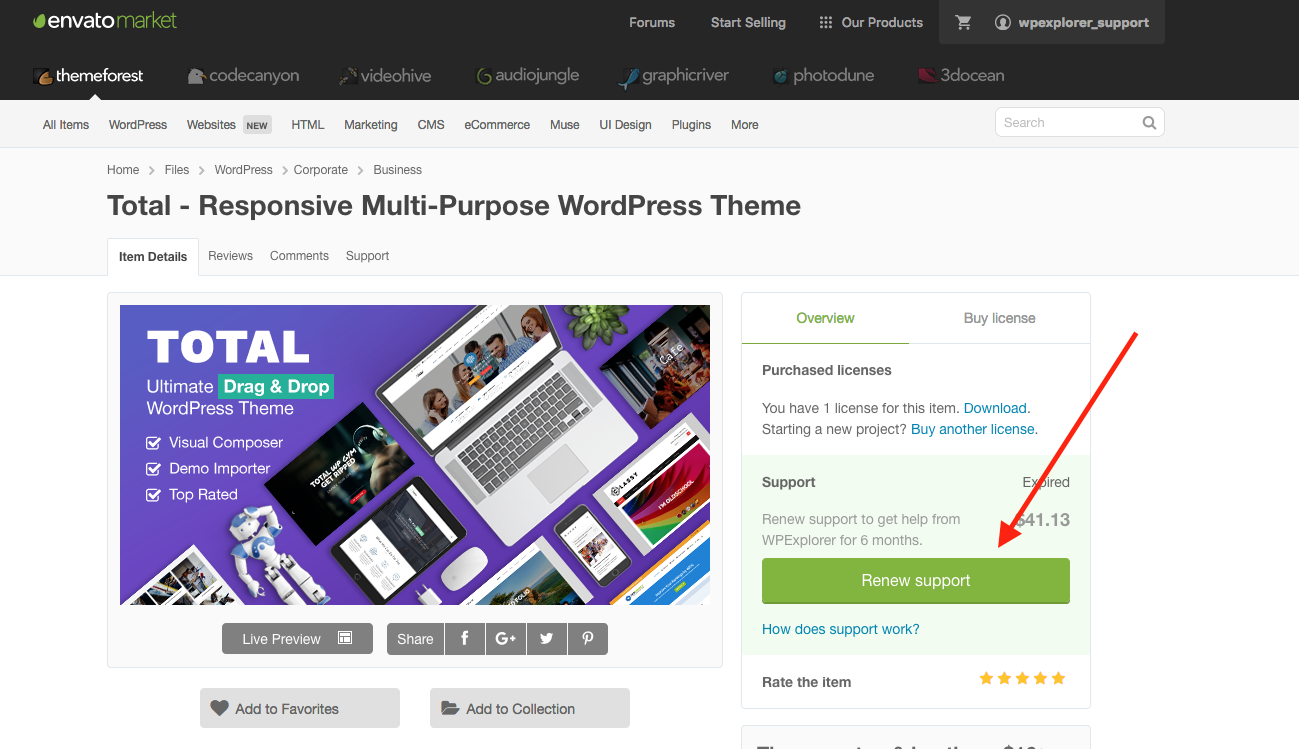
Hi AJ, I used the button on this page to renew my support for a year. I would use you item support and submit a ticket but I don’t think my purchase has propagated to your system.
The purchase ended up include another license. I already have two licenses. I am wondering how I void this third license. And because this has happened before (hence, two licenses), how do I renew support without purchasing a license?
Thanks
Hi,
If you had previously logged into the ticket site and then renewed support you will need to click the “Refresh” button – https://a.cl.ly/L1ulwXGr – that’s because I cache user’s purchases on my end to prevent sending requests to the Envato API every time a user visits my site.
I logged into my site and I can see that your data was cached and it was showing March 23, 2025 as the end date for your support license. I refreshed it manually on my end – it’s now showing June 11, 2026 but it is also showing an extra license as you mentioned.
If you only want to renew your support license you need to click the correct button, which looks like this: http://totalwptheme.com/docs/wp-content/uploads/sites/51/2017/09/support-license.png (it says “Renew support”).
It sounds like instead you’ve purchased a new license. So you have 2 options:
1. You can submit a refund request for your latest purchase – http://themeforest.net/refund_requests/new – and I’ll accept it.
2. You can use that license on another website if you have one or give it to a friend for use (they’ll only be able to activate the theme though, not request help).
If you request the refund, I will accept it and then if you want to renew support only you can accordingly. I’ve never purchased my own support license so I don’t know exactly how it works, but I would imagine it would say something different in the cart, such as “Support License” not “Standard License”.
- AJ
Hi AJ
Mega menu question.
Re its behaviour on mobile.
Using the “sidebar” mobile menu.
When you tap the column header text, it does not reveal the menu items within. You have to tap the down arrow. Can it be amended to tapping the text behaves in the same way as tapping the arrow?
The “full screen overlay” works like that – you can tap the header text and it reveals the menu items. But the sidebar does not.
Hope I’ve explained it OK!
Thanks
James
Hi James,
If the parent menu item has a link then you must click on the arrow, otherwise the user can never access the link from the parent. If you want the whole item to be used for the toggle effect you need to use the theme’s nav-no-click class: https://totalwptheme.com/docs/adding-non-clickable-menu-links/ – this will remove the link on mobile around the text and add the toggle effect to the whole link.
Alternatively, if you use the Header Builder – https://totalwptheme.com/docs/header-builder/ – the Off Canvas element, which you would use for mobile is actually a more optimized menu and uses the modern summary element for the “Toggles” which means it’s done by the browser and not javascript and the whole header is clickable – https://totalwptheme.com/elements/off-canvas-menu/ (I can’t change the default Sidebar mobile menu to use the summary element because it would completely change the HTML and break user’s customizations when updating the theme).
- AJ
Correction: Using the nav-no-click doesn’t remove the link, but it applies a -1 tabindex so it can’t be accessed by screen-readers and it makes the toggle 100% wide so it’s on-top of the link.
Ah – adding the no click class had the desired effect! Was confused why the full screen overlay behaved like that without the class though, but never mind, I got what I wanted. Nice.
The reason the full screen menu behaves this way is because it doesn’t have arrows.
- AJ
Hi AJ
I am trying to use a different logo on mobile, and have used this snippet:
https://totalwptheme.com/docs/snippets/mobile-logo/However it’s not working, the mobile logo is appearing on desktop as well, beneath the regular logo – rather than just from the breakpoint. The regular logo is being hidden at the breakpoint, that bit works – the issue is the mobile logo is appearing all the time.
Also, there is no link to home on the mobile logo.
Screenshot: https://ibb.co/cc9Fdm2VIt’s header style 5.
Thanks
James
Hi James,
Sorry, the correct filter should be “totaltheme/header/logo/image” not “totaltheme/header/logo”. I tested with that change and it works perfectly.
I’ve updated the snippet – and made a few other changes to use newer theme functions. Please have a look at the updated code.
By the way…I’ve updated the filter as well for the next version of the theme so that the image attributes are available in the hook. If you want you can manually update your site by editing the file at Total/inc/header/logo.php and changing line 497 from:
$img_html = (string) \apply_filters( 'totaltheme/header/logo/image', $img_html );
to:
$img_html = (string) \apply_filters( 'totaltheme/header/logo/image', $img_html, $img_attrs );
This way you can access the attributes in the hook like such: https://gist.github.com/wpexplorer/e48e94f888b3cedc5dab09f6169f46bc
This is more efficient and ensures all attributes are applied to the logo (such as width, height and fetchpriority).
- AJ
edit: My last snippet got messed up by ThemeForest comment formatting, so I updated the comment with a link to a public Gist. And I will update the snippet as well.
ps: Keep in mind that even hidden images are loaded by browsers – so the desktop and mobile images will always be requested. If speed is a concern, using the same logo across all devices is best.
Thanks AJ but I applied those changes and the issue is still there.
I am using 6.3 … I don’t think 6.4 has been released?
CAn you check I got the code right? Here is the amended file, line 497:
https://ibb.co/VpJ8KfwcAnd here is what I’ve put in functions.php:
https://ibb.co/VpkGJZJGThanks!
This should definitely work, I’ve tested locally on version 6.3 and it does.
Can you share the URL so I can look? Is should be able to see what’s going on just by inspecting the site.
But you can also submit a private ticket with the logins so I can have a look – https://my.totalwptheme.com/
- AJ
ps: I mentioned using the Header Builder in your latest comment, if you use the header builder then you can also define your mobile logo without any code, because you would be creating a row for desktop and a row for mobile anyway.
Hi AJ – I just submitted a support ticket – thanks.
Fixed it and replied back.
Hi AJ – I sent you a reply back – it works perfectly – thank you! – but I was also wondering how I set a retina logo, given this is for mobile. Thanks.
Strange, I haven’t gotten a reply back. If you sent it recently, maybe there is a delay (I use HelpScout for the tickets).
For retina you would simply need to define a new srcset attribute, example:
function my_header_logo_attrs( $attributes ) {
    $attributes['src'] = 'LOGO_URL';
    $attributes['srcset'] = 'LOGO_URL 1x, RETINA_LOGO_URL 2x'; // !!!! ADD THIS LINE !!!!!
    return $attributes;
}
add_filter( 'totaltheme/header/logo/image_attributes', 'my_header_logo_attrs' );
- AJ
ps: Obviously don’t include ”// !!!! ADD THIS LINE !!!!!”
I forgot to mention, you will want to also define $attributes[‘width’] and $attributes[‘height’] – since they are going to be different to the logo you are showing on desktop. I’ve already logged in and done this for you
HI AJ
Just got round to adding the retina code, but I don’t think it’s working. Looks like the “standard” logo is still being shown on retina enabled devices.
Here’s the code:
function mc_mobile_logo_attrs( $attributes ) {
$attributes['src']    = '/wp-content/uploads/2025/07/melior-mobile-logo.png';
$attributes['srcset'] = '/wp-content/uploads/2025/07/melior-mobile-logo.png, /wp-content/uploads/2025/07/melior-mobile-logo-retina.png';
$attributes['width']  = '182';
$attributes['height'] = '36';
return $attributes;
}
add_filter( 'totaltheme/header/logo/image_attributes', 'mc_mobile_logo_attrs' );
Your srcset is missing the 1x and 2x which tells the browser what the images are for.
$attributes['srcset'] = '/wp-content/uploads/2025/07/melior-mobile-logo.png 1x, /wp-content/uploads/2025/07/melior-mobile-logo-retina.png 2x';
And if you really want you can make a larger 3x image and add it to the list:
$attributes['srcset'] = '/wp-content/uploads/2025/07/melior-mobile-logo.png 1x, /wp-content/uploads/2025/07/melior-mobile-logo-retina.png 2x, , /wp-content/uploads/2025/07/melior-mobile-logo-retina-3x.png 3x';
But it’s often not necessary, the 2x usually looks pretty good.
- AJ
Great – thanks.
Hi AJ.
Hope you’re well.
It appears the Video element is not working for unlisted Vimeo videos. They display if using their native iframe embed, so something is up.
Would you mind taking a look as we have dozens of videos that now won’t display.
Hi,
Yes, please share a URL (always share the URL if it would be helpful so I can help right away).
According to the Vimeo docs – https://help.vimeo.com/hc/en-us/articles/12426199699985-Overview-of-video-privacy-settings – when your video is unlisted the only way to embed it on a site is by using what they call a “privacy hash”, without this the video won’t play.
This means if you had previously added a videos to your site that were public, you will need to edit those elements to use the correct URL with the privacy hash.
So you need to add the privacy hash to the URL.
That said, when using the Video element the theme uses code like this:
if ( ! str_contains( $url, 'player.vimeo' ) ) {
   $video_id = (int) substr( parse_url( $url, PHP_URL_PATH ), 1 );
   if ( $video_id ) {
       $url = "player.vimeo.com/video/{$video_id}";
    }
}
To parse the URL and locate the video ID so then create the Embed URL, with your custom parameters. Unfortunately this code will strip the privacy hash. So I’ll need to think of a better method for the code.
It’s possible the theme wasn’t using this code before and so updating the theme has introduced the issue. I would need to know if your videos have always been unlisted and worked with the Video element to confirm if that’s the case.
If you wish email me directly at wpexplorer [at] gmail dot com – it may be easier to troubleshoot this via email and if I can have access to the site to test. Plus, it would be good for me to have access to some unlisted videos so I can test and update the theme accordingly to work with the direct URL’s without you having to use the player.vimeo.com url.
Thanks!
- AJ
Hi AJ.
I am about to sleep (2am) so will revert to email tomorrow to discuss further (if needed). I’ll at least send a few listed and unlisted to play with.
But, I have done a lot of testing with this over the last few hours. It is indeed the theme stripping the hash causing the issue. There is nothing I can do to get the element to retain it.
This is a new build site with data imported from a different theme (not using vc), so cannot say if it is a new issue.
For the time being I got Mr GPT to convert the 107 elements in to a csv and imported in to a CPT, which I’ve set to just use ombed in a custom card. It works, but is obviously not ideal.
Can you confirm if the videos were not previously unlisted, which means you have to go in and edit the Video elements to add the privacy hash?
The reason I ask, is because if your videos were public before, then you would still need to update the Video elements to include the privacy hash in the URL.
I’ve already created a Vimeo account and uploaded an unlisted video to test and updated the theme for the next version to support the privacy hash.
If you want to try the update I can send it over via email or you can edit the file via FTP at Total/inc/functions.videos.php
Change lines 42-47
From:
if ( ! str_contains( $url, 'player.vimeo' ) ) {
    $video_id = (int) substr( parse_url( $url, PHP_URL_PATH ), 1 );
    if ( $video_id ) {
        $url = "player.vimeo.com/video/{$video_id}";
    }
}
To:
if ( ! str_contains( $url, 'player.vimeo' ) ) {
    $parsed_url = parse_url( $url );
    if ( isset( $parsed_url['path'] ) ) {
        $path = trim( $parsed_url['path'], '/' );
        $parts = explode( '/', $path );
        if ( ! empty( $parts[0] ) && is_numeric( $parts[0] ) ) {
            $url = "player.vimeo.com/video/{$parts[0]}";
            // Check for and add privacy hash
            if ( ! empty( $parts[1] ) && preg_match( '/^[a-zA-Z0-9]+$/', $parts[1] ) ) {
                $url .= '?h=' . sanitize_text_field( $parts[1] );
            }
        }
    }
}
- AJ
Forgot to mention…The theme’s Video element also supports setting type=”oembed” instead of type=”vimeo” or type=”iframe” so if you did want to use the theme’s Video element but return an oembed video you can.
They were not previously using the element, and have always had the same privacy.
I ended up using oembed just to cover all bases.
May I actually suggest that rather that the user needing to select YT/Vimeo, it automatically recognises.
Case. I have a CPT where the user entered Title and vid URL.
In the custom card, you need to separate elements to cover this.
(NB: I’ve been using Total for nearly 11 years, so have a chunk of ides  )
)
Hi,
Gotcha, I thought you already had the video element added on the site and the videos were public but then changed to unlisted. It all makes sense now
I’m confused by “May I actually suggest that rather that the user needing to select YT/Vimeo, it automatically recognises.”
I assume you mean your post type has the video URL inserted into the post content, is that correct? If so, this doesn’t make much sense. If your post type is just going to have a video URL in the content, it would make much more sense for the video to be in a custom field and have the post content disabled for the post type.
It would be a lot easier for me to understand what you mean if you can share a screen capture of the setup, thanks!
Feel free to share your ideas, often though customers that have been using the theme for a very long time will send me emails with their ideas and most already exist in the theme they just didn’t read the changelog to see when the feature was added.
At this point, Total can do pretty much everything it needs to do (while still keeping the theme fast and optimized) – right now my primary focus is on creating new/better demos. Of course I’m always open to feedback and if adding/changing something in the theme makes sense I will definitely consider it. The upcoming Total 6.4 has some cool new stuff – https://totalwptheme.com/docs/upcoming-update-changelog/ – hope to release it by the end of the week.
- AJ
Hello AJ, I’ve installed the latest version of the theme. Unfortunately, I can’t find the “Form Shortcode” element in the builder, which was in the previous version of the Theme. How can I restore it?
Also, I just installed the “Consultative” Demo. I can’t find the Theme Settings section on pages (where iI can modify header, title, callout etc..). Can you help me restore the Theme Settings section?
Hi,
Form Shortcode:
The Form Shortcode is disabled when you are using WPBakery Slim Mode – https://totalwptheme.com/docs/wpbakery-slim-mode/ – as it’s an old element that isn’t really needed anymore. You can disable WPBakery Slim Mode so you can use it or you can whitelist it and keep slim mode enabled via a little custom code:
add_filter( 'vcex_shortcodes_list', function( array $list ): array {
    $list[] = 'form_shortcode';
    return $list;
}, PHP_INT_MAX );
The Form Shortcode is only used to display 3rd party forms and then apply custom form styling. But it’s best to control your form styling globally via the Customizer – https://totalwptheme.com/docs/styling-forms/ – and if you want to insert 3rd party form shortcodes, just use the Shortcode element instead.
Theme Settings Metabox:
I’ve been disabling the Theme Settings metabox on new demos because I’ve found that customers often will use those settings in ways that aren’t recommended. Plus, this feature is not needed for most websites.
You can re-enable the feature in the Theme Panel via the “Theme Settings Metabox” option, if you believe you absolutely need it.
Websites should have consistent design and functionality – if you are using the Theme Settings to do things like modify the header, title, callout – often this causes inconsistency as well as a lock-in effect, where the only way to change these is by manually updating the pages again. I would encourage you to instead use the Customizer and Dynamic Templates to define your global styles, layouts, etc for different aspects of the site – this way you can always control them globally.
Let me know how you intend on using the Theme Settings Metabox, so I can provide a better alternative.
- AJ
Hi, thanks for your answers. - Form shortcode: I disabled WP Slim mode. In fact, I need to change the layout of each individual form, and this was the only way. - Theme settings: I need to individually change the page title, via images and custom titles. Therefore, I cannot use the Customizer because each page layout is different. Let me know if you have a better alternative. Thanks
If each page has a different title, images, etc – it makes more sense to just disable the title globally under Customize > General Theme Options > Pages > Page Header Title – then just insert whatever you want for the title directly into WPBakery. Sample video: https://a.cl.ly/nOurrx4x – this will give you way more control anyway of the design at the top of each page.
I recommended disabling the title only for pages – but you can also disable it globally on the whole site under Customize > General Theme Options > Page Header Title > Style > Hidden – just keep in mind it will be removed everywhere (archives, search, post types, etc) – so you would need to make sure you create dynamic templates for archives/search and other parts of your site that include a title area – https://totalwptheme.com/docs/dynamic-templates/
- AJ
By the way if you only need the Form Element I would highly recommend keeping Slim Mode enabled then using the suggested code snippet to re-introduce the Form Shortcode element:
add_filter( 'vcex_shortcodes_list', function( array $list ): array {
    $list[] = 'form_shortcode';
    return $list;
}, PHP_INT_MAX );
This will keep your site faster and more optimized.
- AJ
Thank you for your advices, AJ. Best regards
By the way, I’ve tried to insert your custom code on CSS, but the Form Shortcode element didn’t show.
This code isn’t CSS, it’s PHP, in fact it could potentially break your site if you add it into the CSS field, so be sure to remove it.
The snippet would be added in your child theme functions.php file (if you are using a child theme) or you would use a “Code Snippet” plugin (there are many free ones).
- AJ
Ever since the last theme upgrade (6.3), the Portfolio and Testimonials sections on my site, no longer work. Pages with Portfolio and Testimonial blocks, just show the JS Composer code. I’m running the latest version of WPBakery. Is anyone else experiencing this?
Hi,
This is AJ the theme author.
It sounds like WPBakery Slim Mode was enabled on your site – https://totalwptheme.com/docs/wpbakery-slim-mode/ – and your site is using older elements.
Slim Mode is never enabled by default or with an update, but it will be enabled if you import certain demos as I have it enabled on most newer demos to keep them faster.
But I also add a notice under Tools > Site Health to recommend enabling Slim Mode, so perhaps someone saw that and enabled it on the site.
Can you check and see if that’s the issue? If not please let me know so I can further investigate!
Now, if the issue is related to WPBakery Slim mode and want to make use of the functionality you have a couple options:
1. You can replace the elements that re removed when Slim Mode is enabled with alternatives (like the Post Cards to display testimonials/portfolio items).
2. You can re-enable certain elements you are using on the site via a little custom code. There is a sample snippet in the docs, I linked to above.
- AJ
That was it! Thank you AJ!
Hi AJ,
Can you advise whether it’s possible to recreate the hero layout from this website?
https://www.portofdover.com/Thanks, Paul.
Hi Paul,
This hero section is a slider. So you would use a plugin like Depicter (free on WP.org and I my recommendation) or Slider Revolution (included with the theme).
Slides are such an advanced functionality and most the time people want each slide to behave differently, so this functionality is generally best done via a plugin instead of bloating up a theme (many slider plugins have much more code then the Total theme itself).
Now, technically you could do it without a plugin using these 2 theme functions:
1. Using the Post Cards and creating a custom post type named “Slides” to add your slides to. Ideally using custom fields for the data (title, excerpt, button link, image) – https://totalwptheme.com/docs/how-to-add-custom-fields/ – And then create a custom card for the layout/design – https://totalwptheme.com/docs/custom-card-builder/
2. You could add a section on the page with a row for each slide and then use the theme’s Toggle functionality to create the buttons to go through each slide – https://totalwptheme.com/docs/toggle-elements/
Where you may have some trouble if you try creating this layout using WPBakery is making the image extend out to the side. On your example site, this is done by inserting an image then positioning it absolutely with a fixed width: https://a.cl.ly/jkuBjGby. WPBakery doesn’t allow for absolute positioning inside the builder as it can create a lot of issues when trying to move items around or clicking on them to edit them. Thus, it will require custom CSS to achieve the same sort of extended image to the side.
I’ve added to my to-do list the idea of creating a new element specifically for left/right layouts where the image can extend beyond the container edge. I will look into updating the existing Feature Box element -https://totalwptheme.com/elements/feature-boxes/ – to support this functionality (if possible)
I think having a simple left/right text and image element, where the image can extend to the edge of the screen would be very useful for a lot of users.
- AJ
ps: For modern websites sliders are generally discouraged due to accessibility, usability, site speed and SEO concerns. I would recommend using a static hero section only.
Hi AJ, is it possible to export/import a website’s post categories?
WordPress doesn’t have the ability to only export categories, you would need to use a plugin such as – https://wordpress.org/plugins/wp-all-export/ – or export/import it directly from the database.
Hi I want install at sub domain, the license just valid for main domain.
How to install on sub domain? Thank you
HI,
Correct, you will need to purchase a separate license for the separate domain.
- AJ